
Tiger Tales: Dashboard
Aside from Spotlight, the other headlined feature of Tiger is Dashboard. If you know about Konfabulator, then you should understand Dashboard. Essentially, Dashboard is a place for widgets, which are mini-programs. You hit the shortcut key (you decide which), and the desktop goes dark while a layer of colorful, 3-D-ish little gadgets zoom in to cover the screen. These are limited-purpose, minimally-sized simple programs that perform a simple function–clock, timer, calculator, measure converter, weather forecast and so on. Stuff too small to really merit a full-sized program.
Many say that Apple ripped off Konfabulator, and it’s hard to argue with them–the concept is nearly identical. But then again, others argue that Apple had the idea first, and they were called “Desk Accessories.” If you’ve used Macs since the 80’s, you know what those were, but essentially they were indeed the same concept–little mini-programs very similar to widgets. Maybe that’s how Apple is able to avoid litigation from Konfabulator–they could easily sue them right back on the same charge. As a user, I can’t complain too much–Konfabulator costs $25, and with Tiger, it’s part of the system (and probably better-integrated), but many say that Apple will have a harder time getting people to make good 3rd-party apps if they take those ideas and integrate them into the system like that.
All that aside, Dashboard is a nice thing to have. Hardly essential, not exactly ground-breaking, but a fun and useful toy. This is what it looks like in use:
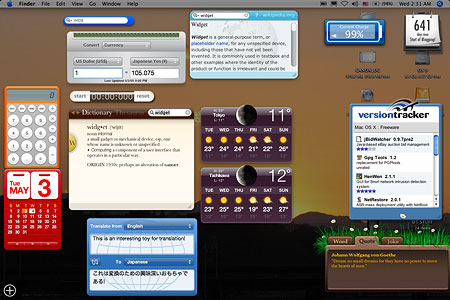
You’re just happening to look at the widgets I’ve decided to use full-time. You get started out with a dozen or so, but there are 150 different ones available on the widget developer site, with new ones appearing every day. Apple has a list, but it’s not as complete. (Note: when I download them in Safari, they get automatically placed in the correct folder in my Library–a nice touch.) Many of the widgets will be useless to you, unless you happen to need to know the traffic conditions in Houston, train schedules in the United Kingdom, or how to say “armpit” in Norwegian. With time, hundreds more will come out, and eventually you’ll be able to build up a really good set.
How does it work? I set mine to appear with the F11 key. Just press it an zoom, it’s there. How do you open new ones? You don’t have to go to the Widgets folder and double-click, instead just activate the Widget bar (click on the little plus-sign in a circle at the lower left corner of the Dashboard screen), which pushes its way up from the bottom of the screen.
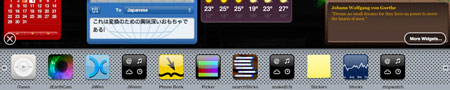
Click on one of the widgets in the bar, and it’ll open, and stay open till you close it. To close a widget, you can click on the little close button at the top left of the widget, which is visible when the widget bar is open, or when you hold down the option key.
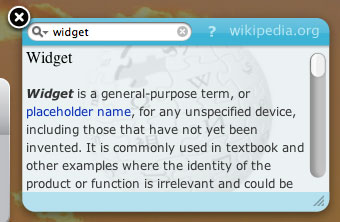
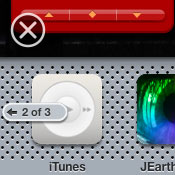
If you have more widgets than fit on the bar, little buttons appear on either side to prompt you to see the next batch. When you’re finished with the widget bar, click the “x” in a circle above the bar and to the left.
Most of the widgets can have options set by looking at the “back” of the widget. The widget should show a little “i” in a circle in one corner; click on that, and with a very cool 3-D effect, the widget turns around to show the options, if any. Some widgets can change in size as well, depending on their function. Take the common weather widget, for example, one of the Apple standards. Here’s a little animated GIF to show you how it works:
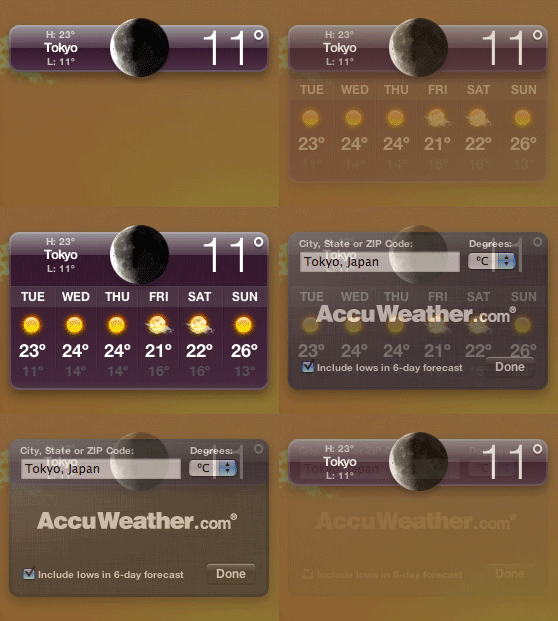
The initial image is of just the basic bar, showing current weather conditions. Next, if you click the middle of the bar, the 6-day forecast drops down. And finally, on the back, you can set the city the bar is for and whether it shows in Centigrade or Fahrenheit.
When you’re finished with widgets, you can make them go away in one of three ways: hit the key you designated to open them, hit the “escape” key, or just click on any window or the Desktop visible behind the widgets.
As I said, not a must-have item–but it’s handy, fun, and cool.
This is really a great interface, make me remember the first linux i ever installed on my old computer. This look great for the future of Apple and Tiger is the way to go for them