
Tiger Tales: Spotlight, the Basics
Another new Tiger feature is Spotlight, and this is really the star of the new OS. This is the blazing new file search feature that’s supposed to make it incredibly easy to find any file on your computer. And from my use of it over the past few days, I’d say it both does and doesn’t make it easier. But the “does” part is much more significant than the “doesn’t.” Any system to find files is bound to have drawbacks, but overall, Spotlight is a big improvement over old search methods.
A Spotlight search begins with the new spotlight icon at the far right of the menu bar (pushing aside the account switching menu, not shown here). Click on the Spotlight icon (or use the configurable command key), and a search bar appears.

Type in your search term, and a menu will appear, showing the search results. I use an 800 MHz G4 Powerbook, so it’s not lightning fast–a dual-processor G5 PowerMac might show instant results, I don’t know. But this is what your results look like:
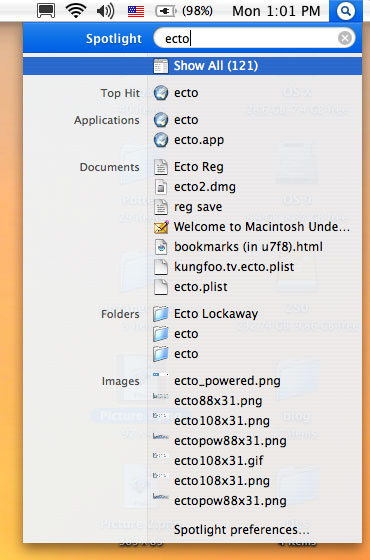
Here’s where some of the negative points about Spotlight come into play. First, it’s difficult and sometimes impossible to confidently choose any of the items in the menu before the search is dome. On my computer, a full search takes about 6 or 7 seconds, but before that’s finished, the list is constantly jumping and shifting due to new items being found and added. Still, 6 or 7 seconds for a full search is not bad at all, and my Mac is relatively old and slow. If I had the latest powerbook, it would likely be only 3 or 4 seconds; a PowerMac G5 would likely cut that down to 1 or 2 seconds.
The other problem has to do with choosing an item from the list. From this menu, the only thing you can do for any specific file is to open it. You should be able to right-click on any item and then choose to open it, view it in the Finder, or get info on it. Maybe that’s impossible to do in a drop-down menu, but if it is possible, that feature should be added in the future. So, if you don’t want to open one of the files you see, you have to go to “Show All,” the item at the top. This will open a window displaying the results in a more manageable fashion. This is something you can do at any time–you don’t need to wait for the search to finish.
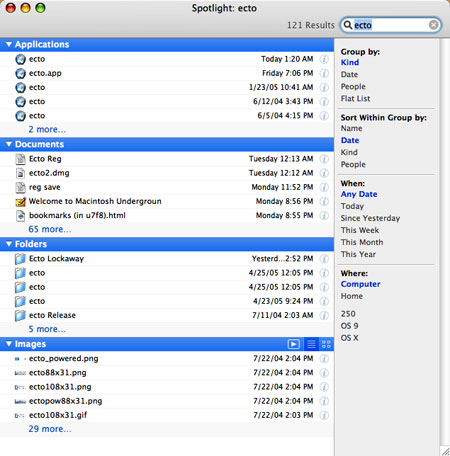
The results are here divided into categories, such as applications, folders, documents, images, music, fonts, and so on, each category showing five results each. You can exclude categories from your searches in the Spotlight preferences pane. (You can also group into categories by file author, date, or just display as a plain “flat” list.) Each category can be minimized to its title bar, or expanded to show all results. They can be sorted by name, date, kind, or “people,” and limited by time frame or volume location. They cannot, however, be sorted by size–something I regard as a glaring omission.
A big feature of Spotlight is that it indexes and searches not only file names, but the contents of all those files as well. This is great, but the problem is that you can’t limit it to a filename search only, unless I missed something. Which means that every dictionary file, text database and probably email archive will dominate the results of any search, flooding the results to a degree that makes it hard to find the file you want. Although you can’t turn off the contents search, you can exclude certain folders from searches using the Spotlight preferences pane. In the preferences, if you go to the Privacy tab, you can select folders that will not be included in any spotlight search. I had to find all of my mail archives and dictionary files and exclude them in order to make it work well. (If you use Apple’s Mail app, those results will show in a different category group and won’t pollute the documents results–but I use Eudora). That helps, but it would be better for Apple to allow you to choose file names, contents, or both in any search.
The content search does help in other ways. Now that you have it, you can tag special files by making notes that spotlight can see. This can be done through the Get Info window:
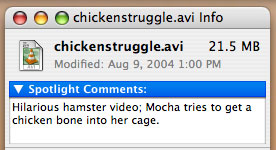
These comments allow you to single out a file by using keywords. However, the drawback is that it takes a bit of effort. You cannot select multiple files and add a single Spotlight comment to all of them in the Get Info window (another oversight by Apple, they should add that ability), and if you take thousands of photos a month, obviously it would be ludicrous to try making comments in all of them. This is for specific files you will especially want to find in the future.
 Back to the “Show All” window. Note in the illustration I presented when introducing this window that each item takes up one line and gives limited information. A little hard to see is a ghostly “i” for “info” icon at the right of each line. Click on that, and Spotlight will expand the item to show a more detailed icon and basic information for the file.
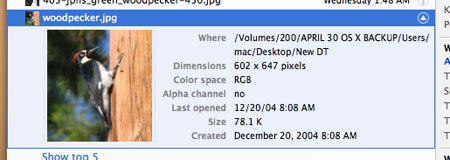
Furthermore, by right-clicking (control-clecking for those of you who still use one-button mice) on any item, you can choose from several commands, including “Reveal in Finder,” which allows you to see the file instantly. This is what should be added to the initial Spotlight search menu, if possible.
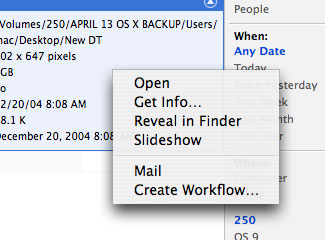
 Another feature is for images. The blue title bar for the images grouping has three icons at the right, allowing you to choose how to display the images: as a slideshow, a list, or by thumbnails. Thumbnails are nice, but if you have a lot of images, it takes a while for the Finder to generate them all. The slideshow, however, provides a good way to get a very detailed look.
Opening one or more images in slideshow is possible. Either will allow you to see the image at actual size or fit to screen, with a black background that occludes the desktop. You also always have the option of adding the image to iPhoto (but there is no option to send the photo to any other application–perhaps not an oversight by Apple, but that should be changed). But with multiple images, you have more options.

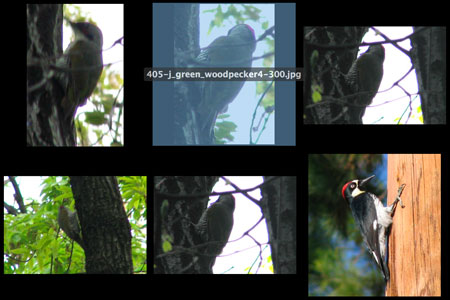
Here’s one result from a search for images of woodpeckers. Before I started the slideshow, I selected all six images I found. Note the control bar at the bottom:

The choices are, from left to right: back, play/pause slideshow, next; index sheet; actual size/fit to screen; add to iPhoto; and close. If you choose the Index Sheet, you will get an Exposé-style choice of all the photos; choose one, and it will show in the player. This is a nice option to have handy.
There is more to Spotlight, and I may touch on those other features later, but these are the basics. As I’ve noted, there are some down points–the time it takes to finish on older computers; the inability to get info on any item in the initial Spotlight menu, to sort by date, or to search by filename only, among other smaller nits. But the plus side overwhelms that: an extremely fast search method which allows you to flexibly sort and manage huge amounts of data to find what you’re looking for. If search features like this are important to you, then Tiger may be an essential upgrade.
hi! Thanks for a nice googleable review.
My issues with Spotlight are;
1.too slow on a G4 powerbook
2.I think it is using up CPU and especially memory space RAM (kernel-task =856MB VSize) (mds hogs CPU at various times, such as in eudora).
3.when accessed from finder,
3a.you get a spinning beachball that hangs finder
3b.you can’t get the “show all”
4.I wholeheartedly agree that the presentation layout is not very useable. Where is my preview? Where is the ability to easily rename? This should _be_ a finder.
Anne
It seems that if you search using the search bar in the finder using quotation markes the results only hit filenames.
Man, I’m so frustrated with the Spotlight feature! I have a 1Ghz G4 PowerPC and 10.3.9 was a dream compared to this.
Tried clean installs; the works.
I do the simplest search and instant beach-ball and Finder hangs. The most aggravating thing is there is no way to turn off the search until i get all the parameters typed in/chosen by drop down menus. So if I want to search for a MS Word document, I search by KIND and the minute I type the letter “M” Spotlight is busily searching all my hard-drives trying to pull up a list of 20,000 files. Meanwhile, I am locked out of Finder and unable to finish the phrase and end up doing force quit just to get functionality back on my machine.
This is the first OS X upgrade that I have come to hate as Finder being so sluggish has dropped my productivity down to nothing. (And I’ve been a Mac user since the Apple IIGS).
I feel like I’m being conned into getting a GS Tower just so the processor is fast enough to deal with spotlight.
Mike
Mike:
that sounds bizarre. The only thing I can figure is that Maybe you were given a faulty DVD–not faulty enough to crash all the time, but faulty enough to cause your problem. I’m using Spotlight on an 800 MHz DVI Powerbook, one or two steps below yours, and yet it works fine, if a tad slow (6 or 7 seconds for a search).
Do you live near an Apple store? If you do, take the machine in and show it to someone at the Genius Bar. If not, try calling Apple support and getting help on that issue.