Archive

Archive for July, 2008

Where’s the SoftBank?

July 15th, 2008 1 comment

Today, I demo’ed the iPhone for my two sections of Introduction to Computers (the iPhone is, after all, a computer–that’s my excuse for showing off), and the students were appropriately wowed. I set up a routine to go over the major features one by one in about 20 minutes. There were a variety of gasps and ‘wow’s at various times, and for the most part, the reaction was very positive. They loved the map feature (it usually is the star attraction), and were appropriately impressed by the iPod music and video features, as well as the browsing and App Store features.Ipint Img

To wind up the presentation, I showed them a game which is mildly interesting to play, but great for showing off: iPint (iTunes link), a game where you use the iPhone’s accelerometer to guide a beer down a bar to the waiting hands of a drinker. When you get to the end, the iPhone simulates a mug of beer filling up, and the liquid sloshes when you turn the phone. Then you put the iPhone’s top edge to your lips and tilt it like you would a glass you are drinking from, and it gives the illusion of drinking beer out of the phone. A good finish, and the classes applauded enthusiastically.

Before each presentation, I wanted to find two SoftBank users in the class; I thought we’d try a three-way call and see the image-and-ringtone presentation when calling, and SoftBank users can call each other for free. SoftBank has some 20% of the Japanese market, so out of 30 students I expected five or six to have SoftBank–more, I thought, as many parents pay for the cell phones and they might want that family free-dialing plan SoftBank offers. So I asked… and got nothing. Most were DoCoMo users, most of the rest Au, and a few were Willcom. Not a single SoftBank user among the lot.

When I asked why, the response was pretty clear: for these students, SoftBank was too expensive. Not the monthly plan–SoftBank’s 980 yen White Plan is about as cheap as plans get–but the per call cost. If you go over your limits, the students told me, it costs 42 yen per minute to call using a SoftBank phone, but other providers have lower rates, such as 28 yen per minute. Or so I was told by these students. The White Plan also has no free minutes.

That works out fine for me, as I don’t do an incredible amount of calling, but it doesn’t work as well for these young kids, who make lots of calls. Still, the lack of a single SoftBank customer among the crowd very much surprised me. An overlooked market for SoftBank?

Addendum: I noticed that the Japanese iPhone commercials–by Apple, not SoftBank–have started showing. SoftBank still peppers the airwaves with their ads, but none for the iPhone.

Categories: Focus on Japan 2008, iPhone Tags:

Mobile Me Pricing in Japan

July 14th, 2008 2 comments

It looks like I’m going to get Mobile Me in Japan. Two reasons: first, I’m in Japan. But second, in a reversal of usual policies, this particular Apple product is actually cheaper in Japan than it is in the U.S.

In the U.S., it’s $99. In Japan, it’s ¥9800. That $92.40 by current exchange rates (the U.S. price comes out to ¥10,540). I can only suppose this is due to the psychological effect of pricing just below the next added digit.

Which in itself brings up an interesting point: in American, stuff ends with a “9” in that sales technique–$99, or $0.99, or $9.99. In Japan, however, it’s very often “800”–¥4,800, or ¥9,800, for example. Interesting. Why is that?

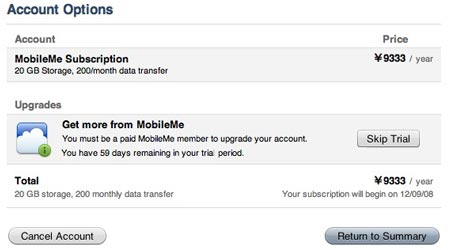
Update: Don’t know why, but the plan is priced even lower–¥9333 ($87.70)–inside the Mobile Me account under my “Account Options” (see below). Though, I could swear I heard of a $60 deal for the first year if you got it with your iPhone. Is that only if I buy the iPhone directly from Apple? I’ll have to check on that…

Mobile Me Pricing

Categories: iPhone Tags:

Not Adding Up

July 14th, 2008 Comments off

Something’s not right here, that’s for sure. Piper Jaffray in the U.S. has estimated that over the weekend, no more than 9,000 iPhones were sold in all of Japan.

However, it is pretty well established that there were more than 1000 people in line for the iPhone on the first day in Omate Sando; that Bic Camera and Yodobashi Camera each had 1,000 units, and both sold out. Right there we’re talking about more than three thousand iPhones.

Then there were roughly 2,700 SoftBank stores around the country selling iPhones. I know the one I went to–one of at least half a dozen in Ikebukuro, not even a very big shop–had at least 70 iPhones, as that was where I was in “line” and they probably sold more than that. But somehow, those 2,700 shops only sold three iPhones apiece between them? Somehow that doesn’t quite add up right.

We’ll have to wait for some slightly more official sales figures to come out, it looks like.

Update: As I thought: Apple has released the official numbers, and they did sell a million iPhones as was intended, not the 425,000 the analysts projected.

Categories: iPhone Tags:

More iPhone Impressions

July 13th, 2008 1 comment

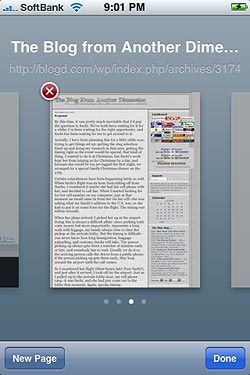
Iphone Safari 01I’ve had a bit more time to play around with the iPhone, and I have both positive and negative impressions to report. Overall, the impressions are positive, because I very much like this little machine–even though I am still in the process of getting set up and used to stuff. I just need more time to enjoy it fully, is all. I’d start taking the train as a way of having time to watch videos and stuff, except that where I’m located, the train trip wouldn’t take long enough! It’s also a temptation to use it more often, to make calls and get calls.

The negatives: missing features. Why haven’t they implemented copy and paste? That makes no sense. Another huge time-saver would be to implement (or allow a third-party hack for) auto text replacement–like “AutoCorrect” in MS Word, you type in a code and is automatically swaps it with a longer text string. I know I would use that quite a bit. You could, essentially, create your own shorthand and type stuff a lot faster and easier.

And when I come to think of it, where’s the universal landscape keyboard that everybody has been clamoring for since the iPhone first came out? There are universal keyboards in some apps (Safari being the most commonly used), but most other places, you have to deal with the narrow keys.

The Email app is perhaps the most troublesome in terms of missing features. You cannot mark multiple emails or all email in a mailbox as “read”; instead, you have to view each message before it will disappear from the number count. As mentioned before, the lack of a spam filter is pretty huge, and not being able to turn off inline images is downright reckless. Not being able to selectively disable incoming/outgoing mail is a bit disappointing as well.

For another setting: what use is the wallpaper if you only see if for two seconds as the phone starts up?

Also frustrating is what Apple has done with its site: they have shot down the Search feature in the discussion area, which renders the site mostly useless, instead of being a gold mine for solutions. What the hell are they thinking?Iphone 0708 01

Okay, so it’s building to a fair list of annoyances–but they are mostly minor stuff, or stuff I can learn to live with okay. Nothing’s gonna be perfect, especially at version 2.0.

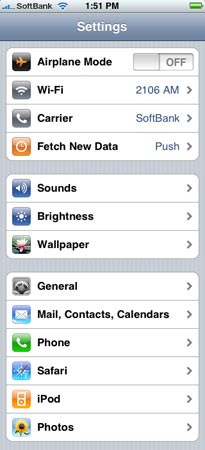
In the “good stuff” category: in the Settings “control panel” area, there are some useful settings to know about. The “Fetch New Data” setting allows you to switch the phone from getting your email only when you enter an account in the Mail app, to checking your email every 15, 30, or 60 minutes, in case you’d rather see alerts for new messages pop up on their own. You can set a Fetch time but still set individual accounts to manual, all in the name of saving battery life.

Under “Sounds,” you can set ringtones and alerts for various situations. Try turning the Brightness up all the way–it’s pretty impressive. Well, indoors, at least. Under “General,” you can track usage–how many minutes of calls, how many data packets and MB transmitted–important if you don’t have unlimited plans; you can change Network settings to disable 3G and data downloads (if you’re overseas).

Iphone 0708 02Features you may not have known about: double-clicking the Home button can take you to Phone Favorites or the iPod controls (you can set that under Settings/General/Home Button). Holding down the Home button and the Sleep/Wake button at the same time will take a screen shot of your iPhone and save it to your Photos area. When typing, double-tapping the space bar will type a period and a space.

You can force-quit a program by holding the Home button down for six seconds, or reset the whole iPhone (if it completely freezes) by holding down the Home and Sleep/Wake buttons for eight seconds. I found the force-quit useful this morning, as my Mail app seemed to be stuck checking mail–the progress ring just kept rotating and wouldn’t stop. Force-quit, open it again, and it works. I guess one thing to get used to is that this is a computer OS, and not a rigidly set cell phone directory, so you have to deal with stuff like app hanging from time to time.

A nice hack: you can avoid paying through the nose to use music you’ve already bought as a ringtone. (This hack is for Mac users.)

If you got the music from the iTunes Store, you must burn it to a CD and then rip it back into iTunes to strip the DRM. If it’s not DRM’d (say, ripped from a music CD), then you can use it freely without the burn/rip hack.

Just open Garage Band, create a new project (give it the name you want the RingTone to bear), Command-Delete the default track (usually a Grand Piano), and drop the music file icon into the track area. When you are ready, go to the “Share” menu and choose “Send Ringtone to iTunes.” You will probably be prompted to edit your file at this point; ringtones can only be up to 40 seconds long. When you agree to edit, you’ll notice an orange bar above the sound track. Adjust it so it covers the area you want to have as the ringtone. Then send the ringtone to iTunes again, and this time it should work. The file will appear in iTunes, and the next time you sync ringtones, they will be uploaded and available.
Iphone 0708 03
Another thing I discovered: You can set up your SoftBank email account on your computer as well as on the iPhone. Sachi wanted to use her SoftBank account to do most of her communicating with friends (I think more because she’s used to the idea of doing that than an actual preference for the keitai’s email), but she doesn’t like the iPhone’s text input (she won’t trust the corrective typing yet, nor is she used to use the broad part of her thumb to type, so she’s sticking with the old-style keypad input). So I just set up her SoftBank mail account on her MacBook. You have to get the settings right (copy what’s in the iPhone), but when you do, it works like any other email account.

Categories: iPhone Tags:

First Impressions

July 12th, 2008 5 comments

Reader’s Digest version: it’s a nice phone.

Slightly longer summarized version: though the setup process is rather difficult, once in use it works like a charm.

Now for the hoary details. Images will have to wait for when I have time.

Form: I like the way it feels. Not the way it smudges, but the shape conforms to the hand just about right. It’s clearly not designed optimally for one-handed use; it’s too wide for the thumb to reach across. It’s obviously supposed to be a two-handed tool, at least most of the time. One Japanese keyboard layout does compromise, simulating the keypad experience, but mostly you need to have both hands free in order to get maximum use from it. The casing is smooth but not too slick, although that just may be my own hands and how they do friction-wise; but I do not fear this slipping out of my hands (though perhaps only experience will tell).

Basic Use: Once you get used to the variations of the Home button and the Sleep/Wake button, it’s pretty easy to turn on and off in ways appropriate for the situation. the wall paper is nice, but if it is only visible between turning on the phone and unlocking it, then it’s a bit fleeting. The buttons are just right, of course, and the multi-page Home screen is spacious enough for the time being. To rearrange your icons, just hold one down for a few seconds till they all wiggle (cute), then drag and drop to suit. Pull an icon to the edge of the screen to pull it to another page. Items that can be deleted grow a circle with an “x” at top left, familiar to anyone who uses widgets in Dashboard. Hit the Home button to settle them again. To move between pages, swipe the initial Home page right to left. (The pages do not loop.)

When using any app, you can quit by clicking the Home button, which takes you back to the Home screen. If you return to the app you left, it’ll start up where you left off.

Speed: I’ll have to find a web site based in Japan which tests for speed; a U.S. site netted dubious results. But I have few complaints. It’s slower than a full-fledged computer, naturally, but otherwise it works just fine. Web pages do not take unduly long to fill in (usually), and the maps work pretty well too. One gripe: I don’t know if this is just my phone, but I am getting regular keyboard freezes. Not fatal ones, and it’s just when I begin typing sometimes. What I type will suddenly stop and stay frozen, and nothing will move the action on the screen–but the iPhone will save the action you do while it’s frozen, and so all of those button clicks and taps and swipes will play out rapidly, and often destructively, when the keyboard jumps back into life. We’ll have to see about that. (A bug for the next firmware upgrade to solve?)

The Phone: Haven’t had much chance to use it. Seems to work OK. More on that later.

Email: SoftBank dropped the ball here, giving poor instructions for their service. GMail works fine, and I assume that Yahoo Mail, Exchange, and Mobile Me do as well. POP and IMAP I have had a few problems with, but they seem to work once you get the settings right–but there might be some frustration along those avenues. The most notable problem: there appears to be no junk mail/spam filter. While GMail seems to pre-emptively filter, my POP accounts don’t, and the spam goes unchecked into my InBox. Annoying. Looks like I’ll have to figure out ways to filter things at that level.

Browsing: Works as advertised. Web pages are pretty easy to manage despite the small screen size. Tapping on a link takes you there; tapping on a text field opens the keyboard, and fields can be navigated with a handy set of “Previous” and “Next” buttons.

iPod: For some reason, I couldn’t get any sound to play at first, but that problem disappeared on its own, and all works smoothly now. Finally I have a video iPod. Sweet. Now I just have to get (a) the media on the phone, and (b) the time to enjoy it. Already I have Olbermann’s Countdown subscribed to, though Keith is on vacation this week.

The App Store: It works very well. I haven’t ventured into the paid territory yet, but so far the free stuff comes down fast and easy; installing software is a breeze. Getting it to work may be a different issue. So far, the Currency app and the NYTimes app both crash upon starting. What does work for me: AOL Radio (who needs an FM receiver?), an audio Mandarin Chinese phrasebook (Sachi likes it, wants me to get the Japanese version), And EkiTan, an app which figures out which trains your should take and when, like Yahoo Transit Japan.

Which brings me to another point: if you have credit cards with billing addresses in both Japan and the U.S., you can purchase apps from both stores. Sweet!

One useless but irresistibly cute app: PhoneSaber. Does the Star Wars lightsaber sound when you wave the phone around.

Touch Screen and Typing: I’d give it 9 out of 10 stars, but part of that is my prediction of how I’ll get better with it. Already I can type fast; I find the virtual keys are not that hard to hit, and when I “use the force” and let the predictive typing feature overcome my neurotic desire to catch and repair typos, I can go even faster. Though, as I mentioned before, the “o” key too often becomes a “p.”

Tapping and swiping work OK, swiping better than tapping. Some taps don’t register as well, and it definitely helps if you tape straight-on instead of at an angle, and more so if the phone is in your hand and not in someone else’s.

As mentioned earlier, Sachi is having a hard time with her long nails (Steve Jobs would have rethought the stylus idea had he grown nails like Sachi’s), but I think she has too little trust in how useful the broad flat pad of each finger can be utilized; she tends to go for the tip of the finger more, and often resorts to the edge of her pinky. She prefers the keypad input to the keyboard more for the broader keys than for the convenient typing style.

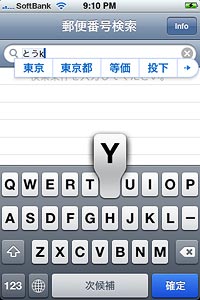
You can easily switch between international keyboards. I have U.S. English, QWERTY Japanese, keypad Japanese, and finger-drawn Chinese input methods active. Tapping the Globe button cycles through them.

It’s 4 a.m. and I have got to crash. More tomorrow. Sachi and I will be using our phones to help us navigate to a lunch spot to eat with an old friend of Sachi’s, so we’ll get more real-world use. I am tempted to buy some kind of handlebar-mounted stand so I can use the GPS–but that temptation is tempered by the fear of the iPhone falling off and crashing on the concrete.

Anyway, more later. If anyone has questions, please feel free. Again, sorry for not proofreading.

Categories: iPhone Tags:

The Long, Grueling Wait for an Expensive Gadget I Don’t Need But Really Want Is Finally Over

July 12th, 2008 3 comments

Yep, I finally got my hands on an iPhone. I should start by stating that this post is a narrative about getting and setting up the phone, and not a review of the features and usability; that’ll come in my next post.

As I reported a few days ago, SoftBank called me and cheerily arranged for an appointment. They seemed pretty open about when I could do it; they first suggested the 12th, but when I asked for the 11th, they agreed, and even happily changed the times as I became indecisive. As I had several months previously inadvertently scheduled a review class for my students just an hour after the official release date. No biggie; waiting another day would have annoyed me, but waiting a few more hours wouldn’t.

So I held the class and did final work at the office before heading home at about 3:15 pm. And on the way home, ran out of gas. Naturally. I had noticed it as I passed a gas station, but then thought, there’s a cheaper one just ahead, and my remaining gas spurts will take me there. Indeed they did, except for the small detail that the cheaper gas station had shut down, and the closest one after that was a half kilometer ahead–up a steep hill. Great.

By the time I got home, I did not have any time left to walk leisurely over to the SoftBank store, so I hopped on my bike and pedaled over–and therefore arrived nicely drenched in sweat. Fortunately, I had a hand fan and the shirt I was wearing didn’t show it badly. Sachi was waiting for me, and we walked in. In a few moments, we were taken to adjacent service counter stalls and waited on. Apple juice and tea were served, and candies were out on the counter.

Then they brought out the phones, and I noticed that they had the white iPhone for me. I asked if they had a black one, and it turned out they did, so I made the switch. It is exactly for this reason, however, that I strongly prefer seeing what something looks like before I buy it; only after the box was opened and the phone was in my hands did I notice that hand grime shows up rather significantly on the black finish. At least, it seemed that way, but later it turned out my hands were just grimy from all the exertion earlier. But even now, after using it for a while, the idea of the white back would be less of a color distraction than I imagined it to be, and the white surface, while more easily scuffed, would (probably) show hand oil smears a lot less prominently.

No big deal, though–it’s not as if this is a deal-breaker or anything, just a very mild case of color-related buyer’s regret. But that was the biggest disappointment, and not a very big one at that.

A few things about the shopping experience surprised me. First, they didn’t ask for my gaijin card or my passport as they had insisted they would, nor did they make a deal about my visa ending soon. I have no idea why, and didn’t intend to bring up the subject; maybe it was because I presented them with a driver’s license. Perhaps the gaijin card is expected because most foreigners don’t have DLs, and perhaps a license fills a prerequisite for trust that you won’t skip out of the country or something. Whatever.

Another surprise was that you get to choose your phone number with a level of precision greater than I have ever seen before. When I got our current home land-line number, I was not given any choice. Usually they give you two or three numbers to choose from. But with my phone (Sachi ported her old number to the new phone), I was allowed to choose exactly the last four digits. I chose the year of my birth, dead simple to remember, and more likely to be open than popular four-digit codes. And sure enough, the gal returned with three or four different prefixes I could use. One of them had a very nice sequence–3693–and so I chose that. Very nice; I will remember this number instantly, whereas I still don’t remember the PHS number I have used for the past ten years.

The last surprise was that they did not activate the iPhone in-store; they simply installed the SIM and told us to activate it when we got home. Probably this had to do with the fact that their instruction papers sucked and they didn’t want to deal with it in the store, I don’t know. Whatever the case, we would have only bricked iPhones that told us to connect the USB cable to a computer until we got home.

As it was past five p.m. when we left the store–the whole process took an hour and fifteen minutes–Sachi and I were looking to eat dinner soon, but figured we’d activate the phones first. So when we got home, I set out to do exactly that. There were a few hiccups involving the iTunes Store and our apparent location (Japan or the U.S.), but the activation part was easy enough–just connect and before you get to the iTunes Store, you receive an SMS message telling you that your phone number is active.

O-IphonesLet me depart from my narrative here and give a quick set of impressions. From the rather shoddy-looking artwork to the right, you can see the difference between my new iPhone and my old PHS. Sorry for the poor image, but it’s late and I’ve been too busy to really work up a nice graphic. The iPhone is a lot wider and flatter than a standard cell phone; it comes across as solid and slick. Of course, all I have to compare it with is my 5-year-old piece of crap PHS, next to which it appears almost magical.

I had been warned that the phone could slip out of my hands, but after handling it, I just don’t see it happening, unless my hands were so wet I wouldn’t want to touch the phone anyway. But one warning was more true than I thought: the thing smudges like a sonuvagun. I find myself wiping it a lot; I will either get used to the smudges, or I’ll get used to the wiping. Minor inconvenience. The Home button clicks nicely, and the volume and off switches are easy enough to use, but I have yet to figure out how to make the ring/vibrate button work. The touchscreen takes a bit of getting used to, and Sachi has been having a hard time with her nails being long–we’ll have to pick her up a stylus and right quick. I’ve had little trouble, although the “o” key on the virtual keyboard is hard to get–it always ends up as a “p.” I’ll give a more extensive review of the phone in my next post, as promised.

So Sachi and I played with them for a few minutes before heading out, and the obvious first choice was to use the Maps feature to see what restaurants were nearby. Sachi wanted Italian, and when we searched, we found one virtually across the street from our building, well-rated and relatively low-priced ($55 for us both), and as it turned out, the food was great. Sitting next to us was a group of four Japanese businessmen, and although I was not following the conversation, I could not help but overhear them talking about the iPhone more than once. I had to resist the urge to whip out mine and show it to them–Sachi expressly forbade me, and I’m not even sure I would have had the guts to anyway–but it was a big temptation nonetheless.

It was after we got back home that the real sussing out began. I should have foreseen that there would be difficulties, as I remember my sister having some trouble figuring things out. Complicating matters was the fact that Sachi was impatiently asking me about stuff every few minutes as she tried to work out her iPhone, and seemed miffed that I didn’t know all the answers. It’s hard enough to figure out setup processes for any device, even an Apple machine, without having to set your own machine down and work out what someone else has been doing when you were not paying attention, and then untangle their knots. Sachi was anxious to get email going so her friends could stay in touch.

We spent about an hour updating our Address Books; Sachi had to retype hers by hand, whereas I had to join and then pare down the two disparate address books from my desktop and laptop Macs, deleting the duplicates and updating numbers and addresses that had been neglected. Then we tried to sync, but hit a snag: Sachi’s phone had not yet been registered, and it won’t sync until we could get it registered–but it turned out that the iTunes Store, which you need to have an account with to register, was down from the huge surge of traffic. Sachi wouldn’t seem to accept this and kept expecting me to do something–the perils of being useful most of the time.

We occupied ourselves with testing and learning the other features of the phone, had fun with SMS, and learned a bit more about the settings and basic features. We also learned about how much SoftBank was unprepared when we tried to establish our SoftBank email accounts–they didn’t exactly work well.

I had already registered my phone, so it was syncing–and it synced all of my Mail.app email accounts (about a dozen of them). I had trouble figuring out exactly how it had handled each. Most didn’t seem to be working, but I think that’s more because they just didn’t get any mail, and so seemed inactive. There was trouble figuring out which account was being used to send what, what accounts worked, and so forth.

Sachi grew ever more impatient that we could not get SoftBank’s email to work, so I created a GMail account for her and got it working both in Mail.app and on her iPhone. She was pleased when the Mail.app version worked with her address book and we could do a mass mailing to all of her friends. Soon after that, we finally got her new iTunes account to work, and all was better, at least nominally in terms of functionality.

So from now, we’ll probably spend the weekend figuring things out. I will likely spend a horrific amount of time on hold with SoftBank’s service people as we try to figure out what’s wrong with their email service, and might even wait on hold with Apple to figure out a few other things. But already it’s been a lot of fun.

More details in the next post. Forgive me for not reviewing and editing this post as I usually do.

Categories: iPhone Tags:

McCain’s Top Advisor: Americans Are “Whiners,” Should Be Grateful for Bountiful Bush Economy

July 11th, 2008 1 comment

Mccain-GrammAmericans are making less while working harder than ever, when they can find the work, that is. Bush’s tax cuts have gone mostly to the rich, and what scraps the middle and lower classes have been tossed have been wholly eaten up by other costs–just the price of gas alone has eaten up every non-gazillionaire tax cut, many times over. We’re hemorrhaging jobs, suffering from fuel-driven inflation, and Americans are hurting–bad.

So what does John McCain’s chief economic advisor have to say to Americans?

“You’re all whiners!! This isn’t a recession! You’re just imagining it!”

And sadly, that characterization is not an exaggeration:

“You’ve heard of mental depression; this is a mental recession,” Gramm was quoted as saying.

He goes on to say that the United States has “never been more dominant” and has “benefited greatly” from globalization.

“We have sort of become a nation of whiners,” he said. “Misery sells newspapers,” [Former Senator Phil] Gramm added. “Thank God the economy is not as bad as you read in the newspaper every day.”

If Americans were just reading about it in the newspaper, then things wouldn’t be so bad. The trouble is, most Americans are living this horror show of an economy. Perhaps Gramm, living large as he is, simply has no clue as to what actual Americans experience.

Now, the question has already come up: Obama caught hell for a full month or more for saying that some Americans are “bitter.” Now McCain’s top advisor has called all Americans “whiners” who don’t know what their own economic conditions are like.

Is this far enough from McCain that the media might actually give it some air time? Somehow I doubt it. But you can be certain of the fact that if an Obama surrogate had said this, it’s be “Breaking News” 24/7 for the next week or more.

The McCain Campaign reaction?

A McCain official said: “Phil Gramm’s comments are not representative of John McCain’s views.”

Um, then you shouldn’t be hiring this guy to be McCain’s chief economic advisor then, dude.

iPhone Hype in Japan

July 10th, 2008 Comments off

It’s a pretty interesting phenomenon here. The line at the Omote-Sando store is now huge, with more than a thousand people in line by now–some reports say 1500, and thousands more expected by tomorrow. Seriously, it’s a Festival environment there, looks just like cherry-blossom viewing or something. Tarps laid out, people drinking beer, the whole nine yards. Masayoshi Son, the head of SoftBank and a bit of a celebrity, is on the line shaking hands and stuff. Here’s the Twitter blog of a guy who got in line a few hours ago, and he’s about 850th in line.

TV and press reporters are all over the place there, and it’s becoming a pretty big media event. Sachi has a news show called ‘Zero“ on, and they had a pretty long segment on it, which included a live report from the flagship line, some demoes of an iPhone they got their hands on, and reports on stuff like the relationship between carriers and cell phone makers–how the makers are usually at the mercy of the carriers, but the iPhone is leading the carriers around by the nose.

Frankly, their handling of the phone was surprisingly clumsy, as if they had just been handed the thing for the first time (which it probably was). For example, they showed the Calculator app, but didn’t turn it on its side; they showed photos, but did not pinch to show zooming. They didn’t even try out maps, one of the most impressive features. They just turned stuff on and looked at it without actually doing anything; for example, they turned on the calendar and just sat there looking at a completely blank list, no appointments. Pretty lame.

But they are playing up the phone itself; this one show had a ticking clock showing how much time remains until the first one is sold. Pretty funny.

Categories: Focus on Japan 2008, iPhone Tags:

It’s About Time

July 10th, 2008 Comments off

French winemakers are finally abandoning the cork and switching to screw-tops. And it’s about time, too.

I have always hated corks. If they provided any advantage in taste, I could never detect it; in fact, in preventing oxidation of older wines, screw tops can actually be better (not that I really understand this, but the article says so).

For me, the cork has represented the worst of persistent use of outdated technology. It has probably persisted more because of image than anything else; screw-tops simply “seem” cheap, whereas corked wine comes across as being more classy. The QWERTY keyboard, another example of a persistent anachronism, at least has a pragmatic reason for continuing: it would be expensive the replace all the keyboards and re-train all the typists. Corks have no such excuse, as far as I know.

But it’s more than just not being as good as newer technology–corks are simply bad, period. They make it harder to open the product, and sometimes break into pieces, polluting the wine. Most corkscrews are badly designed, making the task even more difficult. And once out, they don’t fit back in very easily, requiring you to use a secondary cap device.

At least some cork alternatives are not so bad; some wines have plastic or other alternative corks which don’t break or disintegrate, but even these substitutes, though easier to extract, can also be hard to put back in.

Anyone out there have examples of other persistent outdated devices or technology?

Categories: The Lighter Side Tags:

San Francisco Values

July 10th, 2008 3 comments

Reagan got a big airport in Washington D.C. Dubya gets a small sewage plant in San Francisco.

The appropriateness of this designation is so blindingly obvious that it needs no further comment.

Categories: Bush and Character Tags:

If You Don’t Need It…

July 10th, 2008 Comments off

As a SoftBank commercial came on just a moment ago, I just realized that while they’ve been running their usual barrage of White-Plan and Cameron Diaz spots, they have not run one ad for the new iPhone.

But then again, the don’t really need to, do they? Not yet, at least; the iPhone is almost certainly going to sell out for a while, even without a single ad anywhere. Maybe when they start registering unsold stock, they’ll start running some ads.

Categories: Focus on Japan 2008 Tags:

The Call

July 9th, 2008 2 comments

This afternoon, I got the call I’d been waiting for: SoftBank called to arrange an appointment to pick up our phones. After some procedural stuff, we arranged for a meeting time of 4:00 pm on Friday, just four hours after the release time for the store. I would have made it earlier, but earlier this semester, before the iPhone for Japan had been announced, I had happened to schedule a special workshop class for the 11th at 1:00 pm. So 4:00 it is.

Getting the appointment is a nice relief: it means I won’t have to wait in the long lines at the store. Officially, you’re not supposed to get appointments; Apple and/or SoftBank demand that you come to the store and wait in lines, probably as a marketing display to show off the item’s popularity. But a few SoftBank stores, apparently fully independently, made promises on the first day or two to take reservations–that’s when I dropped by, and got on the list. Although I heard one report of a store canceling its reservations, I heard of at least one other that did not, and when I asked a few weeks ago, the store I signed up at said that although they stopped taking reservations, they would not cancel the one’s they’d made. True to their word, they are honoring the arrangements they promised a month ago. That puts me at a great advantage over the people who have been spending days in line–but I think those people would wait in line like that just to be able to (a) get the iPhone a few hours earlier, and (b) claim to their friends that they were among the first to get the devices.

One catch: they said they didn’t have black 16 GB iPhones. I’ll ask again the day we get them, but they seemed to be saying that the black ones were either immediately unavailable or were already spoken for–but they had white ones. Frankly, the color isn’t quite that important to me, and does have the distinguishing characteristic of denoting a less common model/color, but if I had a choice, I’d go for the black one. Still, there is one other advantage: Sachi will have the black 8 GB model, and this will make it easier to tell the phones apart.

Sachi, by the way, is claiming no great interest in the iPhone, but will get one just to stay on the same plan. Still, when I showed her the Apple video in Japanese demoing the phone, she was very interested in some features, especially the map feature. Nevertheless, I’m pretty certain that if I were not getting one, even knowing the features, she would probably stick with what she’s got.

Categories: Mac News Tags:

iPhone Fever

July 9th, 2008 1 comment

I guess I should have expected it, seeing as how so many Japanese people line up for days waiting for the next iteration of the latest gaming system, but I was still a bit surprised when I heard that lines have started to form in front of the Omote-Sando and Shibuya branches of SoftBank four days in advance of the release of the iPhone. I mean, in New York, people started lining up a week before, and it’s just a version upgrade to them, so I guess this is not a big thing. Still, it’s nice to see if not popular interest yet, then at least intense fanboy interest.

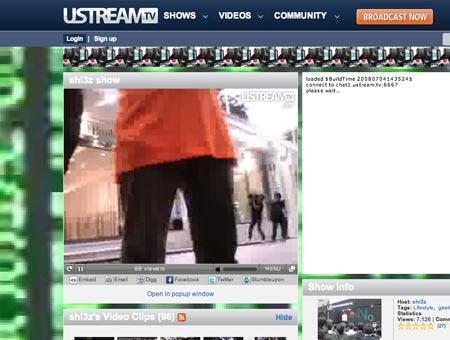
Some of the people near the front of the line are doing a streaming video live blog from their position in line. They do stuff like interview people and generally gab. For the first hour or so of broadcast this morning, all they did was show this guy’s crotch, so I didn’t really hang around for long.

Lbc0709

But since then, whenever I checked back, they were doing something or other a bit more interesting to say the least. It looks like they’re showing the interviews with all the media people who are doing stories about them.

Sorry, but even for a strident Mac fan like me, these people are nuts.

Categories: Mac News Tags:

They Make It So Easy

July 9th, 2008 2 comments

Partisan Windows/Mac Attack Alert! If you like Windows, move along, I’m ranting again.

An article is out in Information Week about how Microsoft is gearing up to counter Apple’s “I’m a Mac, I’m a PC” ads. Boy, they sure don’t miss a thing at the Borg Flagship; it’s only been two years since those ads started. But considering that it took them more than five years to upgrade XP to the Chrome-Plated Turd™, this is actually a pretty fast response in Microsoft Time™. The thing is, they make it so easy to shoot them down, it’s almost not even fun.

“Almost” being the operative word.

Speaking at a keynote address at Microsoft’s annual Worldwide Partner Conference, [Microsoft’s VP of Windows Vista consumer marketing Brad] Brooks signified that Microsoft was ready to admit mistakes and reposition itself to tell a better story about Windows Vista, to counter attacks by rival Apple and let customers know that Vista is finally stable and ready.

Hm. It’s been only 18 months since Vista was first released, and now it is “finally stable and ready.” Funny, I thought it was best to have the OS stable and ready before it was released, not a year and a half after. Those Mac guys certainly have a lot to learn from the OS Masters in Redmond.

“You thought the sleeping giant was still sleeping, well we woke it up and it’s time to take our message forward,” Brooks said.

So, Apple is the Japanese attacking the U.S./Microsoft? Wow, ballsy.

“We’ve faced these challenges before, and we’re going to solve them again. There’s a conversation going on in the marketplace today and it’s just plain awful. We’ve got to get back on the front foot.”

So, you noticed your PR was awful, did you? Like I said, they don’t miss a thing.

He pointed to selected negative quotes from Windows XP’s first year as evidence that operating system launches can often be rocky.

I’m not an experienced expert in PR, but if you’re going to make a statement defending flaws in your product, wouldn’t it be better to argue that the other company’s product has had the same issues? If I were him, I’d have pointed out that OS X, when first released, was also half-baked and buggy for a while. Of course, it was a completely brand-new OS, which Vista doesn’t have for an excuse, but still, it would have been a better argument than “Oh, our products are always shoddy for the first year or so.” This guy is Microsoft’s VP of Windows Vista consumer marketing? No wonder they’re in the toilet.

In the coming weeks and months, Microsoft will launch a huge advertising campaign that’s been reported to be worth hundreds of millions of dollars.

I would imagine that more important than the price of the campaign would be the message and the quality. Just like MS, believing that brute force is the only key factor.

Microsoft advertised Vista to small businesses in The Wall Street Journal and USA Today the last two weeks, and plans a much larger wave of ads under the tagline “Free the People.”

Excuse me for a moment. I just snorted an entire 6-inch Subway BLT out my nose.

Brooks gave a taste of what’s coming with a few swipes at Apple and some selected highlights of Windows Vista’s features.

Like the ones they stole from Apple’s OS which was released more than three years ago? And implemented badly? Ooo! If you buy the Premium version, you can use their “Flip 3-D” method of choosing windows, which is a badly-designed rip-off of Apple’s 2005 “Exposé” feature! Make a commercial out of that!

As part of that compatibility message, Microsoft will work to reverse the widely held belief, informed by early troubles upon the operating system’s launch, that Vista isn’t compatible with many applications and devices.

“Belief”?

“Windows Vista is an investment in the long term,” Brooks said. “When you make the investment into Windows Vista, it’s going to pay it forward into the operating system we call Windows 7.”

“Buy our crappy OS now so you will be better prepared for our next version of the OS which we promise will be worth it”? Are they kidding?

Microsoft also intends to talk up Windows Vista’s upgraded security, including features like BitLocker Encryption. According to Microsoft, Windows Vista had fewer than half the security vulnerabilities Windows XP had in its first year.

Oooo! “BitLocker Encryption”! Sexy! And “fewer than half the security vulnerabilities”? That sounds secure. Notice, by the way, that they talk about “vulnerabilities,” which sounds so much better than “100,000 viruses, worms and trojans.” They’d rather talk about “vulnerabilities” despite the relative irrelevance of that yardstick because it’s the only way they can claim any kind of security advantage, however laughable, over the Mac.

Brooks even made a bold claim that Windows Vista was the most secure commercial operating system ever in its first year of release, and said “you don’t hear Apple saying that,” though he didn’t lay out the evidence for that claim.

Maybe you don’t hear Apple saying that because they don’t need to, everybody pretty much knows it already. It’s rather obvious. I’m pretty sure that every Mac OS has been more secure than any Windows release, and not just in it’s first year of release. And by the way, I think Apple has mentioned that kind of thing before.

It appears that Microsoft will also frame Windows as “a kind of language,” as that’s how Brooks referred to it in his keynote. “There are over a billion users using it today,” he said. “It’s bigger than Mandarin Chinese, bigger than English, and like those it connects people.”

Yes, having a virtual monopoly makes it so easy to claim big numbers. But numbers don’t translate into quality, especially when the numbers are shrinking despite having people locked into an OS via prior investments, habit, and inertia. If all MS can argue is “we’ve trapped lots of people into using our product, and they’re finding it difficult to escape,” I’m not sure that’s going to sell extremely well.

Microsoft is finally starting to come around to the fact that it can’t just sit back and let others define it.

Again, the monopolistic, 800-pound-gorilla mindset. MS didn’t have to define itself if people had little choice; the fact that they feel it necessary to do so now shows that MS has finally realized that they are becoming more and more vulnerable.

And at least in that one way, they are very smart.

Categories: Computers and the Internet Tags:

MSM: Is McCain Right, Or Is Obama Wrong? We Spout Crap, You Go Retch

July 8th, 2008 2 comments

I just had to switch off the podcast for Hardball with Chris Matthews. It was, effectively, a McCain love orgy putting on airs of being even the slightest bit critical. They completely bought into the McCain party line, broadcast only his ad, and talked about Obama not in terms of whether or not he has “no new ideas” in energy, but rather about how McCain and the GOP should talk about it, as if there was no question about the assertion. Rather than discuss the two candidates’ plans, they simply claimed he was–as the GOP ad alleges–just against McCain’s ideas (the gas tax and offshore drilling), didn’t have any of his own, and that Obama was out to raise taxes. I kept waiting for them to get to the other side of the story, but they didn’t–they kept gushing the same crap, almost as if the McCain campaign had written the show’s script. They accepted the GOP claims completely uncritically.

They did not even come close to talking about the fact that McCain’s ideas on energy are almost all empty pandering, as if the “gas tax holiday” had not already been debunked as saving drivers literally pennies per day. They acted as if offshore drilling had not already been shown to be worthless in the present crisis–nor that McCain just a few months ago was saying exactly that. They did not mention that oil drilling off the coast would not show any returns for five years, would not fix the refining bottleneck which fuels higher gas prices, and would not even be a long-term fix, with oil production not even coming close to significant levels even after drilling was well underway.

Nor did they focus on the fact that Obama, not McCain, was in favor of overturning the Enron loophole, which could help slash oil prices, or that Obama was more likely to bring the Iraq War to a sooner close and that the extraction of American soldiers from the region could have an equally positive impact on oil prices (after all, our presence there has done wonders for oil prices already, don’t you think?). And never mind that Obama is much likelier to take alternate energy research far, far more seriously than McCain is.

No, Hardball was more interested in simply swallowing McCain’s steaming load of BS wholesale. The more I listen to the U.S. media cover this election, the more and more disgusted and faithless I become in their being recognizable in any way shape or form to actual journalists. And considering that I had a low opinion of them already, that’s saying a lot.

Categories: "Liberal" Media, Election 2008 Tags:

McCain: Trust Me!

July 8th, 2008 4 comments

Josh Marshall has an excellent rundown on why McCain’s promise to balance the budget is an empty sham. Short version: he has no numbers because there is no way to draw up any plan–even a fuzzy, shoddy one–that could possibly achieve what he’s promising. So instead, he’s just saying that (a) he will cut wasteful spending which he won’t currently identify save for limited examples, (b) he will magically win the war in both Iraq and Afghanistan, apparently using secret plans he will not reveal to us or even to the White House but they will work and save us money, and (c) the economy will have “reasonable growth,” apparently for no reason other than because McCain will magically imbue them with confidence despite all indicators to the contrary.

All this will happen despite the fact that McCain promises another layer of tax cuts mostly for wealthy people which will cost $3.6 trillion over the next ten years, and he promises to increase military spending.

Now, let’s see… cutting taxes significantly and mostly for wealthy people, growing the military, cutting waste, and promising to magically balance the budget… hmmm, where have I heard that before? Oh yeah! Every Republican presidential candidate for the past few generations!

And how has that worked out? Let’s see… Reagan: started massive deficits; Bush: continued massive deficits; Bush Jr.: after Democratic Clinton balanced the budget, Bush Jr. brought us back to massive deficits again. Did any of them cut waste? Not really–they tried to cut Medicare and other programs most Americans approve of and want, but certainly under the last Bush, who had the Congress doing whatever he wanted, waste exploded.

Essentially, we’ve seen exactly what these promises will bring. McCain would cut taxes, mostly for the wealthy (as he has laid out), and I don’t doubt that he’d increase military spending (as Obama probably will as well). He might even try to carry out his promise to veto pork, except that (a) there’s not nearly as much cuttable pork as he suggests (but somehow never fully identifies), and (b) Congress would probably override his vetoes anyway.

But as for balancing the budget? Forget it; the budget will simply explode even more; that’s pretty much a foregone conclusion. Even if he did everything he promised, he could never even come close to balancing. Especially if he did everything he promised, in fact. Even in McCain’s Super-Duper Magic-Pony 2013 Ultra Fantasy World™.

Schieffer Shilling for McCain Again

July 7th, 2008 1 comment

Last week, we saw CBS’ Bob Schieffer getting visibly upset when Wes Clark respectfully questioned McCain’s qualifications for president. This week, Schieffer seems to be tipping his pro-McCain hand even more:

Sen. KERRY: He said, you know, you can’t–I have to tell you, Bob, I just came back from the Middle East. I just met with the king of Saudi Arabia. I met with President Mubarak of Egypt. I met with others. You know what they said to me? They said, `You, America, have served up to Iran, Iraq on a platter.’ They are outraged by this sort of, you know, ineptitude of what has been done by those who decided it was smart to go into Iraq.

SCHIEFFER: Let me just ask you one question here.

Sen. KERRY: And they have turned away–yeah.

SCHIEFFER: Before we–before–because we are going to talk about–are you now challenging Senator McCain’s integrity?

Go ahead, read the interview (PDF) and tell me how the hell Schieffer could possibly defend asking a question like that at a point in the discussion they were at? Kerry was clearly not talking about McCain’s integrity; Schieffer was baldly shilling for McCain, portraying Kerry’s statements as some kind of a vicious personal attack. Lots of stuff like that presents itself in the interview, such as introducing Kerry as a “big supporter” of Obama, but not opening his talk with his other guest–a McCain campaign co-chair–with the same note, a disparity which makes Kerry appear more biased. Even the topic of the whole interview–how Obama is “flip-flopping” on Iraq when he is in fact being consistent with what he’s been saying for a long time–betrays a good amount of pro-McCain bias.

This on the “liberal” CBS.

Categories: "Liberal" Media, Election 2008 Tags:

They Gotta Be Going Somewhere

July 7th, 2008 Comments off

It’s not entirely clear how accurate it is, but a survey (PDF) done by the Ponemon Institute (yeah, I know) for Dell claims to have found that on average, about 10,300 laptops go missing at the 36 biggest airports in the U.S. each week. Averaged out, that’s about 40 laptops lost at each major airport every day. The frequency of reported loss is not equal, though; LAX has the highest, reporting about 1200 lost each week, or about 170 per day. 69% of those lost at major airports are never recovered.

Even stranger, the place where people lose their laptops most is at security checkpoints–airports report that 40% are lost there. 23% are lost at the departure gate, 9% in restrooms, 7% at food service, 6% at clubs or lounges, 6% on transport systems, and 4% each at retail shops and ticketing counters.

Something sounds fishy here. Assuming the data is accurate, then even accounting for intentional theft being higher at airports than elsewhere, that still sounds like a very high number. Even people who carry laptops belonging to their companies understand how expensive they are; I don’t know of many people who treat the things casually. A laptop is not exactly something that you just put on the seat next to you and then forget about, like a dog-eared paperback.

Some of the locations sound strange too. Why 40% at security? It’s not as if the laptops are out of your sight for very long. Even if you account for people in front of you “accidentally” picking up your computer, it still sounds high; again, it’s a place where people tend to be wary of stuff like that. And restrooms? How the hell does that happen?

So, being the cynic that I am, I have to wonder exactly how many of those “lost” laptops are actually stolen by the people claiming to have lost them, using the airport as a convenient excuse? Seeing as how large companies most likely reclaim such losses via insurance, it seems likely that employees might consider such theft “covered” and therefore more attractive.

But there’s another possibility: the survey was commissioned by a computer company selling a security system> I am always suspicious of “research” released by people trying to sell you something.

Six Lesser Known Great Films

July 6th, 2008 1 comment

You may not agree–as usual, YMMV warnings apply–but here is a list of movies which I consider to be excellent, but which are either considered mediocre or passed under most people’s radar and are not very well known–or both. Suggested viewing when you have the chance.

Pleasantville: written by a former Clinton speechwriter, this movie starts out like a sitcom running a really good gag into the ground–but then slowly transforms into a masterpiece of social and political commentary. Randy Newman’s score is magnificent, and accordingly, the DVD has a special track dedicated to the score, with commentary.

Gattaca: It looks like a pretentious art film, but this story about a genetically defective man in a society obsessed with genetic perfection says volumes about the human spirit overcoming seemingly insurmountable odds. You’ll get over the stylistic strangeness and unlikely arrangements when you realize they are in themselves metaphor and imagery designed to forward the story’s themes. A brilliant, touching movie.

Blast from the Past: an enormously pleasing comedy with Brendan Fraser playing to perfection a 30-year-old kid who grew up in a bomb shelter and is completely ignorant of the real world. His parents, played superbly by Christopher Walken and Sissy Spacek as delightfully loopy characters, went into their bomb shelter during the Cuban Missile Crisis and thought nuclear war destroyed the Earth when a plane crashes on their house. Fraser’s character is born there, and is raised with 1960’s Leave-It-to-Beaver sensibilities. He is forced to emerge in Los Angeles in the 1990’s, believing it is a post-apocalyptic world. Delightfully wacky.

What Dreams May Come: Robin Williams plays a man who is killed in a car accident after his children died in an accident themselves. He experiences the wonders of the afterlife, while his wife, already in a precarious state after losing her children, is destroyed when she loses her husband as well. William’s character is jolted from his heavenly bliss when he learns that his wife has committed suicide, and because of this, has condemned herself to the depths of what could be called Hell, a self-afflicted void of spirit. Williams must journey to those depths in the hope of rescuing her, potentially at the risk of becoming lost himself. Incredible cinematography and production design.

Sneakers: A funny techno-spy-adventure with a brilliant ensemble cast, where a hacker who recreated his identity after a college-days hack gone terribly awry leads a team of security consultants who specialize in testing and uncovering weaknesses in their clients’ technological defenses. The hacker finds his freedom is threatened when he is approached by government agents who would put him in prison unless he agrees to work for them–but would forever assure his safety, only if he steals a powerful new decryption key from a mathematician who could sell it on the black market. His team goes along with him and they arrange to steal the device–and then the bottom drops out from under them. Not high art, but wonderful acting you don’t want to miss, and a quirkily funny misadventure.

12 Monkeys: A film by Terry Gilliam, with Bruce Willis pounding out a good performance, but Brad Pitt unexpectedly stealing the show with an unforgettable performance. Willis plays a hapless worker in a post-plague future who happens to be suited for time travel. His mission is to go back before the epidemic begins and obtain a sample of the plague before it mutated, so the people of the future can devise a way to beat back the virus and reclaim the Earth. Time travel, however, tends to break the mind to a certain degree, and Willis finds himself institutionalized, treated by a doctor, played by Madeline Stowe, who slowly realizes with horror that her patient may not be as crazy as he seems. The story is hard to follow, and might be better watched more than once in order to understand and catch everything that’s going on, but once you “get it,” it’s a brilliant movie.

Categories: Entertainment Tags:

From Windows to Mac: Three Biggest Tips for Switchers

July 5th, 2008 10 comments

Having helped several people make the switch from Windows to Macs, I have seen pretty clearly some common problems people have when making the switch. Walt Mossberg wrote a short article on this, and his observations are pretty spot-on, albeit abbreviated and limited. I just figured I’d do my own long-winded version.
Kab01
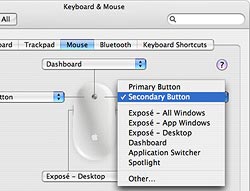
First, and Mossberg touches on this, you should get used to right-clicking. This is less a tip and more an important preparatory step. Your Apple mouse can do a right-click even if there is no apparent second button–just press or rock the mouse on/to the right side. If that still results in a left-click, then go to System Preferences (in the Apple menu at the far left of the menu bar) and select “Keyboard & Mouse”; click the “Mouse” tab at top (illustrated here), and make sure that the right side of the mouse is set to “Secondary Button.” Also, keep in mind that you can buy and use almost any 3rd-party mouse with the Mac. Alternately, a right-click can be simulated by holding down the Control key and clicking the left mouse button. On a trackpad, holding two fingers on the trackpad and then clicking also activates “right-click” (contextual menu).

That out of the way, for anyone who is using their first Mac after years of Windows dependency, here are some tips that’ll make it much easier:

1. Quitting programs: Mossberg puts this somewhere in the middle of his tips, but I find it’s the #1 difficulty Windows users have getting used to. Windows users are used to quitting everything by clicking the red “X” button at the top right of the window. The problem with that system is that it’s not consistent: sometimes by clicking the “X” you’re closing a window, sometimes you’re quitting the program. And in some apps, a double set of buttons appear, the top ones for the program, and the bottom ones for the document being viewed.
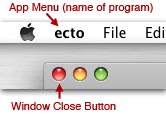
App-Mb01On the Mac, you don’t quit the program by closing the window; clicking the red button on the top left (Window Close Button) will not close the program, only the window the button is on. The program itself is based in the menu bar–which, on the Mac, is always at the top of the screen, and is not part of the window. Switchers will close the window they’re working on by clicking the red button, and think they’ve quit the program–but will not notice that the menu bar for the program is still active (you can tell by looking at the “App Menu,” the boldface menu just to the right of the Apple menu). At this point, the menu bar is all that is “left” of the program. Since Switchers usually click on something else and, in so doing, switch the menu bar’s attention to the new program, they don’t realize that the previous program is still running and taking up valuable memory space. I have often discovered Switchers who think they’ve got no programs running, but in fact they have more than half a dozen still open.
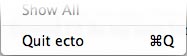
QappmIf this happens with you, then you should learn a few easy things that will help you avoid this problem. First, learn to quit by using the keyboard: Command (Apple key) + Q. It’s an easy left-thumb-and-forefinger move, much easier than reaching for your mouse and aiming it at the little button. It will not only quit the program, but it will close all windows which are active, meaning you don’t have to click the red buttons for multiple windows if you’ve got them open. As an added bonus, some programs, like Apple’s Mail app, will remember the windows you had open, and will re-open them in just the same way as you had before when you open the program the next time.
Docklt-1
Next, take a closer look at your Dock, that strip of icons at the bottom of your screen. If you’re using Leopard, you’ll notice that the open program icons have a little, blue-ish indicator light under them (on older versions of the Mac OS, it was a back triangle). This is a quick and easy way to check which programs are still running.

CmdtabAnd finally, master the Command + Tab shortcut, which allows easy switching between programs. Although this is one of the few features that Apple stole from Microsoft, it’s one that few Switchers seem to know about–most Windows users I have encountered don’t know about Alt + Tab on Windows. On the Mac, Command + Tab (you should keep the Command key depressed while repeating the Tab key until you’ve picked out the app to bring forward) will by its nature show you which apps are still open. As an added feature, you can hold down the Command key, hit Tab until you get to the app you want to quit, and then type “Q” with the Command key still depressed (easy, as the Tab and Q keys are adjacent); this will allow you to quit programs without even making them active.

Get used to those three points and you’ll not only fix your problem, but you’ll be navigating and quitting much faster and more efficiently than you ever did in Windows.

2. Switching Between Windows: Another problem I have seen Switchers deal with is getting from one window to another. I’ll watch a Switcher do this by moving the active window over to one side, then clicking on the window below it. While this works, it’s messy and is generally not an efficient way of doing things.

As I described before, using the Command + Tab shortcut can be a quicker and easier way to switch between apps. Another way is to use the Dock–just click on the icon of the program you want to switch to. If the program has several windows open, and you want to switch to a specific window within the program, just right-click on the Dock icon, and you’ll see a menu appear above it with a list of all open windows in the app, as well as other options.

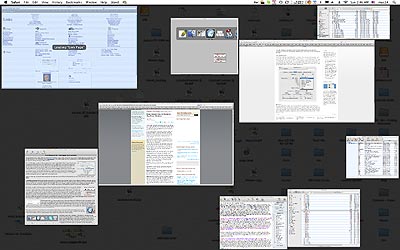
But the best way to switch between windows–especially from within a single program–is to use Exposé. Not found on Windows, Exposé is a very cool tool that makes life easier. By using a few easy keystrokes, you can spread out all your windows and choose the one you want, keeping everything neatly in place.
Expsbg
Out of the box, the shortcuts are: F9: spreads out all non-hidden windows for all open programs (pictured at right); F10: spreads out all open windows in the current app you’re using; and F11: clears all open windows to the sides so you can temporarily see the Desktop, until you hit F11 again to bring the windows back.

With F9 and F10, the windows spread out so that all are visible in reduced form (with the background darkened out to make the windows more visible); as you pass your mouse over each one, the window’s title appears; when you click a window, they all fall back into place, with the window you selected on top and ready to use.

The F11 (Show Desktop) feature is the best: it allows you to sweep aside the open windows, grab an icon from the Desktop, sweep the windows back in, and drop the icon into the desired window.

There’s more you can do with this feature, but mastering those basics will save you a ton of time and trouble.

3. Customizability: The Mac is highly customizable. This includes more than just wallpaper. While themes (or “skins”) are available only with special software, most everything else is changeable.

You can add or subtract icons to and from the Dock, including programs, folders, and documents (apps go to the left, folders and files to the right), and “stacks” of icons which spread out in an arc can also be added. Folders added to the dock can be right-clicked to expose a hierarchical menu of its contents.

OS X windows can also be customized. Aside from the view (which includes an iTunes-like Cover Flow), you can activate or deactivate the toolbar and left sidebar by clicking on the white button at the top right of the window. You can control exactly what shows in the sidebar at left; either open “Preferences” under the “Finder” menu and click on “Sidebar” (to turn on or off basic sidebar items), or simply drag-and-drop folders, files, or programs into the sidebar under “Places.” If you click on a folder in the sidebar, that folder will open into the existing window. Clicking on a document will open the associated app, while clicking on an app in the sidebar will simply open the app (kind of like a Quick Launch or substitute Dock).

Wintlbar

Furthermore, the window toolbar (pictured directly above) can be customized (right-click on the toolbar) to add or delete buttons and features; even outside of this mode, one can always drag files, folders, or apps into the toolbar for another quick-launch style of shortcut. Once added, these shortcuts will appear in every Finder window.
Kbscsc
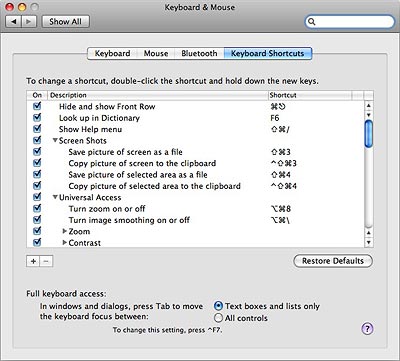
However, a key point of customization is with keyboard shortcuts. Many people don’t use these, and might not even feel comfortable with them–but I strongly urge such people to try to get used to them. It is the same kind of difference in efficiency as you would see between hunt-and-peck and touch-typing; knowing your keyboard shortcuts can make you fly through stuff that you used to take a long time with. But what’s nice about the Mac is that you can customize just about any keyboard shortcut–and not just with the OS, but with any program. Go to the Apple Menu, System Preferences, and Keyboard & Mouse. Then click on the “Keyboard Shortcuts” tab at top left. This will not only tell you what the existing shortcuts are, but it will allow you to change them–any of them.

The immediate list will show you all of them main Finder shortcuts, which you can change by clicking on the shortcut and then typing your own (conflicts will raise flags). But in addition to these, you can set your own by clicking on the little “+” button at the lower left. In the dialog box it brings up, select the application you want to change (or else let it default to all applications), then type the menu command and the shortcut. The next time you open the app, the shortcut will be active (and will show up in the menu listing for the command).

There is a lot more which can be customized–just look around the system preferences and the preferences for any app or for the Finder–but what I have just described should give you an idea of how much you can change how the OS responds to you.

A few key shortcuts: Command + Delete (the delete key next to the “+” key) will put selected items into the trash; Command + Shift + Delete will empty the trash. Command + “?” will open Help; Command + “,” will open Preferences; Command + “.” will often stop a process in action. Command + Shift + S is usually “Save As…”. Command + E will eject a selected disk.

Extra Stuff: I just wanted to add a few things you should know about:

Dropping icons: while Windows is limited as to where you can do this, in Mac OS X you can drop just about any icon anywhere to open or add it to what you are doing. Drop a document onto an icon on the Desktop, the Dock, the Sidebar or toolbar, and it open the file in the app to which the icon belongs.

Easy Uninstall: Want to “uninstall” an application? Except for special circumstances, it’s easy: just drag the icon into the trash. This will leave behind related preference files in Library folders, but they are usually small in size and not a trouble to leave behind. Uninstalling will not risk screwing up your system like it does in Windows.

Spring-loaded folders: Drag an icon over a folder (anywhere, including in the Sidebar) and hold it there for a moment; the folder will open for you. This can be done for as many folder levels as you like. After you drop the icon, the various folders will snap shut, except for the one you dropped the icon into.

Quick Look (Leopard only): select any icon, then hit the space bar; if it’s a supported file type, then a preview will open up. If the content is more than just one page, you’ll be able to scroll through the whole thing. Music and movies will play.

PDF: Mac OS X has always been PDF-friendly. You don’t need Adobe Acrobat, Apple’s “Preview” app will open them OK. And any app can create PDF’s in OS X: just go to Print in the File menu, click the “PDF” button, then select “Save as PDF…” and you’ll have a PDF of whatever file you’d otherwise be printing. Excellent for sharing docs between computers.

There’s lots more, but that should be enough for one sitting.

Categories: Tutorials Tags: