Archive

Archive for the ‘Mac News’ Category

January iPhone?

December 3rd, 2006 5 comments

MacRumors is reporting that a usually reliable source says the iPhone will be released in January. As previously reported, it will be “unlocked,” meaning that it is not married to a specific service provider–you can use it with any service you like. Also as reported, the iPhone would double as a portable music device, roughly equivalent to an iPod Nano.

The source, Kevin Rose, did come out with new info, aside from the January release date: the form factor is extremely small, the device will have two batteries (one for the phone, one for the music player), it will be priced at $250 for the 4GB version and $450 for the 8GB version, there will be a slide-out keyboard (not number pad?–it might be a full alphanumeric, but that’s unclear), and it will do some “unique things.” If you listen to the podcast (they start talking about it at 38:30), either Rose is BS’ing all of us and putting on a big act, or he has seen the phone in an inactive state, and has heard quite a bit about it–but is very reluctant to say much for fear of burning his source. He did not mention anything about a built-in camera or possible wireless (Bluetooth again assumed) syncing abilities, though one would assume both are in the phone.

Rose did mention that it might have touch-screen “on the outside,” which sounds like the touch-activated technology reported a short time ago.

I’d almost say that it would be a possibility that the touch-screen video iPod and the iPhone are going to be one and the same, but 4GB doesn’t seem like enough for holding any amount of video–unless the big price break for the 8GB model is because that is the video iPod combo.., but that’s still a bit impractical. A pity, as I want both devices. More likely they are indeed separate, but perhaps they are timed so closely because Apple needed to get the touch-screen technology to work just right…

I would normally rule this as an outlier rumor (coming out with a major gift item right after Christmas?), but MacRumors–a pretty good site for this kind of intel–gives some credence to this guy, who reportedly predicted the iPod Nano initial release perfectly, when no one else was. That’s no guarantee about this guy, but certainly gives one reason to pay attention. Also, Apple did release some pretty big items last January, the Intel iMac and the Macbook Pro–not exactly gift items, but still pretty big stuff nonetheless.

The report also seems a bit more authentic due to the strangeness within: two batteries? And why the huge difference in the price break? One would assume that the higher-end model delivers more than just double the flash memory, that it has most of the “unique things” relative to the cheaper model. Frankly, I don’t know about paying $450 for a cell phone; it’d have to be pretty goddamned spectacular. Will Apple really sell 12-20 million units next year at those prices?

Categories: Mac News Tags:

Parallels Getting Better

December 2nd, 2006 Comments off

For running Windows on a Mac, Parallels has been a great app, already surpassing Virtual PC beyond the obvious speed capabilities inherent in running Windows on an Intel machine. But now Parallels has gone and outdone itself, having released a new free upgrade, the Beta Build 3036.

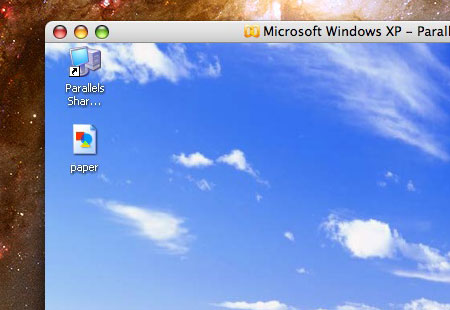
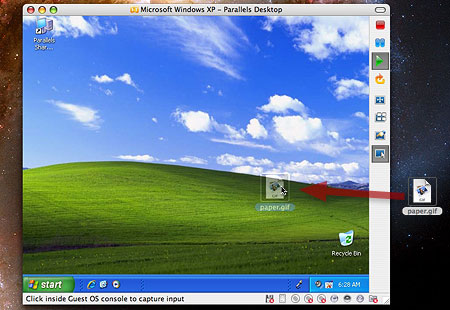
The upgrade is chock full of new features, and though there are only a few that are cool to me, they’re big ones. The first is drag-and-drop copying. I never got the hang of the shared folder in that I kept forgetting where it was on my Mac, and had trouble making it the same between different versions of Windows in Parallels (okay, I didn’t try very hard). But I never liked the whole shared-folder idea anyway, whether it was in Parallels or between different users on a Mac. So now that Parallels allows you to simply drag and drop files between the OS’s, I’m a happy camper.

Para2

Para2A

The other improvement I like is the window resizing. One thing Virtual PC always sucked at was getting the size of the window right, especially since I used it on a Mac that connected to a TV; whenever I changed resolutions to match the TV, the Virtual PC window got screwed up. Similarly, with Parallels, to change the actual resolution of the Windows screen, you’d have to effect the change within the Display Properties dialog box, and resizing the window containing the virtual OS would result in a mismatch. But not any more. With Build 3036, you can resize your Windows window to any size you want, and the OS will automatically resize the virtual resolution along with it. Very nifty.

There is one other big change, though not a big one for me: the ability to work with Boot Camp. A bit late for me, as I never installed Boot Camp, so now it would require a complete wipe of my hard drive and reinstalling everything. But if you haven’t done either yet, or better are just about to buy a new Mac, you can now install WIndows in Boot Camp and use Parallels, without worrying about having to install Windows twice. As I said, I won’t use it (yet), but it’s a good option to have.

Among the other changes: redesigned windows/controls, one-click startup via an OS alias (you no longer have to open the interface window and then start Windows), and enhanced networking, graphics and lots of other little stuff. The details are laid out here. There’s also a new feature called “Coherency,” which is supposed to “show Windows applications as if they were Mac ones,” but all I get when I try it is the Windows area going full-screen except for the Mac menu bar, with bad pixelation of the Windows graphics.

Still, for a free upgrade, this version has some big new features.

Update: OK, I see now. What “Coherency” does it to take away the Windows background except for the active app windows and the Task Bar, making the Mac environment appear behind it. If you have the resolution in Parallels set to maximum, then there is no pixelation. Instead, the Task Bar appears at the bottom of the screen, and all active Windows programs appear to be windows open within the Mac OS. However, you cannot hide them with Command-H like other Mac apps; if you do a “hide,” then they all disappear, along with the Task bar. Instead, you would have to minimize them. I guess that though it’s not quite as good as making Windows apps act like Mac apps, it’s probably the next best thing.

Categories: Mac News Tags:

Cool Free Mac Apps

November 29th, 2006 10 comments

Here are some applications for the Mac that I find myself using quite a bit. In no particular order:

NamelyNamely

This little app helps you with all the other apps. There are only so many apps you may want in your Dock, and there will be a lot more apps you will want to use. Tired of searching for them in your Applications folder, or wherever you stashed them? Namely will help you open them right quick. Just type the keyboard shortcut you chose for Namely (I have it set to Option-Escape), then start typing in any part of the app’s name. Namely will create a list of apps with the text string in their name (like the illustration at top right demonstrates). If the app you want is highlighted at the top of the list, just hit “Return” (or “Enter”) and the app will start. If the app is not at the top, either keep typing to eliminate the others, or just use the down arrow to get to the app you want and again hit “Return.” Namely becomes invisible when it is not the active application, so it never gets in the way. You can set it to launch at startup so you never have to think about it. You can set the keyboard shortcut it uses from the preferences, and you can even set the color of the search bar. A very small but useful app.

Tunes IconYou Control iTunes

Ycit-BtnsI’ve never been a fan of the multitudinous iTunes controllers–and will admit right up front that I’ve tried very few–but You Control iTunes is a very nice one, one I’ve come to like a lot. It resides in your menu bar, so it doesn’t intrude on your screen space. But in the four little buttons it puts there, you can play/pause, go back or forward in the playlist, or get drop-down menus that allow control of just about any aspect of iTunes. You can even customize the appearance of the buttons in your menu bar, choosing the best style and color from a long list provided within the app. YCiT also allows for an “overlay” to appear anywhere you want on the screen when a new song starts, showing the Song title, album title, artist, song duration, and even album art (if it’s in iTunes). And there are a ton of preferences you can set about what appears and does not appear and how it will appear; it is comfortably customizable. A very well-designed and unobtrusive app that tries harder to help you than it does to impress you with how slick the programmer is. The app is free, though you do have to get a registration code from the web site and enter it into the app.

Skype LogoSkype

Yes, I know that you know about Skype. Did you know that the Mac version with video conferencing is available? And that version 2.0 is out of beta? There’s even a new beta (v. 2.5) which allows for audio conference calls between up to 10 people (yourself and 9 others; video is still limited to two people). Skype works well between Macs and PCs, and allows you to conference by text, audio, and video chat, and it’s all free, so long as it’s computer-to-computer. You can also opt to pay for the ability to dial any telephone in the world, for prices cheaper than most if not all other call plans.

Also, Skype’s audio quality is much better than standard, it seems. My dad and I tried Skype as well as Apple’s iChat and AIM, and of the three, Skype’s audio quality stood out tremendously. So if you thought Skype for Mac wasn’t ready yet, it is–go get it.

JedicticonJEDict

For those of you studying Japanese: JEDict is the best Mac client for Monash University’s public and free J-E/E-J Kanji dictionary database. The app will serve as a humble Japanese/English and Kanji dictionary, allowing for standard lookup and Kanji finding by radical or term search. It’s not a really detailed dictionary–“definitions” are mainly lists of synonymous words, and there are no examples of use–but it will serve in most cases, or at least help some. The ability of the app to automatically insert whatever is in the clipboard to the search window is a nice feature. Version 4 is a nice upgrade to the interface. And it’s the best dictionary you’re likely to get for free!

Tinkertool3Onyx

Onyx is an excellent free app that will allow you to set preferences in your system that Apple has made possible but has not provided the interface for. You can show/hide invisible files and folders, turn off Finder animations and Dock special effects that might take up unnecessary CPU time, and change Dock preferences Apple doesn’t let you do (like aligning the dock to one side, or even putting it at the top of your screen!). You can change the scroll bar arrows, change the file format for screen captures, and even deactivate the Dashboard if it irritates you–or you can enable it’s “Developer mode,” which lets widgets exist outside the Dashboard. You can also do a lot more stuff that you might not even understand, including regular (and automated) maintenance, like repairing permissions. TinkerTool is an easy-to-use but powerful little utility that’ll let you customize your Mac even more. It does more than the free version of TinkerTool–more similar to TinkerTool’s big brother, which costs money.

Burn IconBurn

Want to burn CDs and DVDs just like Toast, but don’t want to buy or pirate Toast? Burn is a great secondary option. It gives you most of what you’re likely to use in Toast, but in a nice, free, open-source package. Make Data discs, Audio CDs or MP3 DVDs, make video discs as VCDs, SVCDs, DVDs, or DivX discs, and burn disc images on discs. The interface is simple, simpler than Toast. And while it may not have all the features you may want, it certainly has enough–as a free app!–to be useful.

Burn is one of a multitude of different apps on SourceForge, a haven for open-source software projects.

Aurora-App-IconAurora

This is an app that I just found, but it seems to work and I plan to use it a lot. Aurora is an alarm clock for your Mac, using iTunes to wake you up. Like You Control iTunes, Aurora is one of many such apps, but I like this one now that I’ve found it. I haven’t tried too many others, but the ones I did try out, I never really liked that much, and some I couldn’t get to work right. Aurora works, and works well.

You can set any number of alarms that will activate at the days and times you set (you can select any and/or all of the days of the week, and set them to recur), even waking the Mac from sleep or even starting up the Mac if it is powered off (I haven’t tried that last one yet). You can set the Playlist that will start up, how the volume is handled, and what window will come to the front when the alarm goes off.

Vlc-IconVideoLAN – VLC Media Player

I’m pretty sure I’ve mentioned this one before as well, but it’s a great app that you should use (including Windows users). It’s a media player that plays a lot more different file types than almost any other player out there. It still can’t handle Real Player files, but just about anything else is game, including DVDs. In fact, depending on the DVD drive in your computer, it might even be able to play DVDs from any region. It’s also unobtrusive and simple in design. There is one feature it lacks which I wish it didn’t: the ability to move frame-by-frame using the arrow keys (or by any means at all, as far as I can figure out). Other than that, it’s golden–and you should have it handy even if you prefer another media player, just in case you come up against something you can’t play otherwise.

QuickTime Video Playback Enablers

If you really like QuickTime and don’t want to abandon it, then here are two system add-ons which will make WMV and DivX files play in QuickTime, something they cannot do normally. The first is Flip4Mac, which will enable Windows Media Video files in QuickTime. The free version allows you to play the files and save them for playback on your Mac, but you can’t export as a different file type, even in QT Pro–that requires a paid version. But the free version will allow you to see any of these files, and it will even work inline within your browsers; it is a system extension which shows up in your System Preferences pane.

The second one is Perian, an open-source plug-in for the QuickTime player that enables it to play AVIs, Flash files, and a lot more.


There are a lot more apps I could list, but I’ll stop there for now. If you know of better apps than these, add your input in the comments; otherwise, just enjoy!

Categories: Mac News Tags:

Cool Mac Features You May Not Know About: Zoom

November 24th, 2006 Comments off

It’s been a while since I did this–I’ve been busy and have fallen behind–but here’s number three in the series on cool but little-known Mac features. It’s one I use a lot myself: the zoom feature. Not many people know about this one, because it’s tucked away under “Universal Access,” and you might think that you don’t need anything there unless you’re handicapped in one way or another; it is intended for Mac users who have vision problems. But the zoom feature has been a lifesaver for me.

My main use of the feature is in class. I teach some computer classes, and all I can show the students is what they see on the TV. Now, Macs are already very good about using a TV as a second monitor, either mirroring (showing the same thing on both screens), or with two separate but connected screens. The problem, however, is with resolution.

Computer monitors are like HDTV screens; in fact, my current screen is 1200 pixels tall, which makes it higher-def than a 1080p TV set, the highest-quality HDTV you can have right now. But when you show your computer to a class on a TV set, it’s suddenly low-def again–just 484 lines (the rest of the 525 lines in NTSC are used for other data). Plus, an NTSC screen is interlaced, which means that every time the TV screen “flashes” a frame, it’s really a half-frame–every other line, filled in by the other half of the lines 1/60th of a second later. Interlacing, along with the fewer lines of resolution, makes the text go fuzzy.

Add to that the fact that my students sit far from the TV and you get a situation where they cannot read a thing on the picture I show them–unless I zoom in. That’s where the zoom feature comes in handy for me, whenever I want to show more of the screen, with good enough clarity for everyone to see what’s going on.

Below is a movie I made (low-res, but you can get the idea) of zoom being used on my computer. I start out on this blog’s page, and use my standard setting, which zooms in double each time I press the F11 key (the original shortcut was Option-Command-+ and -, but I opted for a one-key solution). I then switch to the System Preferences, and demonstrate how you can set the feature to zoom a lot more hit a single keystroke–first 10x, then 20x, and then a more reasonable 4x. Hit another key (F12 for me) and it zooms out. The movie is in QuickTime format, 1.2 MB, 320×240 (it’s sharper than the preview image); click the image to see it in a pop-up window, or click here for it to take over this window.

Maczoom

It is ironic that I have to use my Mac to teach Windows to my classes, using Virtual PC. I’d love to use Parallels, but my laptop is a G4, so not yet. But I cannot use a Windows machine because the zoom feature in Windows sucks horribly. It divides the screen in half horizontally, with the bottom half being regular size, and the top half being zoomed. It is terribly distracting and confusing, as you’re not sure where to look. If you are used to the zoom in Windows, you’ll be blown away by the elegance and simplicity of zoom on the Mac.

One drawback: in Virtual PC, the zoom feature works (some Mac OS elements do), but it will not follow the cursor–instead, it stays locked in the center of the screen. It’s still functional, though. With Parallels, the Mac zoom works only if your mouse is outside the Windows environment, but it is similarly functional.

Not only is the zoom good for my classes, it’s also useful in daily use. My 24″ monitor is a monster, and often I feel much more comfortable zooming in to read small stuff, or narrow columns of text many blogs have.

If you have a Mac and want to turn the zoom feature on, you can use the keyboard shortcut Option-Command-8 to activate it, and then Option-Command-+ (plus) to zoom in, and Option-Command– (minus) to zoom out. To change these rather clumsy keyboard shortcuts, go to System Preferences, open “Keyboard & Mouse,” select the “Keyboard Shortcuts,” and change the “Zoom” settings under “Universal Access.”

You can also control the feature by going to System Preferences, opening “Universal Access,” and make sure that you’re in the “Seeing” tab.

Categories: Mac News Tags:

The Not-So-Mighty Mouse

November 20th, 2006 4 comments

I love the new 24-inch iMac I got. My only complaint is that I can’t turn the brightness down enough, but there are workarounds to that, and everything else about the main body of the machine is fantastic. The wireless keyboard is excellent (except that I still haven’t gotten used to the Delete key not being at the top right, but that’s a training issue). Overall, it’s probably the best computer I’ve ever had.

MghtymsExcept for the mouse. I am seriously thinking of ditching the damned thing.

When I bought the Mac, I opted for the wireless keyboard and mouse. I do not regret going for the wireless option; I think the “Mighty Mouse” would be even worse with a wire. It’s the other “features” that annoy me, which add to the reputation Apple has for making sucky mice.

When I got it, I wanted to give it a chance, and at first, my impressions were actually good. For the first week or so, I enjoyed it, ascribing its problems to adaptation errors.

The scroll ball (instead of a scroll wheel) was too tiny for my tastes, but I did like the fact that it can scroll omnidirectionally. But now the danged thing is dropping out, making it hard to scroll; when I scroll down, it usually goes but sometimes has no effect, before suddenly cutting in again, leading to over-scrolling. A few days ago, scrolling down didn’t even work at all, until I knocked the mouse against the desk, which brought it back–never a good sign.

And even without a mechanical malfunction, the improbability of scrolling exactly up or down leads to side-scrolling to the right, shifting the content on the left out of view. At the very least, the scroll ball takes getting used to.

But that’s the least of my dislikes. The all-in-one seamless surface leads to problems with clicking. Apple opted for rocking the body of the mouse to discern between left- and right-clicking. But all too often, this doesn’t work right. Maybe two or three times a day, a right-click registers as a left-click, and vice-versa. At first I though I was clicking wrong, but then I paid closer attention and realized that I was not, and sometimes I had to push on the far side of the mouse to get the correct click to register. Bad design. When I right-click a link to open a web page in a new tab, I don’t want to find that I’ve left-clicked and loaded the new page in the same window, or a new window, either of which would require backtrack and correction.

And the side buttons? A horrible idea. Apple placed a “third button” on both sides of the mouse; you press inward with your thumb on the left and another finger on the right to activate the button. You either have to use your weak ring finger to apply more force than it’s used to, or you have to reposition your hand to use your index finger, either way in a manner that is inconsistent with moving and manipulating the mouse as normal, making a click-and-drag a messy, uncomfortable, and haphazard affair.

I know that Steve Jobs has a psychological problem with a mouse which is not seamless and pretty, and demands that the Apple mouse be aesthetic in a certain way. And I like good style–except when it interferes with functionality. That should be the tipping point, but Jobs can’t handle that for some reason, and that’s what has led to Apple having crappy mice.

So when I go back to the U.S., I’m going to be looking for a new mouse, caring a lot less about how it looks than I do about how it works.

Categories: Mac News Tags:

SheepShaver

November 17th, 2006 2 comments

Sheepsh1

One of the drawbacks of the new Intel Macs is that you can’t run Classic apps on them–at least not officially. That’s where SheepShaver comes in. It’s actually a Classic Mac emulator for Windows, Linux, and other OS’s–including Mac OS X. And if there are Classic apps you need to run, this will allow you to get an Intel Mac. Well, probably; I haven’t figured out all the kinks in the system yet. But I just started tonight…

SsguiiconI tried to use SheepShaver a few times before, but was stopped cold by one of my pet peeves: crappy documentation. As I’ve said before, I absolutely hate it when people go to so much trouble to build a really cool app that you’d love to use–but they write the instructions so only people who know tons about running a command-line interface can make heads or tails of it. It’s like writing a really cool novel–in Aramaic. With no translations available.

Well, fortunately, a translation exists for SheepShaver, and what makes it maddening is that the instructions are so easy. Easy enough that you wonder how the app’s makers could have been so brilliant as to make an app like this, and yet be so stupid as to write pages of documentation without creating so simple and easy-to-follow a instruction list as this guy did.

What it comes down to is this: you download SheepShaver. Then you download something called a ROM (don’t ask). You need to have a Classic OS installer disk (OS 8.5 to 9.0.4, if you use OS X); a universal installer (not specific to the Mac you bought) would be best, but a restore disc can be used as well, as it turns out). Run the SheepShaver app, locate the ROM, create a virtual disk, and start it up.

Now why couldn’t they put it so simply?

Of course, there’s a bit more to it than that, but the Uneasy Silence guy covered all that the average user would need to know. And if you want it to work perfectly, then you’ll still have to go to a support forum and check out fixes people have come up with. For example, I still can’t get the audio to work–a big glitch if I want to use that sound editing app which works so well in OS 9. And for some reason, the screen redraw is slow as molasses if I use a large resolution.

As for overall usefulness, there are not really too many apps I need to use, but a few that I’d like to I kind of miss–old games, for instance, and the sound editing app I came to really like. I still have my G4 PowerBook, so Classic still runs on that, but sometimes I want the big screen and a more comfortable computing environment. But this would likely be more useful for my dad, who needs to run a Classic app for the work he does–one that won’t ever get upgraded to Mac OS X.

Categories: Mac News Tags:

Virus Author Admits Mac Is Hard to Hack

November 7th, 2006 1 comment

While Symantec yet again rang the bogus virus bell, trying to alarm people about Mac security to get them to buy Symantec software, the person who actually wrote the proof-of-concept code admitted in the source code itself that he had too much trouble making the virus work in the real world.

…the author had expressed what appears to be frustration at trying to make the virus effective on Apple’s platform.

“In the source code, which is a mish-mash of stuff, there is a comment where the author says ‘so many problems for so little code’,” he said. “So it does look as though virus writers, fortunately, still have a way to go before they are able to write Mac viruses with the proficiency and fluidity that they can for Windows.”

The Macarena “virus,” despite the author’s efforts, resulted in nothing more than the source code, with no “vector,” no workable method of spreading the virus. The malicious code simply exploits an old UNIX flaw, but the author apparently could not get the exploit past Mac OS X’s defenses.

In order for Macarena to work as written, one would have to deliberately find a web site with the source code, download it, compile it, and then run it in order for anything to happen. No wonder Symantec rates the code’s “Threat Containment” as “easy” and the “Distribution Level” as “low.”

Categories: Mac News Tags:

Yet Another Not-Virus

November 6th, 2006 Comments off

Symantec is crying “Wolf” again, this time about a virus it has named “OSX.Macarena.” It is more of the same as before–a proof-of-concept release of source code. It does not carry a malicious payload, nor is there any evidence that it was released in the wild. Symantec’s “detailed” report is curiously undetailed; as usual, they don’t simply say it doesn’t exist in the wild, instead they only say there were “0-49” infections, the virus was on “0-2” web sites, and that “geographical distribution” is “low.” Which makes it sounds like it exists in the wild when it doesn’t.

As usual, people are interpreting this as yet another harbinger of the impending release of the first-ever harmful virus in the wild targeted at Mac OS X. Since it is proof-of-concept, the idea goes, it will be easy for someone to take that shell and pack a harmful piece of code inside. I can’t speak to that intelligently as I have zero experience with coding, but it occurs to me that these proof-of-concept shells have been around for the better part of a year now and none have been re-engineered to carry malicious code, as was predicted every time. What’s the hold-up?

As before, there’s still no need to rush out and buy anti-virus software, unless you want to be really, really safe.

Categories: Mac News Tags:

Cool Mac Features You May Not Know About: Dictionary

October 28th, 2006 2 comments

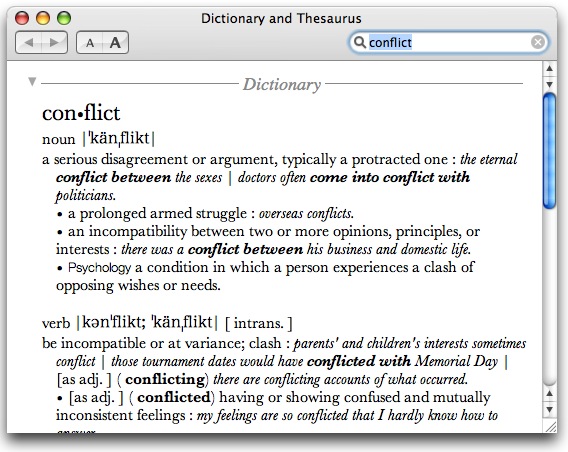
DicticonMac owners might not be aware that a feature introduced in Tiger (OS X 10.4) is a built-in Dictionary and Thesaurus, based on the New Oxford American Dictionary (2nd Edition) and the Oxford American Writers Thesaurus. If you are aware of the app, you might not be fully familiar with the extent it is integrated into the system.

First, there is the app itself:

Mac-Oed

Its use is pretty much straightforward and self-explanatory. Of course, it is handy and convenient to have a complete and detailed dictionary app on hand, especially if it is a free one that comes with the OS. But you can access the dictionary in other ways as well. One is via the app’s Dashboard widget:

Mac-Oed-Dw1

Mac-Oed-Dw2

This might not impress you, however, as you may not be a Dashboard fan, and it is just as fast to open the Dictionary program directly, unless you use the Dashboard frequently or simply prefer it outright.

But there is at least one more way to access the dictionary app which is very, very cool. Apple made the decision to integrate the dictionary into the system, and allows for it to be applied “inline,” within any app written to accept it. Take Safari, for example. Let’s say that you want a definition of a word you see on a web page. You might expect that you would have to either type the word into the Dictionary app, or select and copy the word from the page, open the dictionary app, and paste it into the lookup box. Apple’s integration cuts that down to a simple keyboard shortcut.

Just type the shortcut Command-Control-D (you can customize that–I changed it to a simple F-key) while the cursor is floating over the word in question:

Macdict-1

And viola, the definition pops up in a little inline window. Cool!

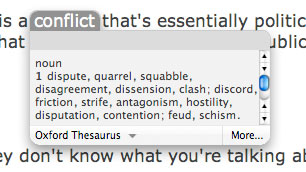
To get the thesaurus:

Macdict-2

Select that, and you get:

Macdict-3

If you click on the “More…” button at bottom right, the Dictionary app will open to the word you selected.

As I mentioned, it will work in any app that is coded to accept the feature, which unfortunately means that any app written before Tiger was released might not allow it to work (e.g., Microsoft Word 2004–though that particular app has its own built-in dictionary).

Where it is written in, it is a great feature, executed beautifully by Apple. My blog editor (Ecto) allows it to work, and I use it constantly, particularly the thesaurus element–very helpful when I have used the word “dishonest” too many times when writing about Bush, for example, and I need other ways to say the same thing.

FYI: fraudulent, corrupt, swindling, cheating, double-dealing; underhanded, crafty, cunning, devious, treacherous, unfair, unjust, dirty, unethical, immoral, dishonorable, untrustworthy, unscrupulous, unprincipled, amoral; criminal, illegal, unlawful; false, untruthful, deceitful, deceiving, lying, mendacious; informal: crooked, hinky, shady, tricky, sharp, shifty; literary: perfidious.

Categories: Mac News Tags:

Video iPod

October 26th, 2006 6 comments

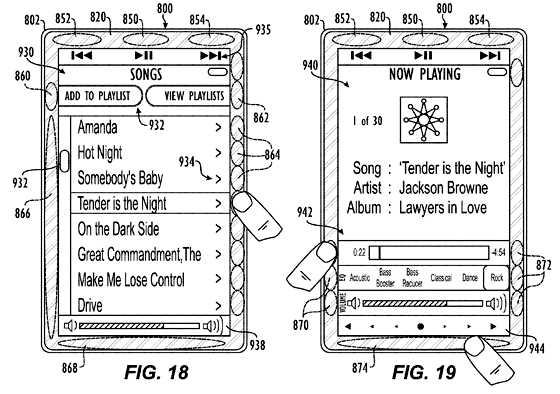
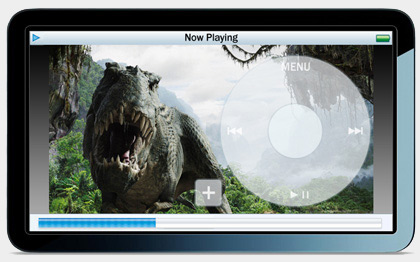
A lot of the time, future Apple tech is revealed by patent applications, so the rumor community keeps a close eye on the patent office. One application that Apple made recently had this image:

Ipodbezel2Gif

One of the things I had wondered about was how a full-screen, touch-screen video iPod would be able to maintain a clear enough screen to allow for enjoyable viewing, if one’s hands were constantly touching it. This is the answer.

Here’s the way it would work: instead of the user touching the screen, one would touch the frame (“bezel”) surrounding the screen. The circles around the edge of the device are not physical buttons, but rather touch-sensitive areas. For example, the three circles at the top of each of the screens shown above would correspond to the controls shown just below them on the screen itself. When you see a control on the iPod video screen, just touch the part of the screen frame closest to the button, and that will do the job. The buttons appear and change dynamically to suit the image on the screen and even the orientation of the device (if it’s in portrait or landscape mode).

In this way, the user has full control without physical buttons, but the full-face screen remains smudge-free. A pretty clever design, I think–though it belies prior patents that have the virtual clickwheel displayed on the screen. The mockup below shows the exact hardware design shown in these patents, but has the virtual clickwheel.

Ipodbezel2Gif

More drawings from the patent application can be found here.

Categories: Mac News Tags:

Cool Mac Features You May Not Know About: Keyboard Shortcuts

October 23rd, 2006 Comments off

Well, if you read this blog, then you know that I am a bit of a Mac advocate (please stifle coughs of scorn at the understatement, thank you). In order to show why I feel this way, I thought I should start a series on Mac features that many don’t know about which would help you understand why I like the OS so much. Some of these might even be bits a lot of Mac users don’t know about, especially beginners who haven’t fully figured out the system yet.

The first feature is one that is probably under-used: the ability to change and create keyboard shortcuts. I use keyboard shortcuts a lot; they represent a way to do things a lot more quickly than with menus or toolbar buttons, which require you to transfer your hands from the keyboard to the mouse–a seemingly trivial task, but one that can slow you down more than you might realize.

One problem with keyboard shortcuts is that they don’t always exist for things that you want to do, or they might not be shortcuts you want to use. Many programs allow you to configure the shortcuts within that app, but many don’t, and there are holes in others. Mac OS X allows you to configure shortcuts in a relatively simple way.
Keyb-Mous
The feature is found under System Preferences (found in your Apple Menu, at the left end of the menu bar at the top of your screen). Open the “Keyboard and Mouse” preference pane, and in the tabs along the top, select “Keyboard Shortcuts.”

Kybms-Tabs

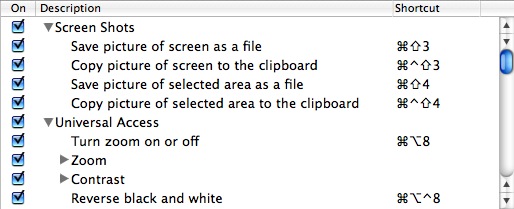
You’ll see a list of most of the system-level keyboard shortcuts. Not only is this a way to edit the shortcuts, it could also serve as a handy list of shortcuts if you forget them, and it might even put you on to discovering some features of the Mac OS you weren’t even aware of before.

Kybshrtcts

From this list, you can activate or deactivate shortcuts, and by clicking on a command and typing a new shortcut combination, you can change any of the shortcuts to your liking. A yellow warning triangle will appear next to a shortcut if it conflicts with an existing one.

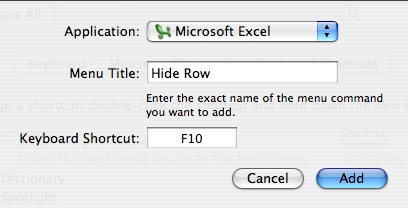
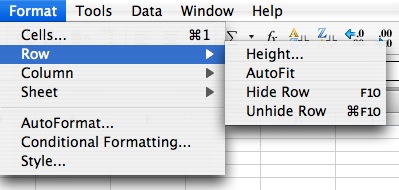
But there is an extra, very useful element to this feature that I think many people miss: you can use this preference pane to set any keyboard shortcut to any command in any application. For example, I use Microsoft Excel (hopefully not for too much longer). One action I take very often is to hide and reveal rows and columns in a spreadsheet. These commands have no keyboard shortcuts. Now, Microsoft Office allows you to set shortcuts using the Customize dialog box–but for some reason, hide and unhide rows and columns is not included, so you can’t set a shortcut for them. Considering that these commands are embedded in a submenu, it’s a major hassle to navigate the menu and submenu each and every time I want to hide or unhide something.

In OS X’s Keyboard Shortcuts feature, at the bottom of the list of shortcuts, there is an additional option:

Appshrtcts

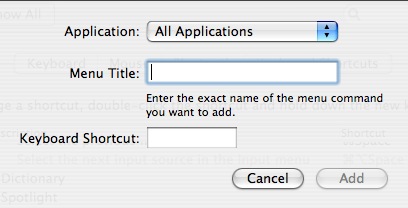
See the plus and minus buttons? If you click on the “plus” button,” it will activate a dialog box:

Appshrt-Db

First, select the application you want to affect (though you can leave it at “all applications,” and any menu item of the same name will be universally affected). Then type in the exact name of the menu item, and then type the shortcut you want to create. Capitalization, spaces and even ellipses must be faithfully typed.

Appshrt-Db2

After making your changes, start/restart the app you changed. The new shortcut will appear in the app’s menu.

Excel-Newsc

This can be applied to any program. Another example is a simple text editing program I use, called iText; the app is very nice, but for some reason, they did not include a shortcut for “Hide iText” in the app’s main menu. OS X’s Keyboard Shortcuts feature allowed me to create one.

Categories: Mac News Tags:

Yet Another Misleading “Mac Attack” Story in the Media

October 23rd, 2006 Comments off

CNN is running a high-profile piece today titled, “Security analysts: Mac attacks rare but may rise.” The URL for the piece contains the words “apple virus.”

Their evidence? The story that a few iPods were shipped with a virus. A virus that doesn’t affect Macs, or iPods, but the Windows OS only. This is a “Mac attack”?

But they give more evidence:

Oliver Friedrichs, director of security response at Symantec, a leading anti-virus software vendor, said 72 vulnerabilities were discovered in the Mac’s OS X operating system in 2006, up from 19 in 2004.

And Symantec identified six threats of malicious code written for the Mac OS X operating system in the first half of 2006, versus zero in the second half of 2005 and two the year before that.

In other words, the same old re-heated misinformation spread by a company that wants to frighten Mac users into buying their unnecessary software. Vulnerabilities are all good and well, but every OS has them, and they don’t mean much if they are not exploited before they are discovered; it means that Apple is doing a good job of finding and patching them. So far, no vulnerability on OS X has been successfully exploited in any harmful way. As for the “threats of malicious code” (just threats? not actual malware?), whatever “malicious code” has been released has been in proof-of-concept form only–never in the wild, never harmful, and never released in a way that could infect more than just a handful of machines. The day will come when the first piece of malicious code written for Mac OS X which actually does some damage will spread to more than just a handful of Macs. But that day has not yet come.

Ironically, the fact that the Windows virus was able to get onto the iPods (via a third-party contractor, not directly by Apple) is a testament to the weakness of the Windows OS, not the Mac OS. That iPod-virus story has no place in an article about Mac security, except to bolster the fact that the Mac itself is secure.

And yet people misuse the news, like this writer (who clearly has a chip on his shoulder and a stick up his butt about Macs), who speaks of “the myth of total Mac invulnerability to viruses and spyware” and “self-righteously invincible Mac users” who believe they will never be hit by a virus. Ironically,hit s view is not held by Mac users so much as it is held by Windows users who are contemptuous of Mac users. They hear Mac users express pride and satisfaction about the relative security on the Mac and resentfully exaggerate that to mean “Macs are perfect, and will never have any problems at all.” As I have mentioned on many occasions, and any knowing Mac user will tell you, the Mac is not invulnerable–it simply has better security than Windows. It benefits also from its current obscurity, but even were it to reach 50% market share, it would still not get as much malware as Windows does.

Video iPod in December, iPhone in January? Meanwhile, Vista Sucks More

October 19th, 2006 1 comment

Ipodwide2

According to this site, the touchscreen video iPod will be out before the end of the year, possibly in time for holiday purchasing. The writer claims to have spoken to an executive from a third-party iPod accessory company, who says they are kept in the loop by Apple. One of their new products, he reportedly said, has been made for the 6th-generation iPod, or the full-screen touch-control iPod long rumored to be in production, and universally expected to debut by early next year. The iPod would, hopefully, have “480p” resolution–that is, the vertical resolution would be 480 pixels, which is essentially the same as any pre-HDTV television set–even better, as progressive scan (the “p” in “480p”) delivers twice the video information of interlaced scan (what old-style TVs offer).

Take the rumor for what it’s worth…


Meanwhile, Microsoft takes a cheap shot at Mac users: they have just released their licensing information for Vista, and it appears that they are forbidding use of Vista Home version in virtualization applications, such as Parallels. That means that if you want to run Vista in virtual mode, you’ll have to pay for the Business or Ultimate editions, starting at $300.

Is there some actual, legitimate reason for doing this, or are they just being assholes?

Spanning Sync

October 17th, 2006 1 comment

SpansyncFor those of you out there who use Macs and like both iCal and Google Calendars, there’s some very good news: a company called “Spanning Partners” is developing an Internet application that will “seamlessly” sync the two. It’s called Spanning Sync, and the public beta will begin in about a week. You can sign up to be notified to join. One site says that only 100 people will be allowed into the initial beta testing, but I can’t be sure that’s the real limit.

Still, whenever it becomes available, it’ll be good news. I use iCal, but have trouble syncing it–I don’t have a .mac account (the usual way to sync iCal between two Macs), nor would I want to pay $25 for the only working shareware I could find for the purpose. But to be able to sync with Google Calendar (and hopefully, through that, between my two Macs) would be great. if I could also share my calendar with my students and let them actively make appointments, which would then show up automatically in iCal… that would be a cool app. So long as it doesn’t become too costly in the post-beta releases.

I’ll let you know when I find out more about this.

Update: the limit of 100 testers is confirmed; they will add that many people to the testing program to see how their servers react to the load. If everything goes well, they’ll add more people in groups of 100 until all who have signed up are added. Of course, this begs the question: why would this app put a load on their servers? The app is supposed to sync your Mac’s iCal with the Google Calendar web site; how does this app’s web site get involved?

Update II: Answering some of my questions, a person claiming to be involved in the project said that: (a) this software would allow for syncing iCal on different Macs via the Google Calendar; (b) changes in one calendar (additions, edits, deletions) would be automatically reflected in all linked calendars; and (c) the software will be pay software, the price being “less than .Mac [$100] and more than free.” That leaves a huge space for the fee, of course, which is not too encouraging…

Categories: Mac News Tags:

Extraordinarily Stupid Person Buys Mac, Can’t Figure Out Squat

October 15th, 2006 5 comments

Man. If you know Macs, and want to see how stupid a person can be, check out this article. I had to check the site’s main page to find out that it was not, in fact, a parody magazine–the guy’s take on the Mac was so ridiculously wrong on so many counts, it seriously looked like a spoof. I’ve fallen for those before. But this time, it’s for real–this guy is just plain dumb.

Let’s go over the article’s high points. First, a preview of his gripes from the second paragraph:

I was suckered in by the hype about freedom from viruses, simplicity of computing and versatility. Instead, I bought a boat anchor that can’t view Web sites properly, is not compatible with Microsoft Word and can run only dumbed-down versions of regular software.

How do you respond to that? The Mac is not easy to use? He addresses that later on, but we’ll see that his main complaint is that the Mac is not identical to Windows XP. Security he dismisses out of hand, as if it were not worth anything. “Not compatible with MS Word”? And “dumbed down versions” of software? But as I said, that’s just a preview. Let’s get down to his real gems:

I’ll be lucky to get half of the $4,552.71 I paid for the Mac on May 21, 2006.

Here’s a real sign of his cluelessness: he bought a pre-Intel professional-level Mac G5 just a few months before the Intel-based machines were released. That’s like buying a brand-new, top-of-the-line VHS player today–you’re buying into the old technology just a short time before it becomes outdated.

What’s more, why did he buy a top-of-the-line desktop system? His previous computer was an IBM ThinkPad, for crying out loud. It sounds like he loaded it up with massive amounts of RAM as well–and the costs would not be less for a similarly-equipped Windows PC (a common fallacy in this article–complain about the Mac for having the same downsides as every other computer out there). Why not get the Intel iMac 20-incher, already out by that time? It would have cost less than half as much, and almost certainly would have met his needs–probably more so, as it could run Windows as well. And all he talks about is running Word, PowerPoint, and the browser–no 3-D gaming or video editing. Clearly he bought the wrong computer. The iMac is plenty fast for his stated needs. This guy clearly did not do his market research, at all. And this guy works as a marketing consultant?

I liked the sexy FireWire with its zippy transfer speeds, although I used it only to transfer data to my external hard drive.

Another sign of cluelessness. Firewire is 400 Mbps. USB 2, which has been out for a few years now and is standard on all computers including Macs, is 480 Mbps. Maybe he’s talking about the Firewire-b port, which goes up to 800 Mbps–but that speed is only of use if you have super-fast peripherals, like a heavy-duty RAID array. Video editing pros need it, for example. A law firm marketing consultant, though? What for? The hard drive he mentioned was likely an out-of-the-box consumer drive, which uses only a fraction of the Firewire speeds.

The signs of doom were there on day one, but I ignored them. I pretended that I liked the one button mouse. I quickly started using click + command keys (and other keyboard shortcuts). I really missed the little scrolling wheel in the center of the mouse.

What the hell is he talking about? First, the Power Macs selling in May 2006 came with the Mighty Mouse, a 4-button mouse with a scroll ball (more versatile than a scroll wheel). How idiotic do you have to be to not realize there are three extra buttons on your mouse? Did this guy read no manual and speak to no Mac user?

Second, even if he was given a one-button mouse, he could easily just buy any USB mouse out there and it would work fine. What is wrong with PC users that they can’t buy any mouse that was not shipped with the computer? I got a Windows machine and didn’t like the old-style ball mouse they gave me, so I went out and bought a laser mouse. It’s not brain surgery.

I put up with the fact that the HP printer, which I had purchased on the recommendation of an Apple Store, would work about 50 percent of the time with the Mac. I was constantly deleting print jobs and starting them over.

I have an HP printer, and it works beautifully. In fact, I don’t even have to install the driver software, even if the specific driver for my printer is not installed in OS X; the Mac simply sees the printer, and makes up its own driver. I have only had trouble with network printers, and only in some cases even then. My PowerBook G4 easily connected to and used a Fuji-Xerox color copy machine on my office network, after just 30 seconds of setup. You have to be pretty inept not to be able to print correctly from a Mac.

I noticed it was slow; I saw that stupid spinning colored wheel a lot. The Mac would hang up; the TV ads said Macs didn’t do that.

Here’s another sign something was unusually wrong, or else he’s massively exaggerating. Even though it was pre-Intel, the top-of-the-line Power Mac G5 was lightning fast. What was he trying to do that got him the spinning cursor “a lot”? He never reveals this. I suspect the exaggeration explanation. As for hangs and crashes, that depends on what software he uses, in what combinations. Maybe the guy was loading up with beta software; crashes with finished software are rare, at least in my experience. Again, he’s probably exaggerating; frustrated people with a grudge do that a lot.

I did like the Finder because it was quick in locating files, but it would turn up a lot of false hits. It was comparable to the Google Desktop searcher on my PC.

It’s called “refining your search terms.” False hits are a problem endemic to all search engines, PC or Mac. So how does this show the Mac is worse? And does this guy not appreciate all the advantages in Spotlight over Windows alternatives, even despite the software’s version-1 shortcomings?

What drove me nuts was that I would open Word for Mac and couldn’t delete files while I was in Word. There is no File | Delete option.

This is something that I suspect a lot of people would not recognize, and this guy does not even correctly identify it. He’s talking about the ability in Windows to manipulate files and folders from within the navigation dialog box–say, when you do an “Open” or “Save” command, and you want to look for where to open or save something. It’s not a Word feature, it’s part of the operating system.

It gets better:

So the documents took up space on my hard drive, until someone told me I had to find the document in Finder and then move it into the trash from there. This seemed stupid to me; I just wanted to highlight a file and tap “delete.”

How dumb is that? This guy never caught on to the fact that in both Windows and the Mac that the standard way of manipulating files was in folder windows?

More amazing, without the ability to delete files in a dialog box, he would never delete any of his files? And by the way, how is his hard drive filling up with Word files? My superpowers of observation tell me he’s exaggerating an inconvenience again. Create more folders and organize, Pointdexter.

Look, I’ll admit right here and now that I like that ability in Windows, and would like to see the Mac pick it up–but to be chained to it so absolutely that he could think of no other way to function is so computer-illiterate to be laughable–at least for a guy who puts on the airs of writing an article about it in the media. Or are complete N00bs commonly writing tech articles now?

The really vapid thing here is that even after he’s told how to do it the standard way, he sees it as a chore that is somehow more difficult, when it is practically the same thing, just in a different location. Instead of opening a dialog box in Word, just open a window in the Finder. Navigation is virtually the same–easier on a Mac, in fact. To get rid of the file, instead of tapping “Delete,” tap “Command-delete.” I know it’s rocket science, but get with the program.

Word files transferred from the Mac were missing pictures. PowerPoint files transferred from the Mac would lose their formatting. PCs and Macs are not compatible, regardless of what they say.

Interesting–I transfer Word and PowerPoint files with my students, who use PCs, all the time, and I never have these problems. My guess though: the pictures that disappeared were in a file format that his version of Office for the Mac could read, but the Windows version of Office could not. I would guess that he saved the file using Office for Mac 2004, and tried to open it in Office for Windows 2000. I know that causes this kind of problem a lot. In short, he’s probably whining about the Mac because he’s too thick to figure out that the software version is different. This is true on Windows-to-Windows compatibility as well; it’s a universal software version incompatibility, not an OS shortcoming. As for the loss of formatting, I’d be willing to bet he used a font on the Mac that didn’t exist on the PC–which would be his error, not the computer’s.

The multiple clicking to accomplish simple tasks was a constant annoyance. Things I could do with a PC in two keystrokes took four or five clicks with the Mac. To do a “fast print” required clicking File, Print, find Copies & Pages, click Paper Type/Quality, click Normal and finally clicking Fast Draft. And there was no way to leave the setting as the default. I had to do it manually every time.

He’s basing the ease-of-use of the OS on a single printing task? How about doing a find-file between the two OS’s? A far more common task where the Mac does in one stroke what takes five or more for the PC. How about mounting and ejecting USB flash memory sticks? How about creating a new folder within a file & folder window? How about changing screen resolutions? How about setting up printers? I could go on and on; the list of things a Mac does faster is a lot longer than the list of things you can do faster on a PC.

Doing a simple screen capture was an immense chore. On a PC you just press Alt and tap PrtScr. With the Mac I had to download and launch special programs to accomplish this simple task.

So, doing a Command-shift-3 is an “immense chore”? (By the way, a screen capture on Windows in not what he says it is–he’s describing a window capture, not a screen capture!) This guy is wailing on the Mac because he’s too damned lazy to even look up the keyboard shortcuts? (Three clicks: System Preferences, Keyboard & Mouse, Keyboard Shortcuts. Boom.) The same shortcuts he could easily customize on a Mac but not in Windows? You don’t have to open the “Grab” application (which, by the way, comes pre-installed on your Mac) to do a screen grab on the Mac; that app is mostly good for “timed” screen grabs, so you can get a picture of the cursor in action, pulling down menus and such.

In fact, the Mac is easier and more versatile here than Windows. In Windows, you only have the keyboard shortcuts “Print screen” (to capture the whole screen) and “Alt-Print screen” (to capture the image of a window or dialog box). On the Mac, there are six keyboard shortcuts (most of them customizable), for capturing the whole screen, a window/dialog box/any-object-selected, or a custom-sized area you define, and to save it to the clipboard or as a file on the Desktop. With a free utility, you can specify where the file is saved and what image format it is saved as.

Here’s a perfect example of the Mac being way better than Windows, but this guy is just too dumb to realize it.

I didn’t even bother with the Mac’s iCal or Mail, which required me to buy an @mac.com address.

Wrong. Mail can work freely with any email account, just like any other software. iCal works fine without .Mac as well; the mac.com address only serves as a convenient way to publicly publish your calendars and sync them between multiple computers–things you can achieve anyway if you have a bit of technical knowledge.

Instead, I went straight to Outlook for Mac. A lot of the software for Mac — such as AOL for Mac OS X — was dumbed down and missing may features of the current PC versions.

AOL for Mac was his prime example of dumbed-down software? And the outdated and feature-poor Outlook was an example of better software than what comes with a Mac? What a buffoon.

For me the killer was the Web browser. Safari simply cannot read Flash. It is, quite simply, a second-rate browser.

That’s funny, my version of Safari reads Flash fine. In fact, I had to get special software to selectively disable Flash animations on Safari, they annoy me so much! Did he try downloading the plug-in? As for my Mac, I didn’t need to–the Flash plug-in was included when I installed OS X.

Now, it is true that some web designers lazily create their sites so they only work cleanly for Internet Explorer, but that’s the web designers’ fault, not the Mac’s. You’ll find the same difficulties with Firefox. It’s not anyone else’s fault that some web designers are exclusive because they don’t want to work hard enough to check their pages on different browsers and do the necessary touch-up work. Besides, finding a web site that doesn’t work in Safari is not an everyday experience; aside from a Google app or two, in fact, I can’t recall encountering a non-functional page in Safari for some time now.

I even called Apple headquarters and asked when a better version would be available and was told that Apple is in no hurry to improve it.

Yeah. Right. I’m sure that’s exactly what they told him. I’d bet a lot that he’s either lying about even calling them, was unable to explain his problem clearly because of his ineptitude, or that he’s massively exaggerating again–or the last two combined.

On the suggestions of friends, I downloaded Netscape and Firefox, which were no better.

I rest my case.

I scraped along with Internet Explorer 5.0 for Mac, and then discovered in 2006 that Microsoft would no longer support the Mac version.

This explains why his browsing experience on the Mac sucked–he used the crappiest possible browser, in a version several years out of date, just because he couldn’t figure out how to play Flash animations on a web page he visited in Safari. What a loser. A coworker of mine emailed me a few weeks ago to complain of web sites not working and that his browsing experience on the Mac sucked big-time. He was amazed when I accurately guessed that he was using Internet Explorer, and after I got him started on Safari, he had no complaints.

I run several Web sites, all optimized for IE 5.5 or higher.

Here’s another clue. He’s one of the lazy designers who “optimizes” for Internet Explorer. He apparently does not know that “optimizing for Explorer” means that instead of using universal coding so that every browser can read the page, he instead codes specifically for the Explorer browser in an exclusive way that simply shuts out visitors not using Microsoft’s software. Then he whines about Safari “not working.”

I couldn’t operate my own Web sites with the Mac. That was the straw that broke the camel’s back.

Say what? How, exactly, could he not operate a web site using a Mac? I do it just fine. Oh, I bet I know–he probably still uses Microsoft FrontPage and can’t find a Mac version. Outside of that, there’s no reason he can’t use a Mac for this, not that I can figure–and I run several web sites myself just fine, thank you.

Then the hard drive croaked on me after only three months of owning the machine. I couldn’t tell what was going wrong and had to hire someone for $125 an hour to come over and tell me what the heck was happening. Apple replaced it for free, but I became leery of what other hardware would fail unexpectedly.

Here’s a clue: hardware can fail on any machine. You expect the Mac to never have hardware problems? How does the fact that a hard drive failed make the Mac any different than a Windows PC?

Furthermore, you had to hire a guy at $125 an hour to tell you that your hard drive wouldn’t work? And you claim the expertise of running several web sites? The author claimed he went to an Apple Store before buying his printer, which means he had access to a Genius Bar. Sure, it’s a pain to haul the big Power Mac chassis into the store, but it has those big handles on it, and surely it would be worth saving $125 an hour?

This is the definitive Ugly-Windows-User bashing of the Mac. A moron who doesn’t bother to read up or learn how a Mac is different or what it can do, then complains when his Mac doesn’t act like Windows. If I posted a blog entry on Windows that was as stupid as this article is, I would be too embarrassed to write again at all for a month, and would never expect anyone to trust anything I wrote about computers ever again.

There is one fringe benefit to this, however: if I ever need market consulting, I know exactly who not to call for assistance. If this guy is so clueless about operating a simple computer, I wouldn’t trust him to do anything more complicated than driving a stick-shift, following a recipe for cookies, or programming a VCR–and probably not even that much.

iWork ’07: Fleshed Out

October 12th, 2006 1 comment

Reports have been trickling in that iWork ’07, the next release of Apple’s Office suite, will finally reach full strength with the addition of a spreadsheet app, code-named “Lasso,” to the package. Like Pages and Keynote, Lasso’s initial release won’t be as full-featured as its Microsoft Office counterpart, Excel, but also like Pages and Keynote, it will be fully compatible with Excel, as well as with Apple’s old spreadsheet app from the now-defunct AppleWorks suite.

Lasso’s function editor will sport more than 200 hundred functions that will span a number of needs, from financial to statistical and possibly niche applications such as engineering, sources say. Lasso will also feature limited integration with the Internet, making it easy, for example, for users to create a spreadsheet that automatically downloads and inputs updated stock market information at a specified interval. Wrapping such functionality in an attractive, straightforward interface will be Lasso’s strong suit, bringing practical, advanced capabilities to the masses.

To that end, Apple will also include a number of attractive templates with Lasso for such needs as personal finance, business, personal planning and health, such as exercise performance charting and calorie counting logs. Several templates will also target K-12 teachers, including grade books and lesson plans.

One can also expect Apple’s spreadsheet app to be uber-cool in the graphics department, particularly which it comes to making charts and graphs. I only hope that the app allows the user to choose any design they want for each chart, and not be limited to one design per “theme,” like Keynote is now.

Apple will also update Keynote and Pages. While Keynote’s upgrade will be “incremental” (read: no new big features or design changes, just added templates and stuff), Pages will get a much-needed revamp. People have often complained that Pages is trying to be both a word processor and a desktop publishing program, and the mix doesn’t work (I’m OK with it, but I see their point). This new report says that Apple will be separating the two functions into different “modes,” presumably similar to Microsoft Word’s “normal” and “print layout” views. They also report that Apple may even build interfaces with Wikipedia and Google directly into the program so that people writing anything which requires web research won’t have to switch to a browser window to do so. (Curious: will they make academic citation of web sources easy, accessible, or even automatic? That would be cool.)

The significance of the spreadsheet app being added is that the iWork suite will then be a complete package to supplant Microsoft Office, a much more expensive suite of applications, and, let’s face it, a suite created by Microsoft. While the initial release of the iWork spreadsheet might not be as feature-rich as Excel, it will doubtlessly do the job more than well enough for a vast majority of users. Also, if you recall, both Pages and Keynote were feature-poor on their initial outings, but both have grown into more mature applications, and will grow more as time goes on. iWork ’07 will be important as it will allow almost any Mac use to leave Microsoft apps completely behind, while remaining fully able to read and generate MS Office documents.

Price will also be a factor: Keynote was released at a $99 price point, but when Pages was added, the price actually went down, to $79. I would expect the iWork ’07’s 3-program suite to kick the price back up to $99–making the whole suite the same price as Microsoft Word alone, and one-fourth as expensive as the MS Office suite. Another big incentive to make the change, and it will probably come a half-year before Microsoft updates it’s Office suite for the Mac with Office 2007–which may be the last upgrade of Office for the Mac that we’ll see.

Categories: Mac News Tags:

Mac Potpourri

October 10th, 2006 Comments off

Giants acting peevishly: Target has now joined Wal-Mart in opposing Apple’s entry into the movie-selling market. Their lament:

U.S. retail giant Target has joined rival Wal-Mart in expressing concern regarding the adverse effect digital movie sales could have on the DVD business. Like Wal-Mart, Target is less than pleased that Apple’s wholesale price for new movies from Disney is several dollars less than the wholesale price charged to Target for DVDs, The Wall Street Journal reported Monday.

Let’s see. When Apple sells a movie, they do not need to have a physical DVD, the packaging that wraps it, the physical plant to create the DVD and the packaging, nor the distribution network to deliver the physical package. Plus, there is less content (no extras, like director’s commentary or other features). That’s why Apple gets the movies for less.

Maybe the giants saw this story about Tower Records going under and started sweating a bit. Still, it’s time for the retail giants to stop whining like children, and accept that someone else can take a tiny bite out of them, like they destroyed giant swaths of small businesses. It’s called “competition.” I know they don’t like it, but they might actually have to deal with it.


Apple has released three new “Get a Mac” ads. Cute, as usual.


I’m certainly not the only one who sees Vista’s “spyware” (anti-piracy measures) as a disadvantage. The question is, how severely will this hurt Windows, and how well will it play to the Mac? Stan Baer reports:
It’s a pity that I feel compelled to write an article like this. However, the thought of being forced to pay through the nose to upgrade to a highly configured PC running Vista, only to face the prospect of constant check-ups from some server in Redmond about the validity of my software has me a little spooked not to mention outraged.

No doubt there are plenty who disagree and believe that SPP is necessary to stamp out software piracy. To them and Microsoft, I say don’t try to fool yourselves. The vast majority of software pirates are in second and third world countries. Many will find a way around SPP and those that can’t will probably turn to Linux.

In fact, Microsoft’s decision to try to nab Vista software pirates using spyware may be the best thing that ever happened to Linux and Mac OS X.

The more we see PC users talking about stuff like this (Baer also explains how you can run Windows on a Mac easily), the more chance there is that the Mac market will expand. It is certainly possible that Vista will be the best “Get a Mac” ad ever.


A couple of new Mac blogs out there to pay attention to: Google now has a Mac blog to go with their regular blog. A good way to get tidbits of general info in addition to keeping on top of what Google can offer your Mac.

And an Apple worker writes anonymously in the new blog, “The Masked Blogger.” Not a hit piece nor necessarily a love letter, it could be interesting.


Not really Mac news, but big nonetheless: Google (video) just bought a big competitor, YouTube. YouTube will continue on as-is for the time being; no hint of what Google plans to do with it. In the meantime, the owners of YouTube now can enjoy a cool $1.65 billion for their past few years’ work.


Finally, this is really not Mac-related… but I figured I’d tack it on. From the people at FG, a report on the new Star Trek… Pachinko game.

Your head may now explode.

Categories: Mac News Tags:

Losing a Game of Catch-up

October 7th, 2006 Comments off

One more shot at the Mac-Windows world of today, and I’ll probably come down off the topic for a while (unless something newsworthy comes out).

When it comes down to it, is there really any comparison between the Mac OS and the Windows OS? One in which Windows doesn’t come across exceedingly poorly, that is?

Let’s take a look at Vista’s features:

Eye-candy interface
Improved search
Better security
Internet Explorer 7
Windows Media Player 11
Sync & Sharing
Live Taskbar Thumbnails
Windows Flip and Windows Flip 3D
Sidebar
Backup & Restore
64-bit native
Collaborative Meeting Spaces
Intensified DRM (“Genuine Advantage,” “Plays for Sure”)

On that list, only the last four features are not already on the Mac. Backup & Restore will be coming in Leopard as “Time Machine,” with a much better interface, and Leopard will also be 64-bit native. Of the remaining two, the Collaborative feature will likely be of interest only to businesses, and the DRM is more a hindrance to users than a “feature.” Everything else, as far as I can tell, is already part of Mac OS X Tiger. The eye-candy interface, better security, sync & sharing, and live thumbnails have been around for multiple OS X releases, in fact.

Effectively, Vista is little more than a game of catch-up–with Tiger. Meanwhile, a few months after Vista hits store shelves, Leopard will be coming out, putting the Mac OS even further ahead of Windows. Leopard’s known features include:

Time Machine (very nicely executed Backup & Storage)
64-bit native
Improved Search (Spotlight)
Spaces (multiple desktop management)
Mail will be significantly improved and integrated with other software
iChat will be significantly improved and integrated
iCal will be significantly improved and integrated
Safari will be significantly improved and integrated
Dashboard will be significantly improved and integrated
Core animation will significantly improve built-in graphics management

Additionally, the following features are likely to appear as well:

iTV (as a separate product, but well-integrated)
Front Row 2.0 (integrated and possibly merged with iTV)
iPhone (as a separate product, again well-integrated, probably working closely with Mail, Address Book, iCal, iChat, iTunes, and iPhoto)
Improved Finder
Possible integration with Google Maps & GPS for iLife and other apps
Possible Boot Camp upgrade with Fast user switching to avoid rebooting
Possible release of Spreadsheet app to finish the Apple office suite (as a separate product)

And seeing as how Apple did a pretty good job of keeping a lot of stuff secret, there will probably be one or two more surprises in there. I know I mentioned some products that are sold separately (iTV, iPhone, Spreadsheet app), but they will be integrated and/or central to Apple’s independence as a fully self-contained computing package, without need for reliance on Windows to some degree.

But there is one more aspect that Windows advocates fail to mention when they go on about all the advantages of Windows: Macs can do Windows, too. For an extra hundred bucks or two, you can get everything the Mac offers and everything that Windows offers as well. That, right there, catapults the appeal of a Mac far beyond simply Windows alone.

Yes, I know I am as biased for the Mac as I am biased politically, but I just don’t see the advantage of buying a Windows box, unless you want to go dirt cheap and don’t care about much else than that.

Categories: Mac News Tags:

Leopard Leak

October 6th, 2006 Comments off

Maybe he wasn’t supposed to do this, but one Apple developer wrote an article on his blog about new features in Safari 3.0 that have not been released publicly yet. Apparently the information is valid; some say they heard about these features soon after developers received their copies of Leopard. However, this is the first time the features have been released in so much detail, so openly. The guy’s web site is now giving a “Forbidden” error message, but a mirror of the post is still available at the time of this writing. The site is probably down because of the Slashdot Effect, though one could easily imagine more sinister reasons having to do with Apple legal.

The features the author points out are very cool, though it should be pointed out that they are not necessarily unique. Other browsers have them–but usually as plug-ins or extensions, sometimes even requiring payment to activate. To have them come standard in a browser is very nice indeed.

S3Find1One of the features the blog covers was made public some time ago, though not thoroughly demonstrated: a new Find feature. People have compared it to Firefox’s Find, but I like Safari’s implementation a lot better. In fact, I have always been annoyed by the Firefox implementation. I don’t want to have to focus on the bottom of the page, and I’ve never liked the annoying sound it makes when the term I’m typing suddenly doesn’t match anything on the page (I hope Apple doesn’t copy that part). I am still partial to the floating find box, but I’ll take Apple’s top-of-the-page placement over Firefox’s bottom; it simply makes better design sense, being more consistent with usual find actions.

S3Find2But Safari does one better: it highlights all instances of the term simultaneously. When you type something in the find box, the search bar immediately shows you how many times the term appears on the page, while it highlights the first instance in the page. Hit the Return (Enter) key, and the page goes dim with all instances of the search term remaining bright. You can then roll through all the instances, making the one you focus on bright orange (in line with Leopard’s new style). You ask me, I think that’s a better way to run the show–though they could tone down the orange box a little bit.

But the features that I’m really looking forward to are the other two. First, the lesser one: resizable text boxes. This addresses a particular pet peeve of mine. I hate it when I go to a web site where they ask me to type something in a box, and they made the box so tiny that it’s virtually impossible to write comfortable. Reviewing what you typed is extremely uncomfortable. I have often figured that some web sites do this intentionally–for example, business sites where they want to force you to keep your message short so they won’t be so troubled by your complaints or what not. But this is also a common failing in blog comment areas.

The new feature in Safari allows you to resize the text box to whatever feels comfortable to you. Each box will sport a resize handle in the lower right corner; just click and drag, and you have the size you want. I would love to have that feature. Interestingly, some web page designers hate it; apparently, they want to dictate such things to you, and if the reader changes that aspect, the designers feel that the reader is “breaking” the page. I say, nonsense. The web is supposed to be democratic, even anarchistic, not totalitarian. I would actually like to see this philosophy extended to all aspects of the web site. Often the sites break on their own, because everyone seems to design for IE; if you don’t use IE, you know what I’m talking about, with page elements sometimes drifting over others, blocking stuff and generally looking bad and being inconvenient. The ability to simply grab the page element and place it where I like would be fantastic. The ability to select an ad and delete it would be heaven. But for now, I’ll settle for the resizable text box.

S3Tabs1The last feature is the one I’ve been waiting for, though. I’ve seen it available before, but only as a paid software upgrade; if a free version exists, let me know. This is what the blogger called “Tabs on Steroids.” The image at right doesn’t really show the feature well, partly because of the low quality of the streamed movie, but also because the feature doesn’t “photograph” well. What the image shows is the ability to re-order tabs. If you have many tabs open and you’d like to rearrange them, move a few to the left, some to the right, this lets you do it.

S3Tabs2But again, Safari goes one better: you can drag a tab fully off the window. You can then either let it go independently, where it will form a new window with the tabbed URL, or you can drag the tab to another existing window and add it to the tabs there. Safari also allows you to combine all tabs in all windows into one window, consolidating all of your pages in one place.

Like with the resizable text box, this follows the paradigm of allowing a flexible web experience, letting the user dictate what happens rather then letting the application or the web page decide. One other new pet peeve I wish they’d implement along these lines: a working version of setting a default text size, one that overrides CSS settings. I don’t know why they don’t have this–but hey, maybe Safari 3 does. Right now, I find myself sitting in front of my 24-inch iMac, constantly hitting Command-plus two, three, or even four times every time I load a page. Strangely, that command overrides CSS text sizes, but not the default font size preference.

I’m sure there’s more to Safari 3 than this, but what I see, I like. I very much look forward to January, when we will probably get the rest of the scoop on what Leopard overall will bring.

Categories: Mac News Tags:

Mac Exploit?

October 4th, 2006 Comments off

Kind of. If you hear news about a “Mac Exploit in the Wild” and they represent it as a reason to see Macs as an insecure platform, take it with the usual grain of salt. It’s not a virus, and the chances that anything will happen to your computer are pretty much zero.

What it is is a weakness that can only be taken advantage of by someone who has been granted access to the computer already, someone who has logged into your Mac with a password. The exploit allows this user to take full control of the computer, but the risk, really, only relates to the lack of trust you have in people who you have already trusted enough to give a password to log into your Mac in a limited manner. Not to mention that said person must have hacking skills. Needless to say, the chances of any of this happening to you are virtually nil.

Furthermore, the exploit has been patched by Apple’s latest security update, so even if there is a chance for you, it no longer exists.

Categories: Mac News Tags: