Archive

Archive for the ‘Mac News’ Category

Mac Mini vs. the PC Mini

May 31st, 2005 1 comment

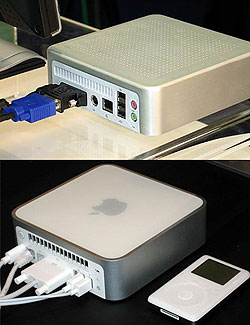
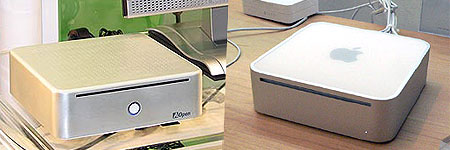
Well, sooner or later it had to happen. The Wintel world has ripped off just about everything else that Apple comes up with, so why not this? A company named AOpen has displayed what is clearly a complete rip-off of the Mac Mini. See for yourself:

Mini1

Mini2SPC defenders claim that small form factors have been around for years, so this can’t be a rip-off (here’s an example of what they’re talking about). But the AOpen is so clearly a copy of the Mac Mini it’s not even funny. The same size, same rounded edges, same brushed-metal sides, same location and appearance of the optical slot drive.

And look at the back: even the fan slots across the top of the back panel are a near match. More noticeably, the white plastic area containing the back panel: an exact match to the Mac Mini. The primary difference is the relocation of the power button and the lack of an Apple logo in the middle of the top of the unit.

They could at least bevel or round the edges differently and make the unit’s color scheme something other than brushed metal. Stand it on its side or something. There’s no getting away from the size constraints forced by the optical drive, but hey, at least try to make it look a bit different!

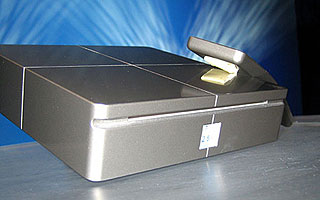
This comes on the heels of an announcement and display of an Intel “proof of concept” mini-PC. Intel order the prototype to show that they could put Intel chips in a similarly-sized PC box (though it is expected to cost more than the Mac Mini–so much for “cheaper” Wintel boxes). But the Intel model looks suspiciously like… you guessed it, the Mac Mini. Except it’s a lot uglier. See the photo below: basically the Mac Mini box, with a ghastly grid on top and bizarre beveling of the identically-placed optical slot drive.

Intelmini

Update: just more info that I dug up, actually. For all the protestations in the PC world that there are Wintel boxes that sell for less than the Mac Mini (only if you spend hours jumping through mail-in rebate hoops and then wait months for checks), the Wintels referred to are all big tower PCs. Wired News, meanwhile, reports that Wintel minis that do exist sell for $600 at least, and about $900 to get features comparable with the Mac. And the PC minis don’t sell well, while the Mac Minis have been flying off the shelves at the rate of 40,000 per month. So much for Wintel doing it cheaper and better.

Widgets I Like

May 25th, 2005 1 comment

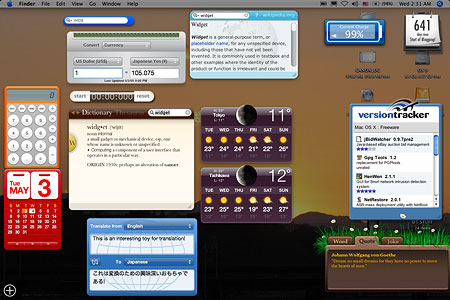
With Apple’s Tiger, comes Dashboard, and with Dashboard, a horde of Widgets to choose from. Apple’s initial set has a few good ones–the Weather widget is good, the translation widget is fun, the Dictionary widget is excellent, and the calendar isn’t bad. But there’s a wealth of new widgets coming out on a daily basis, and from that you can pick and choose the dozen or two that you can use on a daily basis. Here’s what my own dashboard looks like now:

Wg-Dash

Two sites which have most of them are Apple’s own widget download page, but even better is the Dashboard Widget Showcase. New widgets are added all the time, and they have a pretty good collection so far.

Wg-ReversiAmong my favorites:

Reversi: a simple game, but it works well. Which is more than I can say for the solitaire game that came out early as a widget–that one was hard to operate, and just kinda sucked. But Reversi works as advertised, and can be quite distracting. At the medium setting, I can usually beat the computer–but the widget allows for two humans to play as well. A very well-execusted widget here.Wg-Icalev
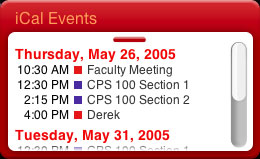
iCal Events: recently updated so that it displays the events in all your calendars at once, this widget will alert you to all of your coming appointments in the next day without having to open the actual iCal app in which you set the appointments. Not a huge convenience, but it is a convenience–especially for someone like me, who often forgets to check his calendar….

Then there are a few Timer widgets:

Wg-Timers

the one on the left is iChrono, and provides a service I’ve lacked on my Mac for some time: a simple stopwatch function. This comes in handy when my students do their PowerPoint presentation projects, and one of the grading elements is timing.

The other widget, on the right, is the Countdown Calendar, which does what it says, though it also counts up, as I use it to count how many days of consecutive blogging I’ve done.

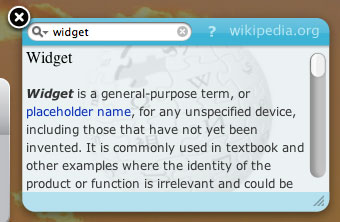
Others I have include widgets that search sites like Amazon, the Internet Movie Database, Wikipedia and song lyric databases; “This Day in History,” a metric/currency conversion tool, a word/quote/joke-of-the-day widget, and a simple digital clock are also nice. But you’ll find the ones that you like, and will build your own custom dashboard.

There are a lot more, and I suggest that you regularly visit the download pages I’ve linked to above–new, interesting widgets are coming out all the time.

Categories: Mac News, Main Tags:

Tiger Tales: And All the Rest

May 4th, 2005 Comments off

So I’ve covered three of the top new features about Tiger, namely Safari RSS, Spotlight, and Dashboard. I haven’t tried out Automator yet–it seems useful, but I’ve never used macro-like features before, and would want to read very carefully about it and try it out several different ways before speaking on it.

So what else is there? Well, minor appearances, for example. The copy file pane is different from before. Quicktime 7 now handles larger, high-definition files–but my computer is not fast enough to display them in anything but a jerky stop-and-start way. And then there is an interesting appearance change which is both tiny and significant: in open windows, there is no longer a division between the title bar and the tool bar immediately beneath it; they appear to share the same area (at least in the brushed-metal style–classic Aqua style seems unaffected). The functional divide still exists, though–click and drag on the title area and it will move the window, while doing so in the toolbar area will not. A purely cosmetic choice, and one that could cause a bit of confusion.

And I should speak on smart folders sometime, I didn’t get to that. Essentially, they are a way to keep a specific search permanent and ongoing in the form of a folder; visually, it’s like a virtual folder where all items of one type will go to whether you save them there or not.

And then there’s the Oxford English Dictionary and Thesaurus, now integrated into the system. For example, when I’m drafting in Ecto, I can right-click on a word and select “Look Up in Dictionary,” which will open the dictionary and show me the definition, etymology and synonyms, if any. Very nice. Dictionary is also available in a widget, and as a stand-alone application.

There’s the new interface for Apple’s Mail program, with some other features, like setting mail priority (which in a quick attempt I could not make work). Many have complained that the new look is ugly, but I like it fine. I might even give it another try sometime soon, but frankly I like Eudora so much that I won’t make a full switch anytime soon.

You may have heard that Tiger has “200+” new features, and Apple lists them here. But a close examination will show that the list is artificially lengthened. For example, the Spotlight feature is represented as multiple features when it’s really just applied in multiple applications–Spotlight used in Contacts, Spotlight used in dialog boxes, Spotlight used in Font Book, Spotlight used in iCal, Spotlight used in Mail, etc. Also, each major new feature is divided into many parts; the Spotlight menu bar item, the spotlight window, smart folders, and so on. Dashboard is a single feature, but Apple lists individual widgets as separate “features.” Additionally, add-ons are counted as features–more fonts and more languages, for instance.

But then again, this is standard for the industry. While you may not find 200 actual new features in the sense of what you may consider a “feature” to be, you will find enough in Tiger to make it interesting and useful.

But is it necessary? Well, probably not, though that may depend on your needs. Is it worth the price of upgrade? It was for me, but again, it may not be for you. And that’s true of all upgrades.

Tiger Tales: Dashboard

May 3rd, 2005 1 comment

Aside from Spotlight, the other headlined feature of Tiger is Dashboard. If you know about Konfabulator, then you should understand Dashboard. Essentially, Dashboard is a place for widgets, which are mini-programs. You hit the shortcut key (you decide which), and the desktop goes dark while a layer of colorful, 3-D-ish little gadgets zoom in to cover the screen. These are limited-purpose, minimally-sized simple programs that perform a simple function–clock, timer, calculator, measure converter, weather forecast and so on. Stuff too small to really merit a full-sized program.

Many say that Apple ripped off Konfabulator, and it’s hard to argue with them–the concept is nearly identical. But then again, others argue that Apple had the idea first, and they were called “Desk Accessories.” If you’ve used Macs since the 80’s, you know what those were, but essentially they were indeed the same concept–little mini-programs very similar to widgets. Maybe that’s how Apple is able to avoid litigation from Konfabulator–they could easily sue them right back on the same charge. As a user, I can’t complain too much–Konfabulator costs $25, and with Tiger, it’s part of the system (and probably better-integrated), but many say that Apple will have a harder time getting people to make good 3rd-party apps if they take those ideas and integrate them into the system like that.

All that aside, Dashboard is a nice thing to have. Hardly essential, not exactly ground-breaking, but a fun and useful toy. This is what it looks like in use:

Dashboard

You’re just happening to look at the widgets I’ve decided to use full-time. You get started out with a dozen or so, but there are 150 different ones available on the widget developer site, with new ones appearing every day. Apple has a list, but it’s not as complete. (Note: when I download them in Safari, they get automatically placed in the correct folder in my Library–a nice touch.) Many of the widgets will be useless to you, unless you happen to need to know the traffic conditions in Houston, train schedules in the United Kingdom, or how to say “armpit” in Norwegian. With time, hundreds more will come out, and eventually you’ll be able to build up a really good set.

How does it work? I set mine to appear with the F11 key. Just press it an zoom, it’s there. How do you open new ones? You don’t have to go to the Widgets folder and double-click, instead just activate the Widget bar (click on the little plus-sign in a circle at the lower left corner of the Dashboard screen), which pushes its way up from the bottom of the screen.

Widgetpanel

Click on one of the widgets in the bar, and it’ll open, and stay open till you close it. To close a widget, you can click on the little close button at the top left of the widget, which is visible when the widget bar is open, or when you hold down the option key.

Widgetclose

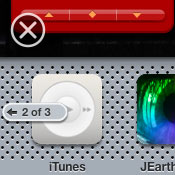
If you have more widgets than fit on the bar, little buttons appear on either side to prompt you to see the next batch. When you’re finished with the widget bar, click the “x” in a circle above the bar and to the left.

Widgetturn

Most of the widgets can have options set by looking at the “back” of the widget. The widget should show a little “i” in a circle in one corner; click on that, and with a very cool 3-D effect, the widget turns around to show the options, if any. Some widgets can change in size as well, depending on their function. Take the common weather widget, for example, one of the Apple standards. Here’s a little animated GIF to show you how it works:

Weatherwidget3

The initial image is of just the basic bar, showing current weather conditions. Next, if you click the middle of the bar, the 6-day forecast drops down. And finally, on the back, you can set the city the bar is for and whether it shows in Centigrade or Fahrenheit.

When you’re finished with widgets, you can make them go away in one of three ways: hit the key you designated to open them, hit the “escape” key, or just click on any window or the Desktop visible behind the widgets.

As I said, not a must-have item–but it’s handy, fun, and cool.

Tiger Tales: Spotlight, the Basics

May 2nd, 2005 4 comments

Another new Tiger feature is Spotlight, and this is really the star of the new OS. This is the blazing new file search feature that’s supposed to make it incredibly easy to find any file on your computer. And from my use of it over the past few days, I’d say it both does and doesn’t make it easier. But the “does” part is much more significant than the “doesn’t.” Any system to find files is bound to have drawbacks, but overall, Spotlight is a big improvement over old search methods.

A Spotlight search begins with the new spotlight icon at the far right of the menu bar (pushing aside the account switching menu, not shown here). Click on the Spotlight icon (or use the configurable command key), and a search bar appears.

Spotlightbar

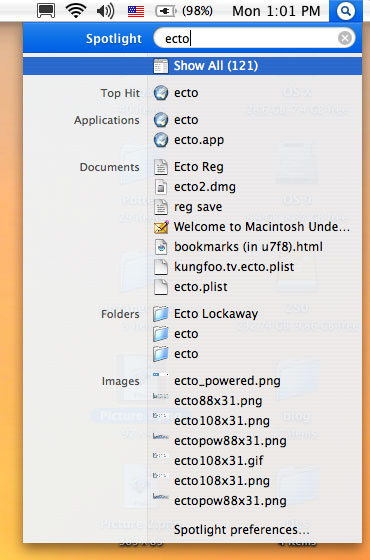
Type in your search term, and a menu will appear, showing the search results. I use an 800 MHz G4 Powerbook, so it’s not lightning fast–a dual-processor G5 PowerMac might show instant results, I don’t know. But this is what your results look like:

Spotlightmenu

Here’s where some of the negative points about Spotlight come into play. First, it’s difficult and sometimes impossible to confidently choose any of the items in the menu before the search is dome. On my computer, a full search takes about 6 or 7 seconds, but before that’s finished, the list is constantly jumping and shifting due to new items being found and added. Still, 6 or 7 seconds for a full search is not bad at all, and my Mac is relatively old and slow. If I had the latest powerbook, it would likely be only 3 or 4 seconds; a PowerMac G5 would likely cut that down to 1 or 2 seconds.

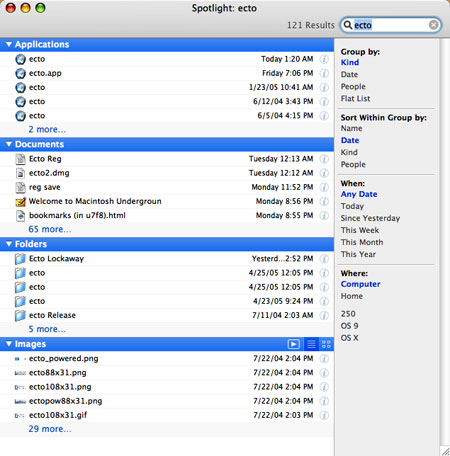
The other problem has to do with choosing an item from the list. From this menu, the only thing you can do for any specific file is to open it. You should be able to right-click on any item and then choose to open it, view it in the Finder, or get info on it. Maybe that’s impossible to do in a drop-down menu, but if it is possible, that feature should be added in the future. So, if you don’t want to open one of the files you see, you have to go to “Show All,” the item at the top. This will open a window displaying the results in a more manageable fashion. This is something you can do at any time–you don’t need to wait for the search to finish.

Spotlightwindow

The results are here divided into categories, such as applications, folders, documents, images, music, fonts, and so on, each category showing five results each. You can exclude categories from your searches in the Spotlight preferences pane. (You can also group into categories by file author, date, or just display as a plain “flat” list.) Each category can be minimized to its title bar, or expanded to show all results. They can be sorted by name, date, kind, or “people,” and limited by time frame or volume location. They cannot, however, be sorted by size–something I regard as a glaring omission.

A big feature of Spotlight is that it indexes and searches not only file names, but the contents of all those files as well. This is great, but the problem is that you can’t limit it to a filename search only, unless I missed something. Which means that every dictionary file, text database and probably email archive will dominate the results of any search, flooding the results to a degree that makes it hard to find the file you want. Although you can’t turn off the contents search, you can exclude certain folders from searches using the Spotlight preferences pane. In the preferences, if you go to the Privacy tab, you can select folders that will not be included in any spotlight search. I had to find all of my mail archives and dictionary files and exclude them in order to make it work well. (If you use Apple’s Mail app, those results will show in a different category group and won’t pollute the documents results–but I use Eudora). That helps, but it would be better for Apple to allow you to choose file names, contents, or both in any search.

The content search does help in other ways. Now that you have it, you can tag special files by making notes that spotlight can see. This can be done through the Get Info window:

Spotlightcomments

These comments allow you to single out a file by using keywords. However, the drawback is that it takes a bit of effort. You cannot select multiple files and add a single Spotlight comment to all of them in the Get Info window (another oversight by Apple, they should add that ability), and if you take thousands of photos a month, obviously it would be ludicrous to try making comments in all of them. This is for specific files you will especially want to find in the future.

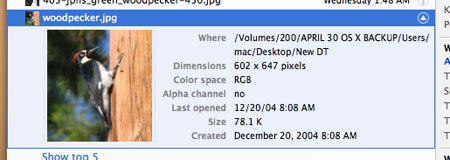
SpotlightinfoBack to the “Show All” window. Note in the illustration I presented when introducing this window that each item takes up one line and gives limited information. A little hard to see is a ghostly “i” for “info” icon at the right of each line. Click on that, and Spotlight will expand the item to show a more detailed icon and basic information for the file.

Spotlightinfo2

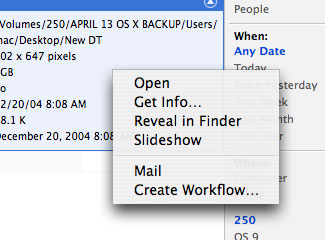
Furthermore, by right-clicking (control-clecking for those of you who still use one-button mice) on any item, you can choose from several commands, including “Reveal in Finder,” which allows you to see the file instantly. This is what should be added to the initial Spotlight search menu, if possible.

Spotlightrc

SpotlightimageAnother feature is for images. The blue title bar for the images grouping has three icons at the right, allowing you to choose how to display the images: as a slideshow, a list, or by thumbnails. Thumbnails are nice, but if you have a lot of images, it takes a while for the Finder to generate them all. The slideshow, however, provides a good way to get a very detailed look.

Opening one or more images in slideshow is possible. Either will allow you to see the image at actual size or fit to screen, with a black background that occludes the desktop. You also always have the option of adding the image to iPhoto (but there is no option to send the photo to any other application–perhaps not an oversight by Apple, but that should be changed). But with multiple images, you have more options.

Spotlightss0

Here’s one result from a search for images of woodpeckers. Before I started the slideshow, I selected all six images I found. Note the control bar at the bottom:

Spotlightss2

The choices are, from left to right: back, play/pause slideshow, next; index sheet; actual size/fit to screen; add to iPhoto; and close. If you choose the Index Sheet, you will get an Exposé-style choice of all the photos; choose one, and it will show in the player. This is a nice option to have handy.

Spotlightss1

There is more to Spotlight, and I may touch on those other features later, but these are the basics. As I’ve noted, there are some down points–the time it takes to finish on older computers; the inability to get info on any item in the initial Spotlight menu, to sort by date, or to search by filename only, among other smaller nits. But the plus side overwhelms that: an extremely fast search method which allows you to flexibly sort and manage huge amounts of data to find what you’re looking for. If search features like this are important to you, then Tiger may be an essential upgrade.

Tiger Tales: Safari

May 1st, 2005 3 comments

So I’ve installed Tiger, of course. The question is, is it any good or worth the $129 ($85 by academic discount in Japan) you pay for it? The answer to that, I suppose, lies in what it is that you value. In such a short time, I haven’t had a chance to delve deeply into all the new facets to the OS, but I do have a few impressions; I’ll be discussing these over the next few posts, each taking on a new general feature of Tiger.

Unfortunately, the speed of the new OS is not something I can comment on too well. Speed is supposed to be one of the big new under-the-hood features in Tiger, and it may well be. But it’s hard for me to tell. You see, I had been using Panther (10.3) running since its release, and had never reformatted the disk and re-installed everything, or even re-installed the system. As a result, the system was breaking down, crashing all over the place and slowing down quite a bit–coming to a crawl whenever I copied files from one location to another. So of course things run faster now, but I can’t attest to how much faster they are compared to a clean install of Panther.

What I can attest to, however, is that Safari definitely works faster than I ever remember it working, and since Mozilla is inexplicably slower in Tiger (or is it the new version of Mozilla? or the bloated profile files from being used continuously for such a long time?), I’ve decided, at least for now, to switch over to Safari–despite the fact that it still lacks the ability to turn off those annoying animated GIFs. Safari, like most Apple applications, is very well-designed, easy to use, and lacking in features and controls. But what it does feature, it features very well.

One of the highly-touted features in Tiger is Safari’s new RSS ability, which lets you use the browser as a news feed program. In case you’re not familiar with that, RSS feeds are kind of a no-frills version of an article in a web page publication. With an RSS feed reader, you can quickly see a list of all the entries available–kind of like seeing an index of the new stories on the web site. But readers will also automatically scan all the bookmarked sites and alert you when new offerings are available, so you don’t have to tediously scan all the web sites to seek out new entries. Unfortunately, most web sites do not have RSS feeds.

SafarirssbmSafari, like most readers, will scan the sites you’ve bookmarked at regular intervals you can decide. If you look at the bookmark, it will show you how many new articles there are available for each site (or group of sites you’ve bundled together) by showing a number in parentheses. While this form of notification doesn’t jump out at you like some RSS readers do, it is quite usable. This blog itself has an RSS feed, though I’ve made the length of the feed unusually long, so you can read entire blog entries that way, instead of the usual practice sites have of only giving you one or two lines, then requiring you to jump to the web site in order to read the rest.

Now, this feature just as I’ve explained it would be kind of a Swiss-army-knife attachment to Safari, but if left at that, you might as well just get an RSS app and use it by itself (indeed, many may prefer to, as some will show the number of new articles in the dock icon, or have other features Safari lacks). But Safari does provide another twist to the game: in the course of regular browsing, when you visit any site that has an RSS feed, a little Safarirsstag“RSS” tag will appear in the URL (web page address) window, on the far right. Click on the tag and the whole window changes to a list of all the RSS stories available (see illustration below).

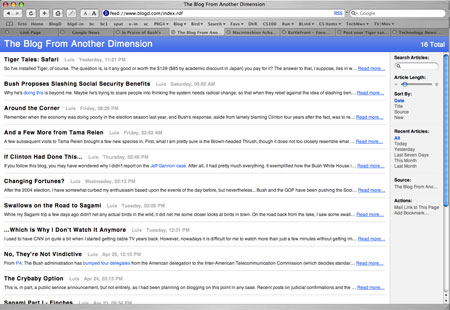

Safarirsssheet

SafarirsssearchThis list can then be searched in a Spotlight-style search bar on the right. This allows you to set keywords, sort, choose articles of various ages, or mail a link to the pages’ RSS feed.

You can also bookmark a specific search in a specific web page. For example, if you want to be informed of any article concerning social security from the New York Times, just go to their main page, click on the RSS tag, enter the search words “Social Security,” and bookmark it. You’ll have a bookmark which then acquires a number by it to show you how many new articles on that topic at that site are available.

Other than the RSS system, the only new feature I can see worth mentioning in the new Safari is the parental controls, but I have not tried it and have no interest in it, so you’re on your own there.

But Safari itself has many pre-existing features to make it worth using. It’s a tabbed browser, for one. That’s a make-or-break feature for me; after Mozilla started using them, I’ve become addicted and now find it cumbersome and annoying to have to open a new window every time I want a separate page open (even though OS X’s Exposé feature could help deal with that).

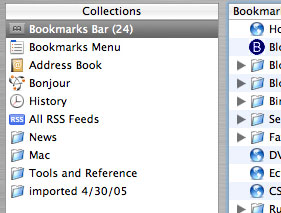
Safari also has a bookmark system I’ve decided I like (though I just started using it a few days ago). It has all the features other browsers have, such as a bookmark bar, and the ability to create subfolders. But Safari’s bookmark management is, I think, better than Mozilla’s. It shows the bookmarks by taking over the browser window, upon which you have the bookmarks divided into sections at the left, and each section displayed in the main window when selected. SafaribmcatThis makes it very manageable. Also, when you decide to bookmark a site, you are allowed to choose where in the bookmarks it will go; while some may see this as an extra step they may not need, most of the time this is exactly what I want to do. In Mozilla, I have to open the bookmark manager, find the bookmark I just made, and then perform a “move bookmark” action; all of this takes far longer than I like. Safari allows you to much more easily handle unwieldily long bookmark lists. One gripe: when I try to move a bookmark folder to a new location between two other folders, it always lands inside one of those folders, and never in between. If there’s a trick to it, I haven’t found it yet.
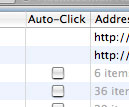
SafariautoclickOne other feature worth mentioning is the “Auto Click,” or “Open in Tabs” feature. If you’ve collected a number of bookmarks in one bookmark folder (to form a sub-group), you can choose to open them all at once. In the bookmark manager, you can check the “auto-click” box for any desired folder, and it will thereafter happen automatically. Otherwise, just right-click on any bookmark folder in the bookmark bar, and select “open in tabs.” As many pages as you want will then open all at once in a string of new tabs.

So far, my only problem with Safari has been in remembering passwords. There are two situations in which this presents itself: (1) when you fill in a password on one web page to move on to another protected page, and (2) when a page is protected and you have to fill in name and password in a dialog box before the page appears. The former is no problem in Safari. The latter can be one. I found that if I try to go to my web site’s control panel, I get the usual dialog box asking for the name and password. I fill those in, and then check the box to save the password to the system keychain. Then I log out, and try to log back in again–and the keychain has forgotten the password. With the Keychain window open, I can observe that the keychain password I entered for the site simply disappears as soon as I try to re-enter the protected page, and I have to enter the information all over again. But this happens only if I immediately try to log in after logging out. If I log out, then go to another site or sites, then log in a little later, the keychain password persists. I can live with this, but it was maddening when I was trying to establish all the passwords and immediately testing them, making them disappear. I can also foresee that I might log out from somewhere and want to get right back in–but if I do this and forget about the bug, I’ll lose the keychain password; if I can’t then recall it from memory, I’m screwed. If anyone know why this happens and if it can be turned off, please let me know!

All in all, however, Safari seems like a solid replacement for Firefox or the Mozilla browser–and as such, beats the hell out of Internet Explorer every day of the week and three times on Sunday. There are more features I didn’t go into here, but you can find them like I can–if you have a Mac, of course.

The Mac: Virus-Free, or Not?

March 30th, 2005 3 comments

Symantec, a company that produces anti-virus software for the Mac, recently caused a stir in the community by releasing a report which suggests that a wave of viruses is headed for the Mac:

Out of the public eye for some time, it is now clear that the Mac OS is increasingly becoming a target for the malicious activity that is more commonly associated with Microsoft and various Unix-based operating systems. … Apple Computer has become a target for new attacks… The appearance of a rootkit109 called Opener in October 2004 serves to illustrate the growth in vulnerability research on the OS X platform…

Many have criticized this announcement, noting that since Symantec sells anti-virus software and that a virus scare would increase their business, the warning could easily be seen as self-serving.

Indeed, Symantec’s evidence is weak: the very first attack on OS X recently appeared, six months ago, in the form of the “rootkit” called “Opener.” However, “Opener” is not a virus or a worm, and actually requires someone to allow root access via a password on the system before it can even be a threat–and even then, the threat is localized to a single user. In addition, the rootkit cannot propagate itself. It hardly even qualifies as a threat at all, and so far as I can find, only one user has reported suffering from it; subsequent worry has been about the rootkit’s potential, and in the six months following the first report, I have heard of no subsequent attacks.

So essentially, there’s no evidence that a wave of Mac viruses is headed for your computer. Not that it’s impossible, mind you–Mac OS X is very strong, but not completely impenetrable. It is assumed that at some point, a virus will break through. But it is also acknowledged that cracking OS X with any kind of substantial virus or worm is extraordinarily difficult. One Mac advocate believes this to the point that he actually offered $25,000 (reportedly doubled to $50,000) to anyone who could infect a pair of Mac G5s running without a firewall or anti-virus software. He closed down the contest after strong disapproval from the Mac community, as well as the legal issues–paying for someone to create viruses could be construed as a federal crime.

Certainly, the Mac OS is very strong. It was built from the ground up to be secure, whereas Windows is a virtual sieve of security holes. Mac browsers and email software do not have the virtually unlimited access to system resources that Microsoft’s browser and email apps have. Mac OS X requires a password to be typed in whenever the system is altered; not so in Windows. And systems that are most vulnerable are turned off by default in OS X, requiring a user who knows a little about what they’re doing to start them up–and a great majority of users will never need those services anyway. This article claims that the greatest threat to a Mac would be a Trojan-horse app could break Mac OS X–and such an app would be instantly outed, meaning the outbreak would be minimal at best.

Some say that the only reason that Mac OS X has remained virus-free is because of its small market share; a virus author wants to affect the largest number of people, so the Mac just isn’t on the radar. And while this makes some sense, it does not make complete sense. There are more than enough Mac and UNIX users out there so that someone should have had a strong interest by now. But even more convincing is the fact the reported invulnerability of OS X would be like an “attractive nuisance,” a challenge for hackers to test their skills; there would certainly be a great deal of props given in hacker circles to the first person to take down the OS. But in four years, no one has done this. Which begs the question, why not? Certainly at least one hacker should have taken the time to do this by now.

Again, this is not to say it can’t be done–but there is a huge difference between potential and reality. Windows users must face 60,000-plus menaces to their OS that are out there (I receive a steady stream of Windows viruses in junk emails), while Mac users still do not have any palpable threats to their security. And when a real Mac virus does appear, there will be so much coverage that it will be almost impossible to miss it. Still, it is a good idea to protect your system as much as possible. But the worry is far, far less.

Categories: Mac News Tags:

Time to Get an iPod

February 23rd, 2005 7 comments

Unless, like me, you already have an iPod model that works fine. But the new ones out today are pretty tempting. The new, full-size iPods are 30- and 60GB, both with color screens, and the ability to import photos directly from your digital camera and then view them on the color screen. The synch then works perfectly with iPhoto to store them (though frankly, I prefer to store photos independently, as my local HD space is limited, and I haven’t taken the time to set up a non-standard library system yet).

The new system would be perfect for traveling–you could store thousands of photos in your iPod, not needing a PC for quite some time, and you’d have your whole music collection there to boot. The next step should be to add movie integration, in part because so many new digital cameras take movies. The iPod pages at Apple don’t mention anything about movies, so I presume the feature isn’t there yet; but with the whole of the consumer electronics industry snapping at Apple’s heels trying to make an iPod Killer, you can bet that Apple will not dawdle in adding features like this.

That might also come with what some have been predicting for the iPod: an Apple Movie Store, just like the iTunes Music Store. The iPod is slowly turning into the realization of the “Watchman,” the portable TV. Needing only to fill the small iPod screen, even the smaller 30GB iPod could store dozens of hours of video on top of an extensive music collection.

The new iPods supposedly come with more battery life–up to 15 hours for the full-size iPods, and 18 hours for the Minis. But what I would like for my existing iPod is simply a more accurate battery display–it is far from perfect when it comes to telling me how much time I really have left. Maybe the new units are better at that… which, with color, bigger hard drives, and much more capability, costs less than I paid for my 20GB iPod. And the thing that is both frustrating and rewarding is that the iPod I have is more than good enough for me now and likely will be for years, meaning I have little excuse to go out there and get a new one. Oh, the irony!

Categories: Mac News Tags:

Pac the Man and Other Stuff

February 18th, 2005 Comments off

PacthemanSome months ago I went looking for the Pac Man arcade game, during a bout of boredom or insanity, I don’t know which. I looked first for the PC, seeing as how they always seem to do games for Windows first, but wasn’t able to find an acceptable freeware version. But then I found Pac the Man 2 for the Mac, a freeware Pac Man true to the arcade genre, and it’s actually very good. If you have countless hours to waste and don’t mind getting your fingers all achy, go ahead and try it.

By way of that introduction is the site I linked to for the download: Version Tracker. A site that keeps track of new versions of software, and often completely new software. You can search the archive, or you can resolve categories. Under Windows, Mac OS, Mac OS X or PalmOS (I linked to Mac OS X above) you can access Shareware, Freeware, Beta or Commercial software, or choose a software type (Utilities, Games, etc.), presented in sortable lists. I usually do a weekly check for Freeware under the Mac OS X section. Each download has an area for use reviews and version histories. It’s a pretty good tool for getting the software you want.Drop2Dvicon

A good Mac download from the past few days: Drop2DV, a video encoding app that allows you to take either MPEG files or VOB (DVD Video) files and convert them to DV files, which are easily editable by iMovie–and MPEG/VOB files are not easily–if at all–editable by standard software. I just tried it out, and it works–at least for me…

Subtle and yet Not-So-Subtle Parody of the Mac/PC Dichotomy

February 10th, 2005 Comments off

When starting to read the article “Mac Mini: The Emperor’s New Computer,” you might take it seriously–but not for too long. The write-up is so tongue-in-cheek that lots of people might actually believe it’s not satire, at least for a while. An amusing read, especially if you know about computer technology–for example, the difference between USB and PS/2, DVI and VGA–and if you know the facts about the Mac Mini already.

It’s fun to read this article as if this guy were serious, though: he comes across that way as the dumbest computer “expert” ever. And in so portraying this parody of a reviewer, highlights why the Mac Mini is better–or more specifically, why Windows sucks. I especially like the part where he mixes up the iPod Shuffle claim (“smaller than most packs of gum” and weighs “less than four quarters”) with the Mac Mini, then goes on a rant about it. Or the part about how Apple’s Mail is inferior to Outlook: “For example, there is no Outlook Express for email, but Apple includes a program called Mail, which is like a stripped-down email client that can’t execute scripts or open attachments without user intervention,” features which would flood your PC with viruses.

Categories: Mac News Tags:

A Mac Site You Should Not Visit

February 8th, 2005 Comments off

If you want to get the latest information and rumors about Macintosh products, there are a few good places to visit. Macsurfer.com has an excellent daily listing of Mac-related articles and even blog entries (this blog has been listed there several times), updated every day. If you’re looking for a story on anything related to the Mac, that’s the place to go.

For concentrated rumors, Think Secret may be the most often quoted, but MacRumors has the most comprehensive information around, with discussion areas that have a lot of good feedback.

But the place not to go to: MacOSRumors (not to be confused with the excellent MacRumors). You may have seen the link I had to their site on my linkboard at right, but no longer. For some time, they’re been unreliable in both their information and how often they update their site (too many “coming soon” claims that are never followed up), but most annoyingly, they’re more of an ad site than a Mac rumors site. Want to see a story? Click through ads to get there. Ads all over the place. And something that surprised me: they have pop-under ads that actually get through Mozilla’s pop-up ad blocker, something I did not think was even possible. It’s the only site I have been to where this happens.

I wrote them about it when it first happened, telling them I would not return as long as they had such ads. They sent back an email assuring me that it was a fluke, and when they caught an advertiser doing that, they would cut them off immediately. Just that alone sounded like BS–the pop-under ads were not coming from advertisers’ pages, they were coming straight from MacOSRumor’s code. And sure enough, subsequent visits have brought more pop-unders. So I have switched their link with one for Think Secret; I will not return to the site and I advise you to avoid it as well.

Categories: Mac News Tags:

New Powerbooks Are Out: No Big Whoop

February 1st, 2005 3 comments

The new Powerbook line was announced today. Not only did the G5 Powerbook fail to materialize (as most expected but hoped otherwise), but even the second-best Freescale dual-core–or even single-core–G4 chip didn’t show up. Instead, the new Powerbooks out are relatively unremarkable upgrades, up to barely 1.67 GHz over the prior 1.5 GHz. A minor speed bump, at best. One can easily understand now why they didn’t want to mention these at the MacWorld Expo.

There are some other upgrades, as if Apple knew the CPU bump would be disappointing and so wanted to cram in as many small improvements as they could: a larger hard drive (up to 100 GB, over the prior 80 GB, but still spinning at 5400 RPM), an 8x Superdrive (I presume the prior model was 4x), more RAM (though 512 MB should have been standard for a long time now), faster Bluetooth, optical audio I/O, a faster graphics chip, and a hard disk drive drop-protection system which will protect the hard drive from a head crash in case of a sudden jolt or impact. There is also a new trackpad scrolling feature and a brighter keyboard backlight. None of these is exactly enough to blow your socks off, even with the $100 to $200 price drop over before, though all of them combined might be enough to impress some buyers just enough. In fact, the low-end Powerbook is just barely better than the high-end iBook, which is priced $100 lower; if the Powerbook doesn’t surge forward sometime soon, Apple will have to slow down the iBooks just so they don’t start to outshine their older brothers.

The Powerbook is still an excellent machine, but it’s just not all that more spectacular than it was a few days ago. A better deal, but not close to being enough to make me drop at least two and a half grand to replace my current Titanium 800 MHz DVI model–especially when it is apparent that a much faster model, a significant upgrade, is just around the corner. Just how far around that corner is another question: will we have to wait another 8-9 months for the next line to come out, and will it be a G5, a dual-core G4, or yet another minor speed bump. Some model turnarounds have come as early as 6 months after the prior release; others have taken almost a year.

This is the hard part about deciding when to upgrade–you never know when the right time is. I got lucky when I bought my own machine almost three years ago; it is still quite serviceable, and will do very well until the next big jump.

But, dammit, you just want to buy a new one!

Categories: Mac News Tags:

Pages: A Quick First Look

January 30th, 2005 Comments off

Pagesxmpl1

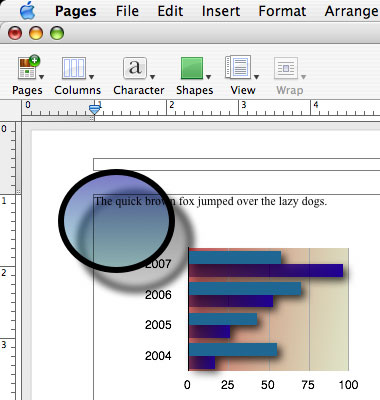
I will return with a much more detailed review in the future, but just wanted to come out on the record immediately as casting my vote for Pages over MS Word, hands-down. People have been calling Pages more of a low-level Desktop Publishing program than a word processor, comparing it with MS Publisher rather than Word. And maybe if you really need the extreme features of a high-end word processor, it might seem that way to you. But for the other 99% of users, Pages will do everything you want–and much better than MS Word, in my opinion.

I’ve only had Pages for a few hours now, but it does not take long to dismiss all the not-a-word-processor claims. I’m not sure how the people who make that claim define “word processor,” but Pages does everything you want, and it does it with far more ease and style than Word.

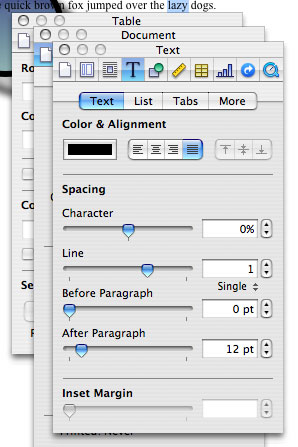
Pagesinspector1The “Inspector” is a key component: a floating window in which one can access most of the settings and controls of the program. It is similar to Word for Mac’s floating toolbar, but much better-executed; a ten-button button bar at top allows you to access all the major formatting elements: document, layout, wrap, text, graphics, metrics, table, chart, links and Quicktime. Each inspector pane can have tabs at the top which allow further diversification, such as the Text Inspector containing “text,” “list,” “tabs,” and “more” areas. Altogether, 18 different control panes can be accessed within the one small inspector panel. Instead of having to open up a dozen different dialog boxes like you do in Word (especially the Windows version), a few clicks will get you quickly to the controls you want. If you prefer having multiple control panes open at the same time, just open more inspectors.

And I cannot figure out what controls 99% of people would find Pages lacking as a word processor. Font control is far superior to Word, with Apple’s font window (command-T); in the inspector, you can easily control margins, sections, columns (much easier than Word), line & character spacing, bullet and numbered lists, tabs, indents, pagination, so forth and so on. Tables and charts are far, far superior to MS Word’s. What’s missing? Sorry, critics, but this is a word processor–maybe the fact that it can also do some pretty amazing things with layout and design is what confused so many–but that doesn’t make it less of a word processor. On the contrary, it makes it more of one.

Some people, used to MS Word’s cluttered approach, may even see Pages’ simplified style as a drawback, but it is anything but. Just give it a chance, and you’ll find it a much superior approach. And don’t give up on certain features–Pages will do things you may not expect, since you might automatically expect Pages to act just like Word does, and for things to all be in the same places that Microsoft has dictated. Others simply haven’t explored the program well enough; for example, one review I read complained about the toolbar at the top of the main window, lamenting that the buttons on the toolbar are not ones they would often use. A simple right-click (or control-click if you don’t have a two-button mouse) on the toolbar will show that you can customize it, with a lot of choices, to put your favorite features right there at the top.

Then there are the graphics, which (as usual for Apple) are ten times better than what MS Word offers. The ability to use shadows and opacity with objects does wonders for image quality, along with auto-centering, provide far richer graphics than MS Office allows, while still matching all of Office’s other graphics features, though far more easily accessed. It’s probably this kind of thing that made people think “desktop publishing,” but Pages mixes them both quite well.

There are some features that Word has and Pages does not that I would like to see added: for example, the customization of keyboard commands (the big missing feature here), a more fully-featured find-and-replace, the ability to center the WYSIWYG “page” in the work window (Pages always has the page stuck at the upper left of the window), slightly easier-to-click indent tags on the ruler… I’ll probably stumble over some more, but aside from keyboard command customization, it’s all pretty minor stuff as far as I’m concerned. One just occurred to me: a clip-art library. But that kind of thing can be bought for cheap nowadays. Some might say the words “grammar checker,” but not around me–I find Word’s grammar checker to be much more annoying than useful. Pages does lack a thesaurus, but Nisus makes a free one that will work in Services (easily accessible in other applications). Most other lacking features I have read about are either esoteric (only 1% of the high-end users will miss them, like header/footer style adoption) or relatively unimportant (like the inability to have dashed lines for table borders).

And let’s not forget that this is the first version of the software. Was MS Word this good when it started? I doubt it–and seeing how much Keynote has improved from version one to two, Pages will likely get whatever it lacks fixed very nicely in upcoming versions. Other apps will likely be added to the suite as well, though Apple’s priority on keeping things simple and aimed at the majority, low-end users may limit how far they go in adding apps and esoteric features.

And finally, there’s the price. MS Office is $360, though you do get Excel with that. Individually Word and Powerpoint each cost $195.

iWork, with Pages and Keynote, is $79.

Now all Apple has to do is add a spreadsheet app (maybe throw in database and graphics apps, too)–and then make Windows versions! But then, Microsoft will likely just steal all the ideas like they usually do….

Categories: Mac News Tags:

Powerbook G5: Tantalizing and yet Dubious Signs

January 29th, 2005 8 comments

PblineApple is now overdue for an update to their laptop Powerbook line: usually new versions of the line come out every seven or eight months at most, and this is month nine since the last release. Usually a new release is just a speed bump, that is, the computers feature a slightly faster processor and little else that has changed. Once every few years the computer changes more significantly, changing in form or basic design, or adding new features. And every three or four years there is a huge jump, one to a completely new processor, like the jump from the G3 to the G4 in 2001, when they changed from the rounded black encasing to the slimmer, square-but-sleek titanium enclosure–and, of course, got the much better G4 chip.

The G5 chip has been out there for some time, but like the G4 chip, it did not go into the Powerbook line quite some time (and may not yet). It took a year and four months for the G4 to appear in a Powerbook after first appearing in a PowerMac (desktop) model. Well, the G5 was introduced about a year and four months ago, so isn’t it time for a G5 Powerbook? Whatever the case, a new Powerbook release is imminent: reports starting in France and now spreading indicate that the current Powerbook line has been EOL’d, or end-of-life’d–in other words, Apple is no longer restocking the current models, a proven sign that a new model release is imminent. But what model? A G5?

Not so, say many: the G5 is a blazing chip, and not just in speed: it also introduces significant heat radiation–something the Powerbook G4 was infamous for, but for the G5 to an even greater degree. Apple has been developing a liquid-cooling system to handle the heat in smaller case designs, but the word on the street is that Apple is not ready to release such a laptop–unless the beast weighs 8 pounds and is three inches thick, so they say. Instead, rumor sites are reporting that the next model will be a speed-bumped G4, at speeds of 1.5 and 1.67 GHz, maybe with a bigger hard drive, better video memory and new Bluetooth built-in. Some whisper about the Powerbook going dual-processor, or that the chip will be dual-core. But few indeed expect the new Powerbook to be a G5.

Nevertheless, there are tantalizing bits and pieces of news floating around out there that Apple may shock everyone. The first report came about two weeks ago in a journal called DigiTimes, which featured a report from Taiwan that certain factories there had received orders to produce Powerbook G5s and, strangely enough, iBook G5s as well. Some thought it to be a typo, but the iBook information noted that they would be producing the “iBook/iBook G5,” noting a clear difference between the G4 and G5 iBook. According to the report, both iBook and Powerbook G5 models would start shipping in “2Q 2005.” Many doubted the story, however, not just because of the heat problems in the G5 and common reports that the G5 Powerbook is way off still, but also from the idea that a Powerbook and iBook G5 would start shipping at about the same time–it took almost three years for the G4 to make it to the iBook after the Powerbook got the chip.

So the collective community settled back and more or less disregarded the article as a non-starter. But then, just a day or two ago, The Register reported that one of their readers pointed them to a literally tiny clue that the Powerbook G5 might be real and imminent: on Apple’s own web site, on the page for the Powerbook, the source code for the page revealed a miniscule, single-pixel blank image used to count how many people access the page. These one-pixel-images are often employed and are named after the devices featured on the page. The filename for this image: apple_g5_powerbook.gif. Within an hour after the image was sighted and reported, Apple yanked it off the page, replacing it with a “g4” pixel, but the damage was done: rumors started flaring that this was yet another infamous Apple accidental leak, like when images of the then-new Power Mac G5 release were featured on Apple’s pages the night before the product was officially announced–only the images, the text still reflected the older models.

This kind of thing happens fairly often, in fact; when preparing for a new model release, a great number of changes have to be made in advance for the web sites, and sometimes things slip through–images are accidentally renamed and replace others, bits of advance work are mistakenly published.

Or, of course, it might have been an honest typo–the difference was just between a “4” and a “5” in the code, after all.
Pbgfcafr
But then, another strange clue appeared: someone found that on the French-Canadian Apple web site, on a page for–oddly enough–a discontinued model of an Apple monitor (the 17-inch Apple Studio Display, replaced almost three years ago), there appeared a mention of the Powerbook G5–look near the bootom of the page, under the last paragraph, titled “Configuration requise”: “L’Apple Studio Display nécessite un Power Mac G5 avec un connecteur ADC ou un PowerBook G5 avec un port DVI vers ADC Apple….” Translated, it means, “The Apple Studio Display requires a Power Mac G5 with an ADC or a PowerBook G5 with a DVI port and an Apple DVI to ADC Adapter.”

The English version of the Canadian page has no such mention of the Powerbook G5. Some say that this new page also represents a typo–but the page previously said “G4,” and was probably not completely rewritten–which means that someone actively changed “G4” to “G5.” In addition this is now the second “typo” for a “Powerbook G5” on Apple’s own web pages in as many days, and such typos have not been happening before now. It is beginning to look more and more like the usual leaking of bits of info as a flood of Powerbook G5 web page code changes well up behind the corporate secrecy dam. And Apple has completely surprised everyone before.

So when will we know? Barring the release of even more evidence before an official announcement, we are likely to be informed by Apple of what’s cooking in their famous Tuesday announcement, when they often reveal new stuff coming out. And of course, an announcement is not the same as an actual release–even if a Powerbook G5 is announced in four days, it might not actually ship until March, April, or even May (which would fall into the second-quarter range mentioned by DigiTimes).

For me, that would mean a new computer on my desk maybe a month after units first ship. The delay would be to let others be guinea pigs, as new processor releases often have first-generation bugs, and if I read that the bugs are significant enough, I will be able to hang in there long enough for the first revisions to come out, likely by next January.

Categories: Mac News Tags:

iBento vs. the Dell

January 25th, 2005 3 comments

Since the Mac Mini (which I like to compare to a bento box, complete with the Apple logo as umeboshi) was announced, just about every news item I have seen on the product announces without fail the fact that there are PCs out there even cheaper than the $499 Mac box. It’s relentless, almost as if it would be sacrilege to say that a Mac is just as good or just as cheap as PCs out there. But just like the media always pointed out higher hertz ratings for PCs while ignoring the fact that Apple’s processors are more efficient at lower hertz speeds, everyone is now comparing the discounted PCs with the Mac Mini based upon price alone–completely ignoring the fact that the PCs in question are stripped bare and have hidden costs to boot.

MinimacdellThis article in MacWorld does a good job of bursting that particular illusion. It would be hard for PC advocates to defend the favorable-to-PC comparisons based upon the idea that however stripped of features, they are still cheaper, because every article I have seen mentions, without fail, that the cheaper PCs come with a Monitor, mouse and keyboard, which the Mac Mini lacks. Well, if being stripped of features is OK on the PC, then why go out of your way to point out the features stripped from the Mac as a downside?

What is not mentioned in the articles you read is that the Mac comes with a dedicated graphics chip, a Combo optical drive, a firewire port, a one-year warranty (as opposed to a 90-day warranty), and a far superior software suite, nor do they usually point out that this machine is targeted at people who already own a monitor, keyboard and mouse, meaning that it will not be an added cost for most people. Nor do they mention that the Mac does not need antivirus software, though the PC does–tack on another $62 at least for that to the price of the Windows machine, almost the same cost as a monitor, keyboard and mouse for the Mac. Add the CD-R/RW and DVD optical drive and burning software to the PC and the price goes up about $100, bringing it right up to the price of the Mac Mini–and you’re still missing many features the Mac has built-in. And let’s not forget that the low PC prices are almost always arrived at through mail-in rebates, which require you to jump through hoops and cough up private information to advertisers in order to get the chance to wait months to get a rebate check in the mail.

And then there’s the small detail that the PC is a monster tower, and the Mac Mini is arguably the first truly portable desktop computer, and is a hell of a lot nicer-looking to boot. The PC is 14.5″ tall, 7.25″ wide, and 16.75″ deep; the Mac Mini is 2″ tall, and 6.5″ wide and deep. The Mac Mini weighs just 3 pounds; the Dell weighs 23 pounds. In addition to everything else, you get compactness and style. That may not sound like too much, but look at the illustration above right: that’s what the two computers look like, side by side. Tell me that you prefer the look of the computer on the left, or that it would sit better on your crowded desk.

The Expo Is On

January 11th, 2005 2 comments

So we’re having to do with live text-blogging-style reports from the Expo on the various Mac sites (you can find them at MacSurfer). MacMerc will have photos up very soon.

So far: Tiger is on schedule and, among the 200 new features (probably a dozen or two actually of interest to most people), it has a killer search engine called “Spotlight” which puts the new Google and Microsoft desktop search engines to shame. iTunes gets across-the-board upgrades to all its apps. And iWork is a reality, with the “Pages” word processing app and Keynote 2–together priced at $79, which would be $20 less than the Keynote app has been priced alone up until now.

And then there’s the biggest announcement so far: the iMac Mini, priced at $499 and $599, with a 1.25 GHz/40GB HDD and 1.42 GHz/80GB HDD, both with the G4 chip, analog/digital video out, Combo optical drive, Firewire, USB2, ethernet, and Panther/iLife included–and from reports, it is very, very small. In a brushed-metal enclosure, square-shaped and two inches tall (no reports on the width and depth measurements aside from that it can “fit into the palm of your hand”). This will make the Mac very competitive in the low-end market.

And then there’s the iPod Shuffle (early photo), the tiny version (pack-of-gum sized, one ounce) of the iPod mini, a flash-memory iPod without a screen per se; the two models are 512 MB of memory for $99 and 1GB for $149.99, shipping immediately. So far, almost everything at this expo has been predicted by the rumor sites–few surprises, but probably a lot of happy campers out there. Probably in an hour or so the Apple web sites will be updated and the rest of us can see this cool stuff–but not quite yet. And I am dead tired and have to go to sleep.

Update: Okay, I stayed up just a bit longer. The Apple web site now has everything up. The iMac Mini looks like a small white bento box! I keep looking for the umeboshi. Those who live in Japan will understand.

Heck, I wasn’t planning on it, but I might even buy one of these things…

Categories: Mac News Tags:

Did You iFall For It?

January 9th, 2005 Comments off

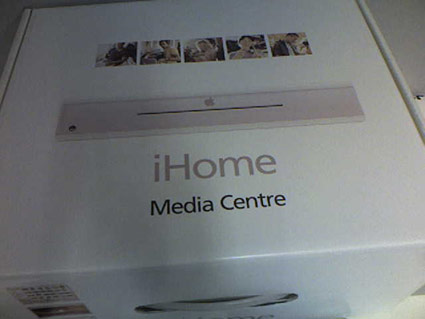
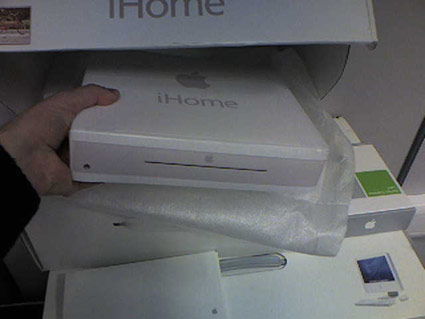
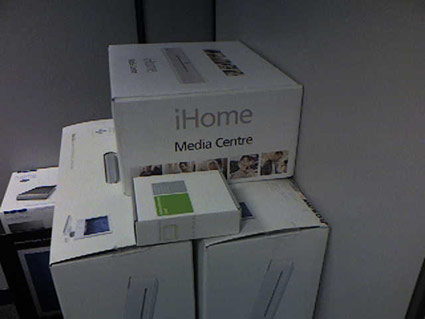
A series of photos and a movie were recently released that appeared to be a sneak peek at the new “iHome,” supposedly the “headless iMac” that is rumored to be the big release at MacWorld this week. The photos, at first glance, seem convincing, and a lot of people excitedly believed that these were genuine images of the real deal:

Ihome3

Ihome2

Ihome1

It would seem to be too elaborate to be a hoax, too well-produced.

But there are problems that people soon started pointing out: first, the font is wrong; Apple uses Myriad, but the typeface on the box in the photos is called Frutiger. The box itself is in fact an iBook box. The handle on the box is positioned so that if held, the printing on the side of the box would be upside-down. Apple would release this in the US first, and so would not use the British “Centre” spelling. “iHome” is not yet trademarked by Apple. And people in the know say that the styrofoam fitting is imperfect, as well as many other small details. But if none of this is proof enough for you, look at this:

Ihomefake1

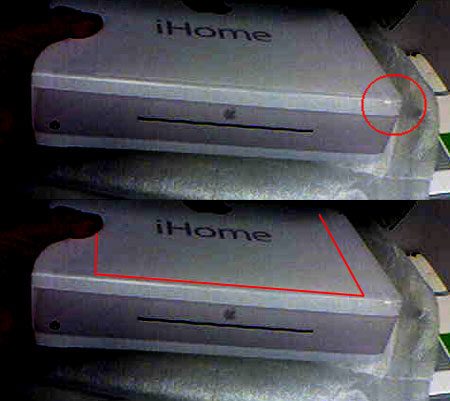
First of all, you can see the piece of paper with the fake name attached to the box pretty clearly. They did not even seem to glue the edges down very well, or used too heavy a paper–you can see the raised leading edge of the paper showing as a contrasty white line about a quarter- to a half-inch from the front edge of the box, highlighted in red in the bottom part of the image. The red circle shows the corner of the box which seems to be dented, unlikely for a brand-new box in its packing. This next photo seals the deal as far as the attached piece of paper is concerned:

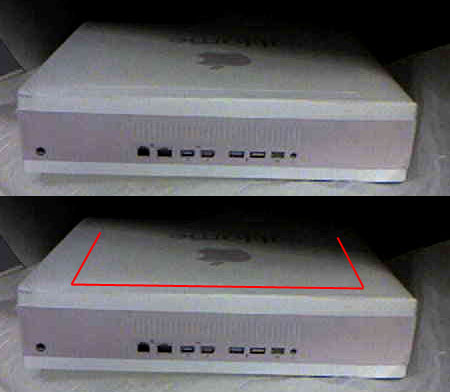
Ihomefake2

Some people also point to the lack of RCA/S-Video ports as proof, but there is a port on the back (second from far right) that could be a custom video-out jack like that used on some Apple portables, which uses a converter cable to lead to RCA and S-Video (come to think of it, the ports almost look like they were stolen from an iBook; the ports shown here have a gap between the firewire and USB ports, and there are two firewire ports instead of one, but aside from that, they match the iBook ports exactly). But there is enough overwhelming evidence otherwise to conclusively prove this to be a fake.

But who knows? Apple is not new to the game of rumor-mongering. Perhaps they are responsible for this, trying to discredit the rumors which they obviously believe are far too close to the mark this year (considering their lawsuit against Think Secret). A fake like this could make people think twice. Or, for all we know, there is a new machine that looks just like this and Apple made the fake to throw people off from it. Doubtful, of course.

One thing for sure: this is generating a lot of buzz for the upcoming Expo, and that can’t be bad for Apple at all. We all love rumors, getting a sneak peek. But let’s just wait for the real deal. After all, rumors in the past have heightened our expectations too high from time to time, leading to disappointments. So just wait and see.

Categories: Mac News Tags:

No MacWorld Expo Live Webcast, But…

January 8th, 2005 2 comments

That there will be no live webcast is a downer, because it was the best way to both see and hear about new Apple products when they come out. It would start late night here in Japan, but I would always stay up to watch it.

The next best thing is to view the Mac rumor sites, which usually have reps at the event doing live blogging as the keynote goes on. Probably someone will do that this year as well, though Apple has been highly antagonistic to these sites in recent times. But someone is bound to have live input on this.

There is a bright spot though: the keynote speech may be available online some time after the event is over. So for us here in Japan, where the keynote starts at like 2:00 am, it might be ready and waiting on the web when we wake up here the following morning. By that time, though, one could just as easily look at any of the Mac sites and get the main gist in a few seconds’ time… but watching the keynote can be a lot more fun.

Categories: Mac News Tags:

News Leak on New Apple iMac?

January 4th, 2005 Comments off

The British News Telegraph has a blurb out on the headless iMac which has not much new except it does offer one interesting detail: that the computer is packed in a box 1.7 inches thick. Unless it’s a misunderstanding or simply made up, it offers an idea of the form factor of the new computer, rumored to be “iPod-like” in appearance. One wonders if the computer doubles as a base station for the ipod–just set it down on a port atop the computer and it connects and recharges.

One week left before the MacWorld Expo.

Categories: Mac News Tags:

What the Heck Is With My Powerbook?

March 23rd, 2004 7 comments

It’s happened perhaps a half dozen times by now, only infrequently, maybe once every three or four months at best. But every once in a while, there is a bizarre type of crash–one which scared the hell out of me when I first saw it because it looked like my TFT screen had become completely fried.

At first, it seems like there might be a kind of freeze or kernel panic, because the monitor picture suddenly lightens in the way it used to for a kernel panic–every other pixel becoming lighter. But then it diverges, giving no error or panic message. Instead, it keeps getting lighter, and lighter, with major elements of the last monitor image becoming distorted… and then streaks, like water trails down a window in the rain, start to appear.

Fortunately, when I restart the computer, the screen immediately returns to normal and there are no problems at all until the next freeze. But it quite seriously weirds me out. This time I had the presence of mind to get my camera out and document the problem. Maybe I’ll take it to the Genius Bar at Apple Ginza and ask them if they know what it is. In the meantime, does anyone out there in blogland have any idea of what this is? Any help would be appreciated.

Categories: Mac News Tags: