Archive

Archive for the ‘Mac News’ Category

iPhone “Preview” in Japan

September 6th, 2007 Comments off

Here’s one thing the new iPod line means for us in Japan: we get to see what the iPhone will be like. The iPhone is not out in Japan, and won’t be until early 2008, at the soonest. They didn’t even have demo models at the Apple stores in Japan to allow people to get a glimpse of what’s available.

But now the “iPod Touch” is being sold in Japan, and effectively, it’s an iPhone, without the phone or camera–but everything else is pretty much the same. So I won’t have to wait until my trip back in December to see what one is like.

Categories: Mac News Tags:

All the Rumors Are True, and Then Some

September 6th, 2007 12 comments

As they say, Mac shares rise on rumors and fall on news. Apple is down about $3 so far, but not because people are disappointed. Maybe it’s true this time because the news is virtually identical to the rumors that have been going on for the past several weeks. There are few surprises here. Ringtones, Red Shuffle, Phat Nano, iPod Touch. There were, however, a couple of news bits that nobody expected, especially in regard to the iPhone.

First, Ringtones. This is actually kind of disappointing. Apple has the absolute technological ability to let you assign any sound you could possibly want to assign as a ringtone… but instead they’re gonna charge you. In fact, they will charge you for the same song twice… once for downloading the song, and you pay another dollar to use that song as a ringtone. I don’t think anyone is excited about this. Rather, I think everyone is wondering when the next ringtone hack will allow people to set any audio file as a ringtone.

0907-Phatnano
Image borrowed (ahem) from Engadget

The Phat Nano is exactly as the spy/rumor photos had it; wide, squat, with a 2“ screen at QVGA (320 x 240) resolution–in other words, the exact same resolution as the full-sized 5G iPods, except with a 2” screen instead of a 2.5“ screen. (The previous Nano had a 176 x 132 pixel screen at 1.5”, by the way.) What’s more, the new Nanos can play video, and can do games now, like Sudoku. They’re not touch-screen, but they do have a new interface and they do have Cover Flow (slow and choppy, they say), in case you like that sort of thing. Essentially, it’s a 5G iPod scaled down to Nano proportions.

The 4GB Nano sells for $150, the 8GB for $200. On sale in stores from next weekend.

There is one surprise in here, actually: the iPod Classic. It’s essentially a retained 5G iPod, but with the new UI, a bigger hard disk (up to 160 GB!), and a new form factor, though close to the old one. The 80GB version is now $100 cheaper, priced at $250; the 160 GB version is at the old top price of $350.

But the big deal at the event is obviously the full-screen, touch-screen 6G iPod. It is, essentially, an iPhone… without the phone or the camera. And pretty much those seem to be the only things that are missing.

0907-Ipodtouch
Image borrowed from Engadget

Same sized screen as the iPhone, same resolution–but thinner in form. Otherwise, it looks just like the iPhone. It has the motion sensor for tilting and Cover Flow.

And it has WiFi. And Safari. Web browsing on your iPod. The touch-screen keyboard and everything. The iPhone YouTube app is there as well. And, of course, you can sync your address book and calendar.

22 hours audio, 5 hours video on the new battery (your milage will vary, downwards, of course).

But more news: you can buy tunes from the iTS using WiFi, directly on the iPod. Eat that, Zune! The iPhone gets the same feature in a firmware upgrade later in September.

Surprise: no hard drive. They’re making the transition to flash memory, it seems. Probably with the next big release, they’ll phase out the iPod “Classic” and start upping the GB of flash memory, I suppose.

Pricing: $300 for the 8GB, $400 for the 16GB.

On the lighter side, Apple is partnering with Starbucks, giving free WiFi access to iPod users–but apparently only access to the iTunes Store, so you can buy the songs they’re playing at Starbucks. Looks like no free Internet browsing, sorry. Just a sales angle.

One more thing… actually, pretty big news: the 8GB iPhone gets cut in price by 33%–from $600 to $400! That’s a pretty hefty price cut. I guess they figured that they made as much as they reasonably could by charging high prices while the hype was sky-high, and now can rake in even more by cutting the prices down to “sale” levels for the back-to-school and holiday seasons.

So, what about the second iPhone model?… looks like there ain’t gonna be one. Just 8GB for now.

EDIT: Hey, I just realized one more thing the iPod Touch won’t have that the iPhone does–Bluetooth. No wireless headphones. Hmm.

Categories: Mac News Tags:

Mac News for the Week: iPods, iPhones, Scares, and Shopping

August 28th, 2007 8 comments

The new iPods are coming! The new iPods are coming! Maybe! Probably!

Well, almost certainly, now. Finally, after so long waiting for the whole iPhone wave to subside, Apple is, it seems, ready to release the next generation of iPods. Already spy images (possibly faked) of the new iPod Nano design (wide-bodied with muted colors) have been flying over the Internet. The images, which could easily have fallen into the “that’s so fake” trash pile, were given a stamp of approval by Apple Legal, which demanded their removal from the originating site (which, of course, prompted far greater coverage on so many other sites).

Rumors have been going around about a new iPod release for some time; almost every month this summer has been the rumored release date. A few days ago, it became known that Apple was holding a special event on September 5th, and the rumors started to fly that this was the iPod announcement. And now there seems to be hard evidence that this is true, beyond what Apple Legal does: iPod supply is drying up at retailers. This is about as close to a sure-fire indicator that you can hope for that a new model is coming out.

At least some of the models, probably the full-sized ones, will run on OS X. The widely-held belief is that the full-size models will also be full-screen and touch-screen; if they’re not, expect a lot of anger from expectant fans. Essentially, everybody expects the big iPods to be just like iPhones, but without the phone part. Expect WiFi to be absent; if Apple provided WiFi and the ability to use Safari, the product would probably bee too much like an iPhone. It would be cool if they had it, but unrealistic. Not to mention that with WiFi, you might even be able to get a Skype hack and turn it into a virtual iPhone.

Then there are the Nanos, apparently getting a bigger screen, and maybe running OS X themselves–though that’s lower on the probability scale, unless each machine will have a lot more flash memory than in the past.

Some even expect the iPhone Nano to be released–a cheaper, smaller, less-featured iPhone. I doubt that, as Apple seems to want to keep the two lines distinct from each other.

We’ll see in a week’s time. Until then, expect the rumors to fly wild.


In other Mac News: If you saw this story from Symantec, then you can safely disregard it.

“Apple has been demonstrated to suffer a number of vulnerabilities over the years,” he said. “Suffice to say that Symantec and other software security vendors do produce anti-virus software for the Mac because we believe there is the potential of a problem.”

And the fact that they sell software to “protect” your computer has nothing at all to do with the fact that they constantly release reports telling people how open to attack the Mac OS is. Of course, because there has never been an actual functioning piece of malware for OS X in the wild, they have to keep talking about those “vulnerabilities,” which are nothing but potential weak spots where hackers could attack… but somehow never do. A lot of these vulnerabilities require rather intricately unlikely environments and sets of circumstances, like two Bluetooth-active Macs which have not had their software updated for a year, in the same room, where one is infected and the other has a user who blindly accepts and approves of a mysterious, unknown Bluetooth device that does not exist.

So let’s lay it out once again: Macs are not invulnerable. They can be attacked. However, they never have been, and it is likely that they will not be for some time. And when they do start falling prey to viral attacks, they will still be far less susceptible to attack than Windows PCs. You don’t need anti-viral software today, but you might at some time in the future. So don’t pay attention to the companies making the software trying to scare you into buying what you don’t need.


Elsewhere, a company claims that it has developed a way to unlock the iPhone so that it can be used with any service provider. Apparently, they’re for real, because AT&T is taking legal action to stop them. From the best I can understand of what people have been saying, it is not illegal (or at least not something anyone will sue you personally for) to unlock your iPhone, but it is probably illegal to unlock iPhones as a paid service.

Under the law as it stands, you are allowed to unlock your cell phone, at least under the criteria listed here (pdf):

Computer programs in the form of firmware that enable wireless telephone handsets to connect to a wireless telephone communication network, when circumvention is accomplished for the sole purpose of lawfully connecting to a wireless telephone communication network.

That means that it is probably legal to unlock your iPhone in order to subscribe to a different provider–but it is not legal to unlock other people’s iPhones for a fee. However, if I read the exception correctly, then it would not be illegal to sell software to the consumer which allows them to unlock their iPhones–so long as they are the ones doing the unlocking. However, there’s a lot in there which goes over my head, so I could be reading it wrong. Check out the pdf linked to above, and see pages 48-52 for relevant material.

The process itself is apparently software-based, takes only a few minutes, and is simple to use. The only feature which is fully disabled is Visual Voicemail, because that’s an AT&T service; however, if other carriers start using it, it should work on an iPhone. The unlocking company claims that the unlock is “restore and upgrade resistant,” which suggests that Apple can’t “switch you off” or otherwise disable the unlock via a software upgrade.

What is more interesting: the unlock seems to be able to free up the iPhone for users outside the U.S. Hmm… I think I’ll wait on that for a little while myself. First, it’ll probably cut you off from upgrades and stuff from Apple (not to mention most likely voiding the warranty), and second, by the time it comes out officially in Japan, it’ll probably be 3G, and with more flash memory. I’m guessing.

At least one consumer is fighting back against the locking in general, filing a class-action lawsuit (pdf) demanding that iPhones be unlocked for use with any carrier. I can sympathize, and I believe that locking a product like that, while it may be necessary in business sense, is unfair to the consumer. Nevertheless, this guy’s case is, to put it bluntly, stupid. The basis of the suit is that Apple did not adequately inform buyers that they were locked into using AT&T with the iPhone. Sorry, but to not have been aware of the AT&T lock-in is a lame excuse at best. Maybe, in its direct ads, Apple didn’t add a huge you’ve-got-to-use-AT&T disclaimer or anything, but the knowledge of this fact was so widespread, and the practice of locking phones so common, that you’d have to be an idiot not to realize it. Kind of like suing Toyota to make them install an ethanol engine in your car for free because, when they sold it to you, they did not go out of their way to inform you that it required gasoline.


And finally, I spent a few hours in Akihabara yesterday, trying to find a monitor solution for the new Mac Mini my school has bought. I wanted to be able to use both a monitor and a TV output for the machine, so I could face the class, see a monitor, and have the same image put on a TV behind me. Alas, it seems that this is unlikely, at least without a few hundred dollars’ worth of equipment and add-ons. I can display on a monitor, or I can display on a TV… but not both.

The trip also brought forth a few things I don’t particularly like about Macs, the biggest being the lack of microphone support. This seems so obvious, especially in the age of Skype, but Apple continues to flub this one. The “sound in” port on the Mac cannot support 99% (not a hard statistic) of the mics out there. If you want a headphone-mic setup for the Mac, you have to go with a USB solution. Not very smart. Apple has also been non-standard in the types of monitor ports it uses, as if a standard port would kill them. VGA ports don’t exist on Macs, despite being the dominant type. Even S-Video ports on the Mac differ from standard ones, or at least the ones used on PCs. And from what I can tell, there are different types of DVI ports, and the ones used on Macs are, again, dissimilar from a lot of ones used elsewhere.

Apple has been ahead of the game in several ways, like wisely dropping the floppy disk before anyone else, and having a high-speed hot-swappable cable interface (Firewire) long before USB caught up, but in terms of ports and interfaces in general, and A/V interfaces in particular, their history has been spotty. Not as bad as their history with making a decent mouse, of course.

Categories: Mac News Tags:

iWork ’08, Part 2 (Numbers)

August 14th, 2007 3 comments

Iw08-Numbers LogoOkay, I have gone over Keynote and Pages; now on to Apple’s new iWork app: Numbers.

Numbers rounds out iWork as an office/productivity package. Yes, Microsoft Office is more than just Word, Excel, and Powerpoint–but Apple provides alternatives for most other office apps as well. You get Mail, iCal, Address Book and other Office-style apps for free with the Mac OS. While Apple does not include a database app, it owns and sells FileMaker Pro, the definitive database app (both Mac and Windows versions included in a single purchase), for about $300.

But I digress. Remember, we’re not talking about professionals using this suite; iWork is for the majority of computer users, not just those working in cubicles. And for most users, Numbers is not just an acceptable replacement for Excel, it is, I would argue, a preferable one. It provides all the functionality that most people would want from a spreadsheet, but a lot more flexibility and ease-of-use than Excel offers. Here’s a look at a Numbers window (click for larger version):

Iw08-Num Win Pane-450

Note that Apple has planted the spreadsheet within the iWork style, with a great similarity to Keynote in how it shows the organization of sheets and tables in the left sidebar. Let’s take a look at different parts of that window:

Iw08-Num Win Pane

First, the top left of the sidebar:

Iw08-Num Sheets

In Excel, worksheets are managed in small tabs along the lower left of the window; in Numbers, they are displayed here in the left sidebar. But notice that it’s not just the sheets–tables and charts are listed as subsets of each sheet. This is because of a new organization/layout paradigm Apple has introduced. Instead of the spreadsheet (as in Excel) being a grid of rows and columns for data entry, with charts and other objects floating above it, Apple starts instead with a blank sheet. Tables with rows and columns float above the blank sheet alongside the charts and other objects.

Iw08-Num Tables1

Instead of your table occupying a small portion of a massive underlying grid, it exists as a manageable, finite table which you can easily style and place to your specific taste. Each table acquires the A-B-C/1-2-3 column and row control headers whenever you click within a table; otherwise, these headers vanish to give you a true print-layout look. If you resize the table at the right or the bottom, the excess rows and columns simply disappear (though you cannot delete cells with data in them in this manner–the resize simply stops moving at the edge of the data).

One advantage here is that you can define column widths more flexibly. Using Excel, I have often wanted to have one table placed below another, but have wanted the column widths to vary. Without fancy and kludgy footwork in Excel, this is nearly impossible. In Numbers, it comes naturally.

Iw08-Num Cols1

Styles can also be easily assigned. There is a Styles pane at the lower area of the left sidebar which allows you to quickly assign a complete design style to any individual table you are working on.

Iw08-Num Styles1

These styles are easily edited. Just change the colors, borders, headers and so forth to your liking, and then click the arrow to the right of the style you used as a basis; choose “create new style,” give it a name, and it is added to the styles pane for future use.

Iw08-Num Styles2

Iw08-Num Head1Another element in Numbers is the automation of headers within the table. Click on one of the three “Headers and Footer” buttons and your table will acquire a row at the top or bottom or a column at the left, all of which will stay rooted there no matter how you change the table. Names assigned in these areas will automatically be grabbed by any chart you create.

What’s more, you can use these header names in formulas. Let’s say that you are making a table of expenses; months are listed at left, and expense types are along the top. You want to add the food expenses from May and July in a formula. Usually, you would have to track the rows and columns to find the alphanumeric cell addresses–in this case, C6+C8. Numbers allows another option: just type in the header names. In the example below, I typed “May Food” and “July Food.” Note the equation is accepted, and the referenced cells color in:

Iw08-Num Head Form1

However, they don’t have to be in that order; “Food May” and “July Food” works just as well, as do the traditional alphanumeric references. Individual cell references are automatically filled in this way if you simply click on the desired cell when creating a formula (though it does not work that way for ranges of cells).

Iw08-Num Calcs1Another nice touch is the addition of a sample function preview just below the styles. If you select multiple cells with data in them, the answers to various function equations appear in this area. This also happens in Excel, but this is something which most Excel users, including myself, do not notice even after years of use–because the design of Excel makes this feature very hard to see. This is an excellent example of the importance of design; everyone who uses Numbers sees this almost immediately. What’s more, you can use it as a formula shortcut: after selecting the range of cells you want to use a function for, just drag and drop the function from this area onto the cell where you want a formula to appear, and it does (this extra touch is not possible in Excel, by the way–at least not Excel 2003).

Iw08-Num Instform

Once you get used to these shortcuts, making formulas and working with tables becomes dead easy.

Charts are just as simple–none of this four-step “Chart Wizard” nonsense. Just select the data on the table that you want to make a chart out of, select the chart style, and bam, there it is.

Iw08-Num Chart0A

The controls for the appearance of the chart are detailed and allow you to design the chart any way you’d like, making a nice 2-D or 3-D representation of the data. There are too many variables to go over in detail in a review like this, but they include style, fills, rotation, separation of data, so forth and so on–again, the same kind of stuff available in Excel, but more nicely and simply presented, and with a better end effect.

Iw08-Num Chart1A

Let me give an example of one control: fill colors and patterns. If I want to change the appearance of the individual elements of the chart, I just call up the chart colors palette, find a category I like, and then drag and drop it onto the chart element.

Iw08-Num Chart2A

Even better, I can add fills from image files on my computer; just drag and drop an image file from the Desktop or a file window onto the chart element in Numbers, and that becomes the fill pattern. You can do the same thing using the Graphic Inspector, giving the element an Image Fill. Again, dead simple.

There are other touches as well, just as there are several oversights and drawbacks. One example of both a nice touch and an oversight is sorting. Numbers includes automatic sorting options in column headers; hover the cursor over a header and a submenu arrow appears; the submenu allows for sorting without even having to select the data first. Easy.

Iw08-Num Sort1

The oversight/drawback? You can’t sort columns, only rows. Why not? I found myself wanting to when a the chart I showed above had the tallest “wall” element in front, blocking the others; I wanted to sort the columns so that the highest numbers would appear in back. No such luck. Sure, it was easy enough to rearrange the columns by hand, but a sort would have been more natural.

I haven’t used Numbers yet in a real-world situation, but will over the next semester as I use it to calculate grades in my classes. I am sure there’s a lot more good and not-so-good to be found yet–missing features, extra touches, and so forth. But from just playing around with it for a few days, I am more than ready to dump Excel and work exclusively with Numbers. And with Numbers topping off the iWork suite, I find myself considering simply ditching MS Office altogether and switching completely over to iWork (except for when I have to teach Office in my Computer course).

Apple allows you a free 30-day trial to play with Numbers; all features are active during that one-month period. In yet another example of accessibility, I tried the “test drive” for Office 2007 on Windows… and found myself balking when Microsoft demanded that I “activate” my trial software. I’ll do it eventually, but am not fond of the idea of letting Microsoft snoop around my computer every time I want to use their software, even the free stuff. Apple’s iWork trial simply started; the biggest impediment was a nicely-styled start window which showed how many days left you have in the trial.

I swear, if I didn’t have to teach the MS Office suite, it would be gone from my computer….

Categories: Mac News Tags:

iWork ’08, Part 1 (Overview, Keynote, and Pages)

August 12th, 2007 Comments off

Iwork08250With the newest release of their “Office” software suite, Apple has finally fulfilled the potential everyone has been expecting since Apple released their presentation software, Keynote, in early 2003: to replace MS Office on the Mac. Apple’s word processing software, Pages, followed two years later, in early 2005, and–as if on a 2-year schedule–Numbers has now come out in iWork ’08. Now that all three apps are part of the deal, Apple’s iWork suite can now be billed–for some–as a full-out replacement for MS Office. It’s not for everybody–but it is a potential replacement for most Mac users. One of the biggest draws will be the price: $80 for the whole suite, as compared with up to $400 for the same set of apps in MS Office Standard Edition.

Aside from the much lower price, it is also a much simpler choice: MS Office has the usual dizzying array of “versions” that make it hard to understand what exactly you’re getting. For example, why is “Home and Student” $150 when “Standard” is $400 and the big difference is that “Home and Student” has “One Note” and “Standard” has Outlook? Is Outlook worth an extra $250? But even at the dirt-cheap $150 price for the Home and Student version, Apple’s iWork ’08 is almost half of that price–more than half that price for the Student version (at $71).

MS Office is worse if you are in Japan: there is no “Home and Student” version here. There is a “Personal” version with Word, Excel, and Outlook (no PowerPoint) for 42,000 ($354); to get PowerPoint, however, you need the “Standard” version, the same as in the U.S., which is priced at 48,500 ($410). And they are in Japanese only–you cannot change the language to English, at least not without special tools. In contrast, iWork, like all Apple software, comes “localized” in more than a dozen languages, changing automatically whenever you change the language of the OS (another thing you can’t do in Windows).

But can iWork really replace Office? The answer depends on how much of a power user you are. For example, do you know what a pivot table is, or do you ever use such a thing? How about cross-referencing in a word processing app? If you depend on relatively esoteric power tools in office suite apps, then iWork will not work well for you. For good or for bad, Apple has aimed this suite squarely at non-professional users–“the rest of us,” as it were. But if you don’t use these highly advanced features, then you’ll find iWork can work very, very well for you. It will produce slicker documents more easily, and still have a lot of features you’ll never get around to needing.

One potential drawback: if you’re used to using Microsoft Office, you might run into the same problems many switchers have: running in “Office” mode, expecting iWork to work exactly as you have expected Office to work. Just as Windows users grouse about how the Mac OS doesn’t do things the way they’ve come to expect in Windows, iWork will also take a bit of re-training. But your troubles will not come from switching to a badly-designed app; instead, it will be because you are switching from a poorly-designed app to a better-designed one. Certainly this is true in Keynote; whether it is true in Pages is a bit more debatable.

All right, let’s take a look at what’s new in the iWork suite.

First is Apple’s oldest element of iWork, Keynote. With Keynote ’08, the fourth major revision of the software, Apple’s presentation package feels a lot more mature. Like all of the iWork suite apps, it does not have the minute controls of its MS Office counterpart, nor the myriad little features and effects with as many options. What it does have is pretty much everything you need to use, in a simpler, slicker package, and with effects and presentation features that make your slide show look a lot nicer than Office can make it look. There’s a lot more “Wow” in Keynote than there is in PowerPoint. A lot of it comes from the slick animation and transition effects.

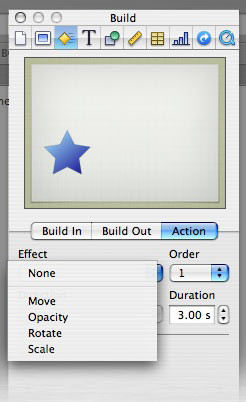
Keynote081-Act1Those effects get a big boost with one major new feature in Keynote ’08: Actions. An action is an advanced form of animation based upon movement, scale, rotation, or opacity. These effects can be used separately or in combination; for example, you could have a photo that starts at point A and moves to point B, and as it does so, it rotates, grows smaller, and fades out all at the same time.

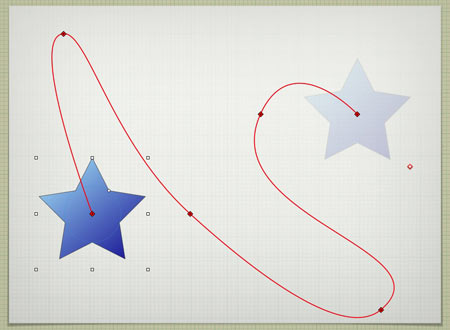
The most fun is the “Move” feature; you can use bezier points to assign a complex path made up of straight lines, corners, and curves. As you can make the object change size, transparency, and angle at any point along the way, you can have some fun making your object dance around as you like.

Keynote081-Act2

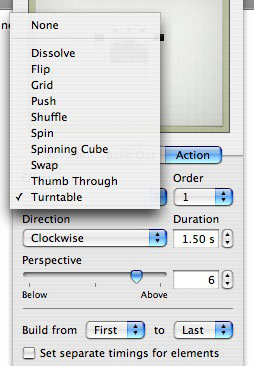
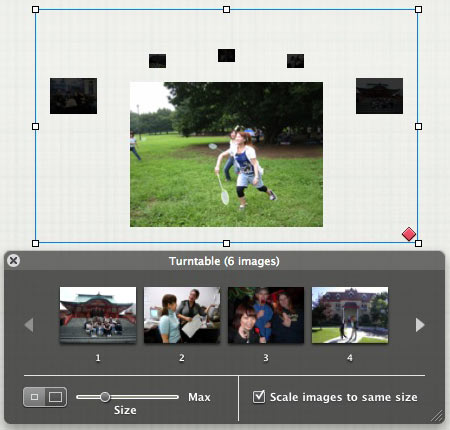
Keynote082-Bld2Apple used this new feature to create more complex bundles of actions, called “Smart Builds.” There are ten such, and they essentially are different ways to view more than one image based upon complex animation techniques.

Included in the “Smart Builds” are a spinning cube with a different image on each side; a turntable (a la Front Row) where images take a turn rotating to the front; a “thumbing” effect which simulates photos being shuffled from front to back as if by hand; and many more.

Each build has a number of options, and, as is usual with iWork apps, it’s dead-easy to generate the effect.

Keynote082-Bld1

Another new feature that has been added to the whole suite is something called “Instant Alpha.” Essentially, it is the ability to make a certain color disappear, but a bit more advanced. If you have an image where a background is mostly one color or range of colors, and the foreground element is a different color/range, then you can (usually) make the whole background disappear. Just drag a circle around the colors you want to make disappear, and they get blanked out.

Iw08-Instantalpha1

You can perform the same technique several times in one image, and the areas to be blocked out are highlighted dynamically, letting you ease off or push forward as is needed. Two problems, however: first, selections are only made contiguously, so if you have lots of small pockets of color to make disappear, then your task becomes a lot harder (see the bird in the image below, and how I missed some of the white sky behind it in certain places); and second, the effect only works well on a small number of photos, such that you have to almost take specific photos designed to work well with the effect. See three different images with varying levels of success below:

Iw08-Instantalpha2


Next is Pages. There are some much-needed new small touches–for example, added shapes no longer appear automatically inline with the text; that glitch caused a lot of confusion for a lot of people. New objects now appear as floating, allowing you to move them outside the margins, with the option to make them appear inline if you wish.

Iw08-Toolbars1-450

A much more significant addition is the formatting toolbar, putting the most important editing tools where you need them, instead of having to hunt them down in the inspector, or conjure up the Font palette. Shown above are the three variations depending on context–text, tables, and objects (click for full view). That makes it not only a lot easier to format, but it also makes it easier for people switching over from MS Word. One remaining complaint: the lack of WYSIWYG font menus. Yes, the Font palette will give you some WYSIWYG, but only in the “Favorites” and “Recent” views… and I never liked the Font palette anyway.

Other changes are a bit less than stellar, but still useful. There are now separate modes for layout: “word processing” and “page layout.” The first works like a standard word processor–type within the margins. The second is more like using a professional layout program like InDesign, in that it relies on text boxes instead of the standard typing paradigm. These different modes were both possible before, but here they have been better defined and separated, with templates made for each mode.

Pages ’08 also allows for change tracking, showing what was changed in a document and when–more useful for collaborative office situations, though I could see it as potentially useful for writing essays as well. Change tracking is one of those very popular high-level features that most people don’t use, but enough have demanded that Apple has included them–like Mail Merge, which was added in Pages 2. There are also new graphic tools, such as picture frames, the above-described Instant Alpha, and other image-handling tools. Most are slight, cosmetic changes that may or may not be useful to different people.

Aside from that, Pages is pretty much as it always has been. It’s now a bit more easy-to-use, and a bit more flexible. I still have not made the complete switch to Pages from MS Word, however, in large part because of the remaining accessibility issues regarding font formatting–namely, the messed-up interface regarding the Font palette. I tried to get around this with keyboard shortcuts, but Apple has not implemented that feature as well as I would have liked. It works well for commands in the main menus, but any command in a pop-up menu will not allow a keyboard shortcut to work unless the pop-up menu has first been activated. Which kind of defeats the purpose of a shortcut.

But that reason is highly specific to me; Pages should work fine as a primary word processing program for most everybody–and despite my foibles about the Fonts palette, I could certainly be happy using it if I really wanted to shove Microsoft out of my life. As it is, I use Pages half the time, and MS Word half the time.


Both Keynote and Pages are nominal upgrades, not complete reworkings of previous versions. Both apps have been inching forward, adding useful new tools and features with each new version–never so much that they become feature-bloated like MS Office apps, and always keeping focus on maintaining the Apple design paradigm of slick-but-simple (for better or for worse, depending on your point of view).

The real new change, however, is Numbers… and I find myself running both long in column space and short of time. So a review of Numbers will come soon. In short, however: Numbers fills out the suite and lets you leave MS Office behind–again, so long as you’re not a power user dependent on Office feature-bloat.

Categories: Mac News Tags:

Surprise Rise

July 26th, 2007 Comments off

Surprise! Apple sold more iPhones than it seemed from the AT&T report yesterday. Almost twice as many, in fact. Not a million in ten days, as many thought, but they fully expect a million sales by September. But what really surprised the market was the earning report overall: record sales. A 33% increase in computer sales over the same quarter last year, and 150,000 more computer sales than any quarter in the company’s history. Considering that the OS is two years old and many people are doubtlessly waiting to buy a Mac for when Leopard is released in October, that’s pretty damned impressive.

Clearly, I’m not the only one who thinks so: while Apple stock rose $2.23 (1.65%) during the day’s trading, it has shot up an amazing additional $11.38 (8.3%) at this time in after-hours trading, to stand at $148.50 per share–and is still rising. Yesterday would have been an incredibly good time to buy Apple stock….

An addendum, however: an element of the stock’s fall and rise is tied to the NASDAQ exchange, which fell 2% yesterday, and rose again today, along with other indexes. This undoubtedly helped Apple’s movement in both directions.

Categories: Mac News Tags:

Panic Drop

July 25th, 2007 5 comments

The stock market can be skittish, especially with a successful stock that people think may be overvalued. Confidence dropped in Apple yesterday due to news from AT&T that “only” 146,000 iPhone activations were made in the Q2 of 2007; people had expected half a million. Doesn’t matter that the reaction is nonsensical, almost farcical; what matters is that people panicked. So the stock fell by $8.81, or 6.13% on the news.

Why “nonsensical”? Because people apparently did not realize that the 146,000 number represented only a short time, cut shorter by certain factors many did not take into account. There was the belief that at least 200,000 iPhones were sold in the first two days, maybe as many as 400,000, or some dared to think even half a million. So 146,000 is disappointing, right?

Well, not quite. There are three mitigating factors:

  • First of all, it was not two days of sales–it was slightly over one day, specifically 30 hours. Sales began at 6 pm on June 29th, and ended before midnight on the 30th. That represents a much shorter time in which to sell product, in terms of percentage.
  • Second, AT&T did not report on iPhone sales, they reported iPhone activations. That cuts the potential time frame shorter–not everyone activated their phones within minutes of purchase, and a delay of hours put many out of the time frame. Some iPhones were bought for resale, as gifts, etc.
  • And finally, AT&T famously had issues with activation in that first 30 hours, which meant that many couldn’t activate until after the end of Q2.

However, the market did what it did: it reacted, having nothing else to go on. Some misunderstood and sold short, some panicked and dropped out, and others took advantage of the situation, and it snowballed. You can bet that there was some pressure to drive the market down so that people could buy lower and take profit later. It certainly didn’t help that a telecom analyst chose that moment to release an undetailed report that inventory was “decent” and demand had seen a “significant decline”–something which should be a no-brainer when you have massive lines at a release; such lines never sustain themselves. As for inventory, they sold out virtually nationwide before they could restock–but then they restocked enough to satisfy the post-release demand. That analyst firm had no actual knowledge or numbers to work on; in effect, they were guessing.

The real tell will be when Apple makes its report, and we find out the actual sales numbers. Jobs may even quote sales beyond that initial 30 hours in order to calm those who can’t see beyond the “two days” number. Who knows, it could be bad news there, too. The point is, there is no real way to tell yet. Of course, people with itchy fingers try to anyway, and that’s how you get reactions like today’s. Personally, I’m not worried; I’m in it for the long haul, and even if there’s another $8 drop or two, I’m still way ahead, and those numbers will go up again, of that I am confident.

Update: A few more notes on the CIBC analysts’ announcement. First off, they measured demand apparently by having some of their people hang out at Apple Stores, looking at the number of iPhone boxes on display, and noting how many people at those stores seemed to be looking at or buying iPhones. A less-scientific measure of sales could not be imagined. They do not state how many stores they looked at, at which hours, for how long, or even if AT&T stores were also watched. They have zero knowledge of how many units were ordered online. And worst of all, CIBC includes a disclaimer that it “does and seeks to do business with companies covered in its research reports”–in other words, they could have a huge conflict of interest and bias in this. The fact that they waited until just after AT&T released activation figures to release this report raises serious questions–it could not have been better-timed to knock Apple shares tumbling down. They may or not be right, just as anyone guessing may or may not be right, but their credibility here is incredibly questionable.

Categories: Mac News Tags:

Apples and Vistas

July 24th, 2007 2 comments

Wow… this article is a pretty startling example of distortion–so much so, that I’m pretty sure its author works for the GOP… or Microsoft… or both. Here’s the first paraagrph:

Windows Vista’s share of online users has increased every month this year, while rival Mac OS X — to which Vista has often been compared — has shown little, if any, growth, a metrics company reports.

This is one of those grand lies that uses the truth distorted in several ways to give a completely false impression. Pretty spectacular, if you know what it’s really talking about and how it uses massively different cases and compares them side-to-side as if they were on equal standing. Either this writer is so idiotic and clueless about computers that Computerworld should fire him, or he is dishonest to an astonishing degree… and Computerworld should fire him.

It’s hard to figure out where to start. First off, he’s comparing Windows Vista–Microsoft’s new Windows OS–with all Mac OS versions out there. We all know that Windows has something like 90%+ of the OS market share (exact stats are in dispute, but that’s the general area), while Apple has most of the rest. So any version of Windows will have the potential to gain far more market share than all versions of the Mac OS for that reason alone. It would be like selling accessories for the iPod vs. the Zune: you sell more because the customer base is many times bigger, not because your product is better.

What’s more, Vista use more or less has to grow, since most new PC sales have Vista pre-installed. Vista growth is virtually guaranteed, even despite its massive flaws. Here, I’ll make a startling prediction: in five years, most PC users will be running Vista! What a breathtakingly daring prediction! Of course, this is a no-brainer: in five years, most Windows users will have bought a new Windows computer, and unless they go way out of their way to get XP installed (or switch to a Mac, which more and more are doing), they will be using Vista–but by Hobson’s Choice, not necessarily their own.

In short, the writer compares (1) a new product filling a vast, pre-existing reservoir with (2) an existing product (which not only hasn’t been updated in a few years, but is now waiting for an upgrade in three months, no less–something which dampens sales, if anything) with a much smaller existing user base gaining market share by fighting tooth and nail to convert people from one system to another.

However, there is one reason you can see the writer doing this: it’s the only way to make Vista sales seem strong. Which makes me wonder about how big a kickback this guy is getting from Redmond. There has been ample evidence that Vista adoption has been slow; in fact, so many people asked Dell to sell computers with XP installed that the computer maker started offering it as a regular product. Think about that: scores of new customers demanded that a 6-year-old piece of software be installed on their computers so that they could avoid having a brand-new OS included in their computer, even though the price would be identical.

What’s more, the Computerworld writer uses very specific Mac OS usage stats (as reported by a Windows-centric organization) to make it seem like Mac usage is falling:

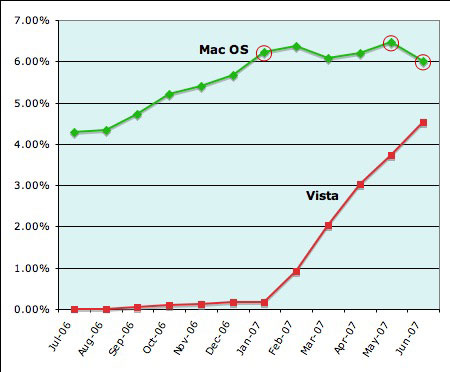
Mac OS X, meanwhile, accounted for 6.22 percent in January and hit its high point of 6.46 percent in May, but it slipped back to 6 percent in June.

To see how he played fast and loose with the numbers, look at the chart below, with the figures he quoted circled in red:

0707-Macvista1a

Note that the January number was at the high end of a very fast climb for OS X users. Had he quoted stats year-over-year, that is, July 2006 to July 2007, he would have had to admit that Mac OS X use has increased from 4.29% to 6.00%–and that the “slip” he mentioned is a month-to-month variation–a hiccup, not a trend. The year-over-year increase is supported by the fact that Apple continues to outperform the market: sales of Mac computers shot up 26.2% year over year, while the PC market overall only rose 7.2%.

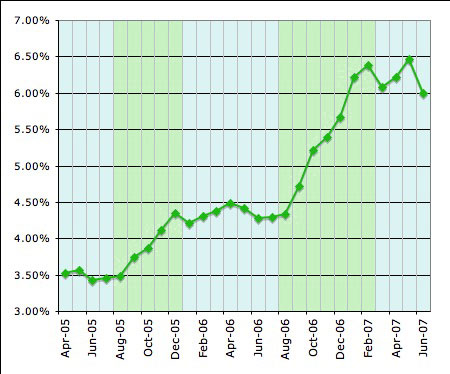
But the numbers that the Vista-friendly writer gave are deceptive in other ways as well. For example, if you just trouble yourself to get the Net Applications numbers for the Mac OS for the previous year as well, you’ll notice a pattern: Mac OS share rises in the second half of the year, then stays steady in the first half of the next year. The numbers for the Mac have shot up starting in August for the past two years–which means that Mac OS share, as reported by this source, should start to jump again in the next few months:

0707-Macvista3a

Note that the rise in 2006 was greater and was sustained for longer than the one in 2005. So if the past is any indication, the Mac OS share should make an even bigger jump upwards this coming Autumn. All of this shows exactly the opposite of what the Computerworld writer states, as he used cherry-picked numbers to give a completely false impression.

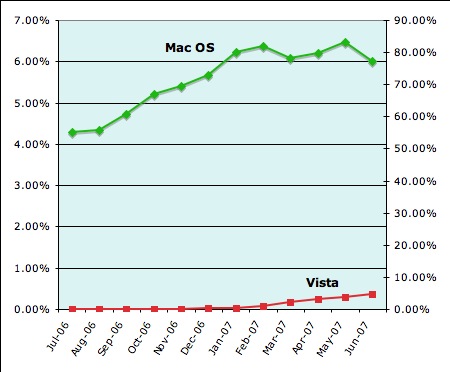
But as long as we have nice charts made up, let’s take a realistic look at market share. Windows, after all, has 90%+ market share, and Vista is trying to fill in that market. So let’s give Vista a secondary axis on the chart, so it will represent how Vista is filling that reservoir of potential buyers, the Windows customer base:

0707-Macvista2

Not nearly as impressive, is it? Which is why that writer had to completely fudge the numbers to make Vista look like it was doing great, when actually it’s doing pretty lousy, given the built-in advantages it enjoys.

Categories: Mac News Tags:

Mac Switcher Tutorial: Disk Images

July 22nd, 2007 Comments off

When Windows users start using Macs, there are a few things which throw them off. One of them is how to close programs: in Windows, you can quit an application by closing the window, using that “X” button at the top right of the window. And while that will work in a few Mac apps (like System Preferences, for example), it will not work for most programs. Instead, closing the windows just… well, closes the windows. The app stays open. Immediately, this is only apparent by the fact that the app’s menu bar is still visible, but that goes away when the user clicks on something else, like an active window from another app, or the Desktop. It’s also noticeable from the Dock, where a tiny black triangle below an app’s icon indicates that it’s still open, or from the Command-tab program switcher–but since new Windows users don’t know those, either, they don’t see what’s going on. A few times I have been asked by switchers as to why their Macs have slowed down so much, only to find that they are unknowingly running a dozen and a half apps at the same time with only 512MB of RAM.0707-Di1

So as you can see, not knowing the differences between platforms can get you into a bit of trouble sometimes. Another very common problem area is with disk images, which as far as I know, are mostly just used on Macs. They are a way of sending compressed data from one place to another. On Windows, people usually use the ZIP format to do this; disk images on the Mac work differently, thus causing the confusion.

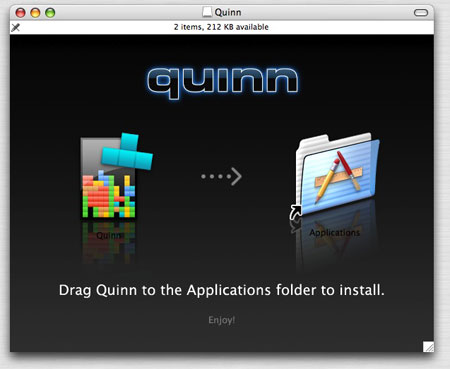
In this post, I am using the disk image for a freeware game called “Quinn,” essentially a nice version of the Tetris game.

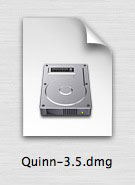
When a disk image arrives on your computer, it looks like a picture of a hard drive on a piece of paper, as pictured above and to the right. It has the filename extension “.dmg” (for “disk image”). This is the compressed version. If you’ve seen “.bin” and “.cue” files on a PC, this is their equivalent. It is, essentially, the image of a physical storage device. It’s the same as taking a CD or DVD and copying it precisely on your hard drive, for example; that’s why such files are often used to make copies of such disks. But it does not have to be a copy of an actual physical disk; that’s merely one use.0707-Di7

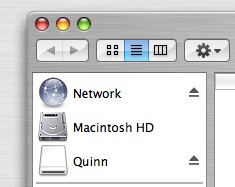
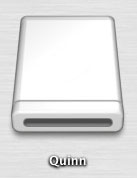
0707-Di2When you open up the disk image file by double-clicking on it, another icon appears on your desktop, which usually appears like the image at left. It does not matter where the original “dmg” file is on your computer, the new disk icon will appear on your desktop. It also will show up in the left-hand sidebar in any open Finder window, along with your other physical disks (see right). At this point, it is acting exactly as if you attached a hard disk or popped in a DVD; it does not act like a file on your computer, but like an attached drive. Note that you can see both the “dmg” file and the virtual disk which came from it at the same time.

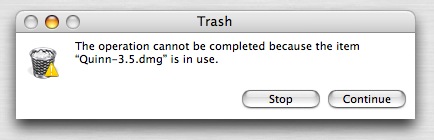
What is important to remember is that the virtual disk is not really “on” your computer; it is a temporary representation of that original “dmg” file. You can test this by throwing the original “dmg” file into the Trash while the virtual disk is open, and then trying to empty the trash; you’ll get an error message (below, right) telling you that the file is still in use.0707-Di4-1

Usually, when you open up a disk image, the contents of the image will open up in a new Finder window, as pictured below (in the case of Quinn). There are a couple of things to note about this window. First of all, there’s no toolbar or left-hand sidebar; the window is optimized to make it appear slicker. Personally, this annoys me, but there’s a simple solution: click the “toolbar button” which is located at the top right of any Mac window (see small image below right); your toolbar and sidebar will reappear (or disappear, if they were already visible).0707-Di5

However, you don’t have to bring the sidebar back; it’s just convenient sometimes, as I’ll explain below. Instead, for now, just look at the window with the disk image contents below:

0707-Di3

This is an example of a well-designed disk image window. The reason: it’s an application, and they kindly gave you a shortcut (or “alias”) to your Applications folder. Here, it’s dead simple: drop the icon into the shortcut for the Apps folder. A copy of the program is made to your computer. Bam, you’re done. Sometimes they don’t give you the shortcut, and that really annoys me. Why? Because when you open a disk image, the sidebar is missing, and the sidebar is usually where your Application folder can be easily accessed from. Without a sidebar, and without a shortcut to the Applications folder, it becomes harder and less intuitive as to where to put the file in the right place (hint: use the toolbar button to show the sidebar, then drop the icon into the Applications folder visible in the toolbar).

There’s another reason why not including an Application folder shortcut can confuse people: they assume that the virtual image is actually “on” their computer, and so they just run the app from the disk image directly, without copying it onto their computer. This will work, but only in a limited fashion. For example, I’ve seen people drag-and-drop the virtual app from the virtual image onto their Dock. This is fine, so long as the disk image is open. But then they shut down and restart their computer–at which point the virtual disk is discarded. When they then click the Dock icon for the app, the original “dmg” file is re-opened automatically, the virtual image is brought back up, and the program runs again. Sloppy, but it still works. Trouble ensues when the user later trashes the “dmg” file, thus erasing the program–and it surprised when the Dock icon can no longer find the program. Oops.

You might think now that disk images are more trouble than they’re worth, because of this long and complex explanation; however, the process is actually very simple. When you get a disk image, double-click it to open the virtual disk. Then copy the contents to the location on your computer where they are needed (usually the Applications folder, but sometimes elsewhere). Then just eject the virtual disk and erase the “dmg” file (unless you wish to archive it somewhere). That’s all.

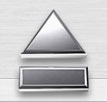
0707-Di6Small detail: there are three ways to eject the virtual disk. One: click the virtual disk icon on the desktop and type “Command-E” (which also will eject any other kind of disk which is selected). Two: go to the sidebar in an open Finder window and click the “eject” icon to the right of the disk’s icon. Or three: drag the virtual disk icon from the Desktop to the Trash–which, as you’ll note, transforms into a metallic “Eject” icon in this instance.

As soon as you’re used to disk images, you’ll find that they can be as convenient and as easy to use as “zip” files, or any other form of compressed data. But they also have another function: using Apple’s “Disk Utility” program (in the “Utilities” folder, which is in the “Applications” folder), you can save a disk image onto a CD or DVD. That is, the CD or DVD will become an exact physical copy of the virtual disk image as stored in the “dmg” file. This is also a way to copy a CD or DVD–you can use “Disk Utility” (or better, an app like the freeware “Burn“) to make a “dmg” copy of a disc, then make new discs by impressing that “dmg” file onto them.

Categories: Mac News Tags:

Ka-Ching

July 21st, 2007 4 comments

070721-Aapl

Hard to get used to this. When I bought Apple stock, it just happened to be at a peak. For a whole six months, the stock did not go above that peak without soon falling back down; in fact, if often fell below, sometimes well below. But then, in April, things changed after the 2Q earnings report, and then buzz about the iPhone release started working up. After the iPhone was released, a lot of good news on sales, profit margins, and so forth shot the price up significantly on some days. So what’s hard to get used to is, after six months of disappointment (to the point where I couldn’t read the stock news very easily), I find myself waking up to news that the stock I bought is up another thousand dollars overnight.

Now my only regret is that I did not put fully half of my savings into the stock, like I wanted to at first. When I floated this idea to family and friends, I was strongly warned not to go there. They even warned me against putting in as much as I did. And as far as general advice goes, it was excellent advice. The thing is, I have never invested money in a specific stock before; I have never had enough confidence to. But with Apple, it was something very different, and much stronger. They say that when you invest, it should be in a company that you have strong confidence in, but also one whose product you very much approve of. Well, if you read this blog, you’ll know that all of that applies here, in spades. And had I figured this out four years ago, I could have gotten in on the ground floor–Apple stock was at $7 a share in April 2003, and that was before a stock split in 2005. Had you invested $12,000 in the stock in April 2003, you’d have a cool half million by now. Yikes! If anybody out there invents a time machine, let me know!

It appears that the stock may yet have far to go. There are naysayers, and they may be right. Or not. One analyst put a sell on Apple in May, when the stock was at $111; the stock is now at $143.75. Today, Piper Jaffray put a new estimate on the stock’s ceiling, to $205, predicting a “tidal wave” for Apple by 2009. Of course, a serious defect could be found in the iPhone tomorrow, sending the stock plummeting, or a thousand other things could happen. I’m simply betting the other way. So far, so good, but that’s what the guy said as he passed the 30th floor on his way down to the pavement. Who knows?

Categories: Mac News Tags:

So That’s Why the Stock Price Jumped

July 14th, 2007 Comments off

My father mentioned the price of Apple stock in a Skype call we had this morning, but at the time I thought he just meant the general upwards trend lately. However, when I checked the day’s results, Apple stock was up $3.66, or 2.73%. It’s nice to open up your account and see that you made a thousand bucks overnight. I am guessing that the jump was the result of this report from USA Today:

Early iPhone owners are overwhelmingly happy with their devices, a survey out Friday says, and Apple and AT&T are luring customers from rivals as a result.

In one of the first such studies, 90% of 200 owners said they were “extremely” or “very” satisfied with their phone. And 85% said they are “extremely” or “very” likely to recommend the device to others, says the online survey conducted and paid for by market researcher Interpret of Santa Monica, Calif. The firm surveyed 1,000 cellphone users July 6-10.

The findings are “pretty much off the charts,” says Jason Kramer, Interpret’s chief strategy officer. …

Apple still faces challenges. The high cost of the two iPhone models — $499 and $599 — ranks as the No. 1 reason consumers interested in the device did not buy one, the survey says. Those consumers said they would pay an average of, at most, $180.

Owners said there’s room for improvement. At the top of their wish list: longer battery life, faster Internet speed and more internal memory. Other factors, including the lack of a physical keyboard, were well down on their lists.

The iPhone is extending Apple’s reach, the survey says. Three of 10 buyers were first-time Apple customers. For 40%, iPhone is their first iPod.

This bodes extremely well for the iPhone and for Apple. Word of mouth is very important, and a lot of people may have been holding back, waiting for the reactions of the early buyers. It suggests that perceived problems are not nearly as bad as people expected–especially the keyboard–and Apple’s objectives of selling ten million units by the end of 2008 may be exceeded, even as a domestic figure.

The halo effect is also an issue, as more people will get a dose of Apple’s design style. Just yesterday at work, a staff member said that he’s probably going to buy a Mac soon, and that is based upon the iPod he bought recently; he loves it so much, he figures Macs should also be a welcome change from PCs. I didn’t have the heart to tell him that he may have bought his iPod just a tad too soon, with full-screen multi-touch models being a likely upcoming release. Still, that kind of story, though anecdotal, is telling. If someone really likes a product from a company, they may well buy more, different products from the same company. And early iPhone news seems to indicate that Apple sales may increase even more than they have in the recent past–and they have already been increasing computer sales faster than anyone else out there.

There could even be a bit of a boost from what Fake Steve Jobs might call the “skank” factor–already Paris Hilton and Lindsay Lohan have been photographed carrying iPhones (almost a bit too conspicuously, if you ask me). While FSJ rants about how there was supposed to be a policy to keep such people from buying an iPhone, it probably won’t hurt sales among the younger crowds.

Categories: Mac News Tags:

Zune vs. iPhone

July 13th, 2007 1 comment

After seven and a half months, it is estimated by Microsoft that they have sold a million Zunes. Of course, that figure is very sketchy and unsupported. It is based upon an interview with Microsoft’s Entertainment and Devices Division president, Robbie Bach, where he was misquoted as saying that they had sold “a little over a million Zunes” by the end of May, when he really said that they expected to have sold over a million Zunes by the end of June. Furthermore, nobody is sure that they have actually sold that many to consumers, as Microsoft has the tendency to report shipments to retailers as actual sales to inflate their figures. (And, as a side note, Bach has recently been implicated in an insider trading scandal.)

While the Zune’s release was rather uneventful (ten units sold at a San Francisco store was “better than expected”), the iPhone’s release was manic, crazed, crowded and furious. After ten days, it is reported that nearly a million iPhones have been sold; by the two-week mark, the number of one million is perfectly reasonable to expect.

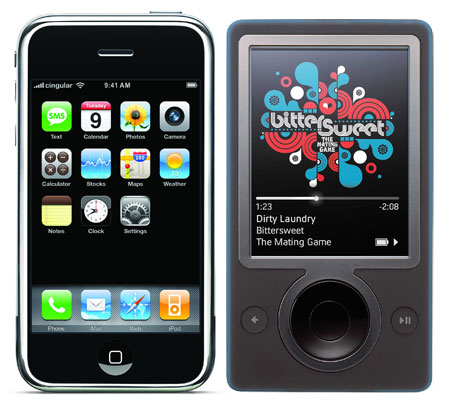
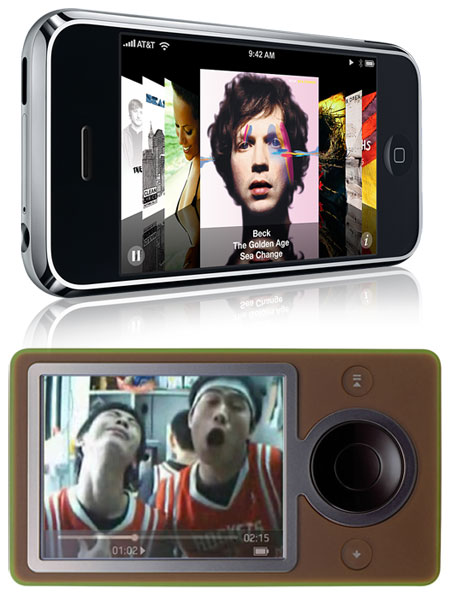
Which means that Apple reached the one-million mark in just 1/16th the time it took for the Zune to do the same thing. Of course, look at the comparison between them:

Iphone Zune-450

Iphone Zune2-450

Iphone-Side-SmallTrue, one is $250 and the other is $500, but Apple has a much bigger profit margin, and more expensive stuff should be harder to sell, right? But really, just in terms of industrial design, there’s no comparison here. At right, you can see a side view of the iPhone. I was trying to get a similar image of the Zune to show a comparison (the iPhone is 0.46″ thick, the Zune 0.58″), but I could not find a single image on the web of a Zune in full side profile. I soon figured it out: it’s basically just a rectangle from that view. Oh, there’s the line of a seam breaking it up, but from the side, the Zune is utterly nondescript. Which explains why nobody posts images of it that way.

The Zune is set for an upgrade–but then again, according to reports, so is the iPhone. And while the Zune can get software upgrades like the iPhone (both may get their wireless capabilities upgraded), the iPhone is far more upgradeable without having to buy a new unit, as it relies on the touch screen for the full interface.

Of course, we’re comparing apples and oranges here a bit–the Zune is only a media player, and the iPhone is a media player, web browser, email/schedule/address book client, camera/photo viewer, and a telephone. But what happens when the first widescreen iPod comes out? It’s been rumored to happen sometime this year, possibly in August, but probably later. When you get a full-screen, multi-touch iPod with the 3.5-inch 480×320 display? People have gushed about the Zune’s “big” display, which is a 3-inch 320×240 screen–but that’s half the resolution of the iPhone at almost the same size. If the new iPod will have Bluetooth and WiFi like it’s cousin iPhone, then there won’t be much to give the Zune any advantage.

Seriously, I don’t know who is buying Zunes right now. If it were an independent company instead of a part of Microsoft, I don’t see it’s shares going up anytime soon. But then, I should add the disclaimer that I own a chunk of Apple stock, so I may be biased.

iPhone Madness

July 4th, 2007 1 comment

Wow. Things are going pretty well. Both Apple Stores and AT&T outlets have almost sold out of iPhones after four days, selling as many as 700,000, and Apple stock, I suppose on this news, shot up about $6 yesterday. Probably the stock didn’t go up the first few days because there was worry about how people would react once they got the iPhones. But reportedly, the consumer reaction is very good–and raving reviews continue to come in, like this one from Business Week. [Update: reports are that the stock rose on reports that Apple is getting a 55% profit margin off of iPhones.]

Any viewers of this blog get one?

Categories: Mac News Tags:

iPhone Comments

July 3rd, 2007 Comments off

I’ve restrained from commenting on the iPhone recently for two reasons: there is already iPhone overload in the media, and I’ve been too busy to comment on it anyway. But overall, the iPhone news is very good. Almost all the reviews say that the iPhone lives up to the hype–which is pretty damned impressive, because the hype for the iPhone has been bigger than just about anything else in recent memory. Those are pretty high standards.

In fact, praise for the iPhone is so universal and the hype so positive that a lot of people seem determined to strain out criticisms so that they don’t look like one of the adoring masses. To be certain, the iPhone has bad points, but some people go a bit far. Take this review from the Seattle Times, which was at the top of the iPhone category on Google News. The reviewer lists five likes and dislikes. But the content of the review is telling, both that the good is better than the bad, and that a good writer doesn’t lock himself into round numbers for the sake of round numbers.

Like most reviewers, this guy likes are the touchscreen interface and the look and feel of the device, and then he goes on to the more personal likes of an iPod with a speaker and the interface for dealing with photographs. He winds up, tritely, with a universal observation, that the iPhone will spur other cell phones to have similarly cool features.

In his dislikes column, he covers the first point that everyone brings up: the EDGE network. This is the bane of the early adopter; you can expect iPhones in 2008 to be 3G (Japan and Europe are likely waiting for that); whether this is an upgradable feature is what will determine how many ticked-off early adopters there will be. And it’s a legitimate gripe, as are the points that the web browser can’t handle Flash (a plus in my book) or WMV as well as other media types. But all of these will certainly be corrected over time.

His other dislikes, however, are more telling of a writer trying too hard. He lists durability, battery life, network lock-in and Apple’s “smug attitude.” Durability first: this guy worries about a $600 phone made of glass. Apparently he didn’t read the review by PC World in which they subjected the iPhone to scratch and damage tests, and it performed amazingly. Not only was the touchscreen not marred by being jangled in a baggie with key chains, but it even survived being directly “gouged” with a key. They then tested the iPhone by dropping it on various surfaces from various heights, and again found that it survived multiple drops on concrete sidewalks from ear-level, save for a few mars in the metal bevel. So durability is not as much a problem as the Seattle Times reviewer thinks.

He then winged about battery life, but again, reports have been that the device will hold up to a full day’s worth of non-stop use–and let’s face it, even on a day of air travel, we wouldn’t use such a device every single minute like you would when reviewing it. Also, he didn’t mention actually running the battery down or how long it took, so he may not even have put it to realistic, everyday tests. But Wirelessinfo did test it, and found that while it fell short of Apple’s claims (such claims are always based upon energy-saving usage methods that no real-world users employ), it was still average, or a bit less than average, for the market–not bad for such a flashy, full-screen device. They were able to get 5 hours of talk time, 10 hours of music play, and 3 hours of web browsing. That means if you mix the three, you can talk for 100 minutes, listen to music for three hours, and browse the web for an hour before the battery runs out. Would you really use your iPhone that much in a normal day? Maybe if you live and die by talking on your mobile endlessly, but most people don’t, and if you do, you should get a phone with the longest battery life possible and then another device to do what the iPhone does. Furthermore, CNet reports a quick recharge time, so you probably could just carry a recharging cable in your bag and power up while you’re doing something else.

The third gripe is fairly relevant–if you get an iPhone, you are chained to AT&T Cingular. However, isn’t this true with a lot of phones? Not all, from what I understand, but I thought this kind of thing was pretty common. This is where I am unfamiliar with the market; someone help me out here.

But the fourth gripe: Apple’s “smug attitude”? Come on. If you’re reaching for something to complain about, surely you can do better than that. Apple has a damned good reason to be smug, if that is what they are. As for the “better-than-you attitude” and “controlling” behavior, this pretty well describes any company–hell, just look for any quotes by Steve Ballmer and you’ll see what I’m talking about.

In short, it seems the iPhone has a lot more good than bad going for it, and the bad will likely be handled over time. Many have pointed out that like the iPod, the first iPhones will look kind of lame in two or three years, just like my third generation iPod is now; at the time, it was great, but now? No color, no video, fat profile? Look for future iPhones that will step into faster 3G networks, can download music independent from a computer, can play lots more media types… so forth and so on. It’s version 1.0, people; get over it.

One last note: despite selling half a million iPhones in the first three days and garnering near-universal praise (the criticisms are mostly blended in with the praise but never overpowering it), Apple’s stock fell again, albeit slightly. It seems to be like that with Apple stock: rise with the expectation, fall with the release–even when the release lives up to the expectation. Go figure. Still, my shares are 30% higher today than when I bought them eight months ago, so I’m not complaining.

Categories: Mac News Tags:

Vista Has Caught Up with Leopard? Ummm…

June 13th, 2007 1 comment

In my post on Leopard yesterday, I noted that the idea of hiding the “top secret” Leopard features from Microsoft seemed a bit silly because the new ones Jobs introduced seemed minimally similar to some Windows details from Windows 98, XP, and Vista. Specifically, I noted the transparent menu bar, basing a window viewing paradigm on a pre-existing media program, and document previews in icons. I am fairly sure, however, that I conveyed the limited way that these features resembled what was in Vista. Not that Vista had these features already, but that there were shades of the features in Windows; not that Apple was copying Vista, but that Microsoft already knew about a few of the design elements and had integrated them in Vista to a different or lesser degree.

Well, some person with a tech blog at ZDNet had the same idea, but combined a certain cluelessness about OS technology and ignorance about when things have been released, and combined that with the act of taking a weak idea to a ridiculous extreme. Essentially they are suggesting that Leopard is both copying and playing catch-up with Vista.

I know it’s kind of like picking a fight with someone you know you can wipe the floor with, but (a) I felt there was enough of a connection with what I wrote yesterday that I should clarify my own take on the idea, (b) this person has a blog on a noted tech site and many will take her seriously, and (c) it’s fun.

Here are the ten points Foley, the ZDNet blogger, made about how Vista is “pretty darn up-to-date” with Leopard:

1. New Leopard Desktop: Not a whole lot different from Vista’s Aero and Sidebar.

First of all, she seems to be comparing the Dock with Sidebar. What would a car aficionado say about someone who can’t tell a steering wheel from a tire writing car reviews?

She is apparently basing the comparison with Aero wholly on the fact that Apple’s menu bar is semi-transparent, which Vista window frames are also. This is like saying that a beat-up old Chevy is like a new, top-of-the-line Mercedes because they both have the same color paint. As I noted, the eye-candy transparency is irrelevant. The Dock is what puts the Mac’s OS way ahead of Vista, and though most of the new Dock features are also eye candy, there is nothing in Vista to match the functionality of the Dock. Stacks may be simply a nicer way of viewing a pop-up menu from the Dock, but I don’t see Vista giving you the same functionality that Mac users take for granted in this years-old technology.

In essence, Foley only noted that the new additions to the Desktop kind of reminded her of the style used in Vista, while ignoring (or being ignorant of) the pre-existing technology in OS X that the Mac has had for years but Vista still hasn’t caught up with.

2. New Finder: Many of the same capabilities as the integrated “Instant Search” in Vista (the subsystem that Google is trying to get the Department of Justice to rule as being anti-competitive). The new Leopard Coverflow viewing capability looked almost identical to Vista’s Flip 3D to me.

Ummm… where do you start? First of all, Spotlight has been in the Mac OS since Tiger came out more than two years ago; Vista was a latecomer to the game, and even copied Apple’s graphic layout for the feature, right down to the search icon.

CoverFlow is a pre-existing iTunes feature, and is similar to Flip 3D like an accelerator is to a brake. Flip 3D is a poor copy of Apple’s Exposé; it is unavailable in the Vista Basic versions, only shows windows, not files, and does so in a much more limited way. CoverFlow is a file-viewing paradigm created more than two years ago by a Mac developer and was purchased by Apple and implemented into iTunes four months before the public release of Vista.

3. QuickLook: Live file previews — just like the thumbnail preview capability available in Vista.

As I noted in my post yesterday, QuickLook leaves Vista far behind. Both Mac and Windows have been offering file previews in icon views in limited fashions for a few years now. For a while, Windows had a slight advantage because XP’s icons would preview some text documents and web pages in addition to the image and movie icon views that both operating systems were able to preview. But that was the limit for anyone–a small icon preview. In fact, the Mac OS had the upper hand on Windows in one respect for a while because it was able to preview movies in real-time without opening an app, something Windows caught up with in Vista a few years after the Mac had it.

QuickLook leaves both Vista and Tiger in the dust. Not only has it enhanced icon previews which beat out Vista, but it allows you to view almost any document full-size and viewing all pages and slides without opening the app that created it first. Vista can’t even come close to that.

4. 64-bitness: Leopard is the first 64-bit only version of a desktop client. Vista comes in 32-bit and 64-bit varieties. And most expect Windows Seven will still be available in 32-bit flavors. Until 32-bit machines go away, it seems like a good idea to offer 32-bit operating systems.

Foley apparently wasn’t listening when Jobs made the crystal clear point that Leopard integrated both 64-bit and 32-bit into the same OS. Hell, Jobs even did a demo showing both kinds of apps running side by side in Leopard. Foley must have been out buying nachos at the time, or else was snoozing during the demo, and later jumped to conclusions about the “64” icons she saw.

Here, Leopard is clearly superior. Just like Leopard doesn’t have differently-priced “Home,” “Business,” “Premium,” “Enterprise,” or “Ultimate” versions, it also does not have separate 32- and 64-bit versions. Everything comes in one package for one price–and that price is about equal to the lowest-priced upgrade version of Vista.

5. Core animation: Not sure what the Vista comparison is here. The demo reminded me of Microsoft Max photo-sharing application. The WWDC developers attending the Jobs keynote didn’t seem wowed with this functionality.

It might help to have even the slightest clue about what Core Animation actually is. Foley is comparing a graphic engine built in to the OS with some photo-viewing app that she thought resembled the sample program that Jobs ran to highlight what Core Animation could do. How many times can I repeat the word “clueless” before it gets too repetitive?

6. Boot Camp. You can run Vista on your Mac. Apple showed Vista running Solitaire in its WWDC demo. But I bet those downloading the 2.5 million copies of Boot Camp available since last year are running a lot of other Windows business apps and games.

Okay… so Foley is saying that Windows Vista has caught up with the Mac OS because Mac users are able to use tons of Windows apps? What exactly is Foley trying to prove here about Vista and Leopard? She apparently is bothered that Jobs took a jab at Windows by suggesting, jokingly, that Solitaire is a big reason why you might want to run Windows on your Mac. So first, can’t Foley recognize a joke when she sees one, and second, how does the Mac’s ability to run Windows apps make Vista seem “up-to-date” with Leopard?

7. Spaces: A feature allowing users to group applications into separate spaces. I haven’t seen anything like in in Vista, but the audience didn’t seem overly impressed by it.

Foley did note that this was only her second Mac keynote, and the other was in 2002. OS apparently she was not aware that Spaces was introduced ten months ago, which is why nobody was wowed by it–they saw it long ago, and as developers, have been using it for about as long. If Bill Gates demoed Internet Explorer 7 to a Windows crowd today, he’d get the same reaction.

But the interesting point here, as with point #6, is that Foley seem to have forgotten her thesis statement, that Leopard looks like Vista. Saying that a new feature in Leopard, which does not exist in Vista, did not excite the crowd does not support that thesis very well.

In any case, Spaces did wow the crowd 10 months ago, is a great feature, and does not exist in Vista.

And by the way, Foley writes a tech blog which focuses on Microsoft on a tech web site, and she says stuff like “I haven’t seen anything like in in Vista” as if it might be in Vista but she hasn’t found it yet?

8. Dashboard with widgets. Isn’t this like the Vista Sidebar with gadgets?

Oy.

Okay. First off, Dashboard, like Spotlight, has been around for two years–Sidebar with Gadgets is a shameless copy of Dashboard with widgets. (Okay, granted, Dashboard is a shameless rip-off of Konfabulator. Still.) Second, Jobs was showing how you can make your own widgets either dead-simple with Web Clip, or more professionally but still very easily with DashCode. As far as I know, Sidebar gadget development is still only something that professionals can handle, while it looks like non-programmers like me would be able to handle DashCode–and anybody’s grandmother could probably master Web Clip in a few minute’s time.

9. iChat gets a bunch of fun add-ons (photo-booth effects, backrops, etc.) to make it a more fully-featured videoconferencing product. The “iChat Theater” capability Jobs showed off reminded me of Vista’s Meeting Space and/or the new Microsoft “Shared View” (code-named “Tahiti”) document-sharing/conferencing subsystems.

iChat is an app that primarily is for consumers, not business people, but integrates the features Foley is talking about easily into one app–whereas Microsoft seems to have it partitioned out into several different apps. Microsoft does have an advantage as far as making it business-friendly, but not in terms of making it user-friendly. I checked out the “SharedView” app, and while it allows for collaborative document sharing, it is still an early beta and does not as yet include integrated audio or even text chat features. For that, you have to use a separate chat program or pick up a telephone. So even including separate Windows apps not integrated into the OS, Vista is not exactly “caught up” with Leopard.

10. Time Machine automatic backup. Vista has built-in automatic backup (Volume Shadow Copy). It doesn’t look anywhere near as cool as Time Machine. But it seems to provide a lot of the same functionality.

But that’s the difference, isn’t it–the Mac OS, even when it provides the same basic feature, makes it much more easy and fun to use. Both a beat-up old Chevy and a new, top-of-the-line Mercedes Benz will get you from home to the mall and back–but which one would you want to drive?

Seriously, ZDNet out to review whether or not they want someone who does such shoddy reporting to have a blog on their site. It’s pretty embarrassing.

Categories: Mac News Tags:

Leopard Suffers from High Expectations and the Wait

June 12th, 2007 4 comments

While the new Leopard seems to be a snazzy new OS with some very cool features, it unfortunately suffers from overly high expectations, and Steve Jobs can only blame himself for that. When he announced that there were “top secret” features that had to be hidden from Microsoft so they wouldn’t copy them too early, people took him at his word, and expectations were sky-high. Windows apps run native on the Mac OS! A brand-new, world-changing windowless interface! A completely reworked Finder with 3-D animation everywhere! Something new and mysterious and unexpected and amazing!

Ummm… well, not quite.

The thing is, Leopard is cool. Stacks, QuickLook, Coverflow–the Finder has been reworked. But these don’t really seem like “top secret” features that had to be hidden for ten months so that Redmond wouldn’t copy them. A lot of it was in the name Jobs used last year–“top secret.” If he’d just called them “extra features,” then expectations would not have been quite so high. The long wait has also been partly to blame, and ironically, the early preview last year spread out the news a bit too thinly. Had all these features been released at once, it would have been as satisfying as any Mac OS release, maybe even more.

But here’s another bit of irony: while most of the “top secret” features that needed to be hidden from Microsoft are indeed new… enough of them are reminiscent enough of existing Windows features as to actually be a bit embarrassing in light of their having to be hidden so Microsoft wouldn’t copy Leopard. Ulp.

In any case, the “top secret” feature was… a new Finder. A lot of people expected that. Let’s take a look at the details. Quite a bit is eye candy, but most of that is as irrelevant as the new eye candy in Vista. There’s the new Dock with the “floor” which reflects not only the icons in the Dock, but even windows that get close to it. There’s a semi-transparent Menu Bar which in itself is reminiscent of Vista’s semi-transparent window frames. This is not so exciting.

0607-Newdock

The interesting stuff comes with functionality, and that has been improved. Interestingly, just like Windows 98 integrated Internet Explorer into the OS and made its windows act like web pages, Apple has done a similar thing, but this time iTunes was the model. The windows in Leopard not only sport the same non-brushed-metal look-and-feel, but the sidebar has changed to fit the iTunes theme–and even CoverFlow is now integrated. You know, that new iTunes thing which makes album covers flip by in 3-D.
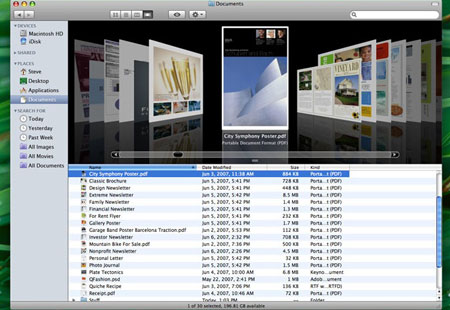
0607-Coverflowfinder

I was never excited by CoverFlow because it’s so hard to get album cover art for all of my archived music, so most of my “covers” are just blank. But that should be different in Leopard’s Finder, mostly because of another new Finder feature: QuickLook.
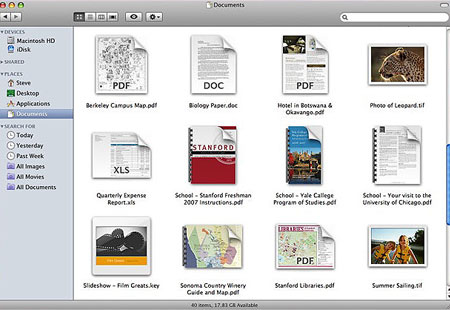
0607-Quicklook1A

QuickLook is another feature which is a bit reminiscent of Windows. In Windows XP, a lot more documents were available as previews in icon form than were available on the Mac. Web pages are one example; they would render in miniature in the icon in XP, something that Tiger would not do. The Mac could preview images and movies, but not much else. So XP was ahead in that minor respect… and now the Mac is.

Leopard takes document preview to an almost ridiculous extreme in the files it previews. It allows thumbnails of every kind of document… or so we are led to believe. The demo only shows images, PDFs, movies, and iWork & MS Office files. How other icons will render is unclear–for example, how about a FileMaker Pro database file? A DiVX movie? Even a folder? They didn’t show what a folder would look like in QuickLook. I suppose that this is stuff we’ll hear a lot more about very soon as Leopard will be open to more public scrutiny now… but the omissions worry me a bit.

But thumbnails are just the beginning of QuickLook; the real magic is the ability to preview files, full-size, without opening the application. just select an icon, tap the space bar, and it zooms up to show you not only the top page/image, but the whole file, which you can go through page by page, slide by slide, without having to wait for the app to open. A very nice, time-saving feature to be sure.
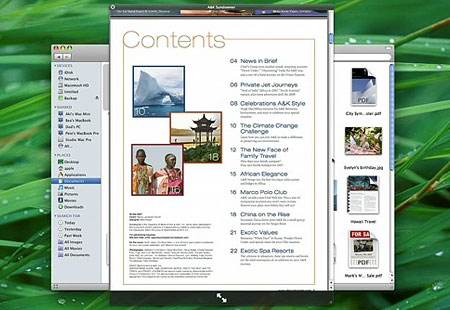
0607-Quicklook2

Again, the $64,000 question is, will QuickLook work on all documents, most documents, or just a limited set? Can developers update their apps so as to be QuickLook-friendly? What are its limitations? Stay tuned.

Another new Finder feature is one that has been rumored for many, many years: Stacks. And while this is a cool feature, from the demo it looks like the feature is limited to the Dock, which therefore limits the number of stacks you can have before your Dock becomes ridiculously tiny. But in concept, it’s a snazzy addition, and even in limited fashion, it could be a bit useful. The idea is essentially a way to get multiple-file QuickLook in the dock, probably not feasible in the boring pop-up menu form used now. Instead, a stack will display either as an arc of icons spread out, or as a dark Spotlight-themed preview pane:
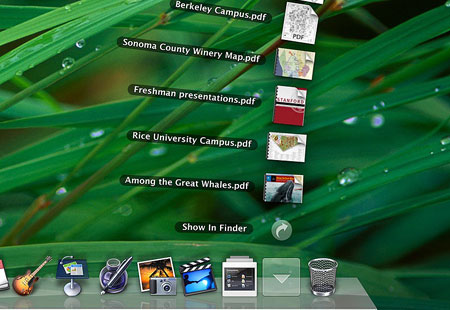
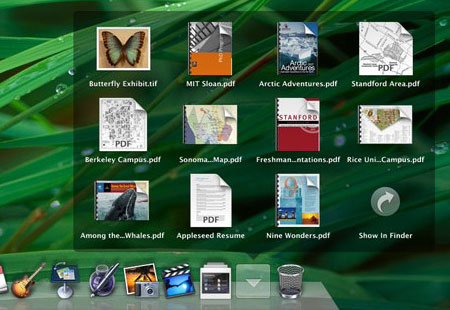
0607-Stacks1

0607-Stacks2

The final big new Finder feature is called “Back to My Mac.” This is part of the new shared-folder improvement, which allows the new Finder features to be used even when browsing files on other computers. Hopefully, they’ve improved on that general feature as well, and when a shared folder is removed before being ejected from the Finder, it won’t freeze the OS for two minutes like it does now… hopefully. They also included a “Share Screen” feature in shared computer finding, which presumably allows full remote access of the other Mac, seeing what their screen sees, just like was advertised in the new iChat.

But the “Back to My Mac” feature is kind of nice… if you have the $99/year .Mac service. Yep, another new feature that’s exclusive to that annoying paid service, which is loaded up with a myriad of marginal features that almost make it worth it to buy into, but not quite. “Back to My Mac” certainly fits that concept. It is kind of neat, actually–every time your Mac devices get a new IP address to connect to the Internet, that address is updated in your .Mac account so that you can always access your Mac from anywhere you can access .Mac on another Apple computer.

But sometimes features lay in waiting, almost capable and prepared, their potential hidden within established hardware and software… so they can jump out at you without warning. Sort of like what rental movies would be for the Apple TV. The “Back to My Mac” killer feature that I see coming down the road: access your remote files via your iPhone. Your iPhone won’t have to have much storage, because you could just connect to the Internet from your iPhone and access your Mac at home, just like that. Now that would tip .Mac into just enough relevancy to be worth a hundred bucks a year.

Another possible hidden potential is one of the unmentioned points of the keynote: iLife and iWork. There is always the potential that the apps in these suites could be made to work with the iPhone, furthering the mobile’s productive potential. But since none of these apps were even mentioned in the keynote, we’ll have to wait and see.

So of all the new “top secret” Finder features, some are just eye candy (the new Finder appearance, iTunes theme, CoverFlow, Stacks) and some are true productivity-enhancing features (QuickLook, Back to My Mac).

But here’s the real question, and one that will hopefully be answered soon: did they really Fix The Fracking Finder? Did all of those little annoyances get worked out? Did “View Options” get consistent? Will window-resize work properly now? Stuff like that? Or did we just get a few new features tacked on without a significant rewrite? We’ll have to wait and see–Jobs didn’t talk about those things, either because they were not big “features” or because they didn’t happen.

A lot of Leopard’s new feature set was under the hood as well. Core Animation still looks to be a big draw, and 64-bit compliance is very much improved for better performance.

There is also a lot more to be seen in Leopard that wasn’t shown, like how SpotLight has been improved. Do they allow searching by size, or sorting by it? That would be a nice addition. Another thing to wait for in the coming days, unless Apple has still clamped down on reporting users’ experiences as much as they have until now.


But the new Finder isn’t the only news. Safari also made some headlines, most notably because it’s now ported to Windows! How well it will work there, and how it will stack up to FireFox and Explorer 7 is another question. It’s now up to version 3 (beta), and has many of the new features touted last year, including text field resizing, re-arrangeable tabs, and inline search. It now claims to load things twice as fast, and it does seem to be true.

Safari 3 for Windows may also be a nod to the iPhone being released, as the iPhone uses Safari a lot–not just for browsing, but also for application support. In fact, while Apple opened up the iPhone to 3rd-party apps, they hedged on the security issue by making them run through Safari; the Windows release of the software may be tied into that issue, as well as being an attempt to challenge Explorer in the browser war. With interoperability between Apple apps and its cool new accessories, Apple could gain quite a bit of ground.

However–and this is a really big “however”–I will probably be uninstalling the beta version 3 I grabbed this morning, and going back to version 2 in a few days, despite how much I really love the tabs and the text field thing. Why? PithHelmet is disabled. That’s a huge thing for me. Once I installed version 3, I realized how much I’ve been taking PithHelmet for granted, as all of those goddamned annoying little ads and flashing images came back with a vengeance. I never realized how much they had proliferated, since PithHelmet had been blocking them so faithfully.

So until PithHelmet version 3 comes out, I’m sticking with Safari 2. But I will definitely see to it that Safari is installed on the school’s XP computers, and see how the students like it–not to mention that I’ll check out for myself how it performs on Windows.

Other Leopard news: Fast-switching in Boot Camp. Instead of fully rebooting between the two systems, Boot Camp now allows for “Safe Sleep” on the Mac and “Hibernation” on Windows–essentially saved states of the systems which allow for leaving apps running and windows open, and switching more quickly between the two. Not the Parallels-killer some were expecting, but a nice improvement for a free OS component.

Other than that, most of the features are already known: Spaces, Time Machine, and upgrades to Mail, iChat, iCal, Automator, and a few more.

One thing that was not made fully clear: some are reporting that we now know Leopard’s “full” feature set… while others hint that other features still remain hidden. So what’s up? I don’t think that Jobs even mentioned the whole “top secret” thing… and although it’s a long shot even to the point of being a pipe dream almost, is it possible that we have yet to see all that Leopard offers? Will there be more?

Two notable omissions from today’s keynote: iLife and iWork. There are always upgrades to those with a new OS, and yet not a peep from Jobs about these two. That so far is the biggest hint that there is more to come, unless Apple decides to release the new versions of both suites at a later time, like at the Macworld ’08 in January next year.

Or possibly were there features that Apple hoped to include but couldn’t make it to the final cut? Maybe Apple suffered from the same problems Microsoft saw in Vista, having to cut what they wanted to add, but Apple benefitted from its secrecy. Maybe Apple is unsure how the iPhone’s keyboard will work with the general public, or there might be other issues they could make work quite yet that would hold back the release of these apps. We may not know, at least not for some time.

But as we see it now, Leopard will, without question, be worthy of the $130 price tag, and will definitely be worth the $70 price tag I’ll get as an educator.

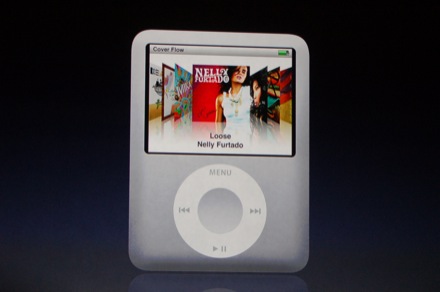
Categories: Mac News Tags:

Apple TV Movie Rentals

June 11th, 2007 1 comment

And the other shoe drops… if the rumors are true, that is. Since the Apple TV was rumored, I figured that it was useless just as-is–after all, you can string an RCA cable from your computer to your TV and get the same effect. I had trouble believing that people would pay $300 or $400 for what you could accomplish with a $20 converter and a $10 cable.

However, in a discussion with my family, the idea of movie rentals came up, and suddenly the Apple TV made sense. Without the ability to either record TV like a TiVo or rent movies, the Apple TV just wouldn’t be worth it. But as a DRM box to hold movies and videos, the Apple TV could be enough of a nod to piracy-nervous studios but DRM-transparent enough so that consumers won’t mind.

And now it looks like that early guess was spot-on: Apple is reportedly in talks with the studios about securing their movie content for rental purposes. The reported deal would allow for a 30-day rental for $2.99, and would allow the movie to be viewed on an iPod or iPhone as well as your computer and TV. That sounds pretty good to me; though I never considered buying an Apple TV before, this could tip the balance for me.

It might even have a bonus feature for me if it works the same way as the iTunes music store: I live in Japan, but can use the U.S. music store if my credit card delivers to a U.S. address. If the same is true with the movie rental service, then I could see movies in Japan sometimes even before they get to movie theaters here. That would be nice for me, better if the films had the option of subtitles for Sachi (she does well even with English subs).

This is the killer app that Apple needs to get their media box off the ground. The timing of the rumor’s release is a bit suspicious–it could be something that Jobs will uncover tomorrow at the WWDC… or not.

In the meantime, there is a German site claiming to have a complete outline of tomorrow’s keynote (English translation here). Having read it, I am pretty sure that it’s a fake. It is essentially a rehash of all the rumors that have been flying around for several months now, with a few extra products that make little sense. In any case, the real keynote begins in about 12 hours, so we’ll know soon enough.

Categories: Mac News Tags:

The iPhone Keyboard

June 9th, 2007 8 comments

One of the chief criticisms that has been going around about the iPhone is the usability of the keyboard. One recent such rant was made by John Dvorak, who claimed that an unnamed “industry insider” says that the keyboard is a “disaster,” and that “people are going to return the phone in droves,” as many as 20% of buyers. But then, Dvorak is a self-proclaimed Apple troll, the Mac world’s Ann Coulter. Still, others have express concern over how hard it might be to use the keyboard. A few images of the keyboard below, and a demo of how it is used from Apple’s web site.

0607-Ipkb-1

0607-Ipkb-2

The interface is pretty simple: you have a virtual keyboard on the screen which you can use with one or two fingers. As your finger moves over the keyboard, the selected key grows a tab that appears above your finger, so that the view of the letter is not occluded by your finger. (Apple might want to think about adding transparency to the pop-up so that the letters behind it are not constantly masked, causing trouble for us hunt-and-peck types.) There is a shift key and a numbers-symbols key to allow for non-lowercase letters; the numbers-symbol button replaces the regular keyboard with all ten digits on top and thirteen common punctuation marks and symbols below.

0607-Ipkb-3

Presumably, hitting the shift key here will allow access to other symbols, but I can’t find a demo which shows that.

The iPhone keypad also has error correction for hasty mistyping (how well it works stands to be seen), and an auto-capitalization feature when you enter a new text field or hit the “return” button. The error-correction feature might also double as an auto-complete, but I’m not sure on that one.

So: with all of that established, how hard will the keyboard be to use? Of course, it’s almost impossible to tell until you get your hands on one and try, and then there’s the fact that everyone is different and so people will disagree to a certain extent. But from what I can see, I have the feeling that, while it might take a little getting used to, it should be a good system. I was put off originally by the pop-up tab for the key about to be pressed, but upon reflection I think it’s a positive; although it would obscure the two keys above the key to be pressed, it serves to un-obscure the key to be pressed and as such acts as a visual confirmation that you’ve got the right key. The auto-correct would seem to handle whatever errors are made anyway. I could imagine becoming pretty adept at it, typing not as fast as a standard keyboard, but still very quickly.

But here’s the real test: how does it compare with other real-world options? When you compare this to the standard numeric-keypad system, there’s simply no contest. For example, using the number keypad, the “7” key is “PQRS,” with lowercase and uppercase either rotating (p-q-r-s-P-Q-R-S) or using a shift key; in such a case, typing a capital “S” requires either five or eight keystrokes–which is why I never enter text into my cell phone unless I am absolutely forced to. I know that one could get adept at it, but it still requires a lot of extra effort even if you do. Most cell phones that I have seen have this keypad, and I cannot imagine anyone actually preferring it over the iPhone’s keypad, unless they had some sort of unusual and highly annoying difficulty with the iPhone.

An additional problem with the alpha-numeric keypads is that one sometimes must manually advance the cursor. For example, if you want to type the word “cab,” all the letters are on the same key. That means that you have to punch three (or six) times to get the “C,” and then you must press the cursor-advance key to get the “A” because pressing the same key again would just be considered an attempt to repair the original entry.

Then there are the alternatives to the standard keypad, which offer more buttons while still keeping with the original size constraints of the normal cell phone. Take these two for example:

0607-Twokeyboards

The one on the left (these links are to web pages where I got the images from) is an intermediate solution, reducing the number of letters per key to two instead of three, and adding the shift key. This helps a bit, but still is not as good as the iPhone. While it reduces the number of steps from the normal keypad, it does not do it as well as the iPhone does as there are still more strokes. Also, the phone has compromised a bit in making the keys a bit smaller and the phone a bit wider. I can’t see this as a preferable system, again unless a user has some unusual problem with the touch screen. This keypad also still suffers from the same-key-different-letter problem, requiring an advance-the-cursor keystroke sometimes.

The one on the right adds an almost piano-like white-and-black-keys solution, in alphabetical order. This could be better or worse than the standard keypad, depending. The buttons are tiny, and are laid out in a nonstandard fashion; though alphabetical, it is something a person would have to get used to–which means that it is no better than the iPhone in that respect. I really can’t see this as outclassing the iPhone, either.

Then we get the Blackberry solution:

0607-Blackberrykp

I think this is what people are thinking about when they complain about the iPhone’s keypad. Instead of comparing the iPhone to most cell phones, they instead compare its keyboard to the best keyboard on the market, while ignoring other considerations. The Blackberry keyboard would seem to beat out the iPhone’s, again except for unusual situations or personal preference. The problem is that the Blackberry has other faults, chiefly the size and appearance, something a full comparison would have to take into consideration. Comparing the form factor between the two alone would, for most people, leave the iPhone the clear winner. So, if we take all aspects–including browsing abilities, music playing, photo taking and viewing, email and texting, syncing with a computer, menu interface–everything–into account, does the Blackberry still win? Again, it comes down to personal preference.

There are also slide-out keyboards, and maybe some people prefer them–but they would not only make the phone thicker and cause other design problems, but they would be an additional moving part, something extra that could get broken more easily.

However, the iPhone could possibly cancel out slide-out keyboards’ and the Blackberry’s chief advantage–the keypad–with a simple software fix: use its ability to change from portrait to landscape via motion sensor, and apply it to the keyboard, as this Photoshopper demonstrates:

0607-Landscapeiphonekp

Or maybe not–maybe some people prefer the tactile response of buttons. Maybe the landscape margins on the iPhone would be considered too much of an obstruction. But it could work.

Additionally, the iPhone, as a touch-screen phone, has the unique advantage of being software-reconfigurable. What if you, like my brother, is a Dvorak-keyboard (not that Dvorak) user? An iPhone could, potentially, make that switch easily, as it uses the Mac OS which can make that change as well, or it could change the keyboard language (e.g., Greek, Russian, etc.).

All in all, I think the pre-release negativity about the iPhone’s text keypad is premature and probably misplaced. Maybe it’s just the easiest thing for Apple critics to kvetch about, one of the only known things aside from the price that the device could be criticized about, ergo the attention to it.

We’ll see in a few week’s time anyway, won’t we?

Categories: Mac News Tags:

T-minus Six Days

June 6th, 2007 4 comments

That’s how long before Jobs’ keynote at the WWDC, and that’s how long before we find out, at long last, what the hell those “top secret” features are. On Apple’s 30th anniversary, and ten months since Jobs’ cryptic remarks about hiding secret features from Microsoft, and after delaying Leopard supposedly to concentrate on the iPhone, Leopard had damn well better have some fantastic stuff waiting in the wings. If not, then Apple’s stock will decline by a lot in a single day–not a disaster, as the stock has risen dramatically over the past month and may even need correction, and then the iPhone release may help recoup whatever losses could come.

However, I am guessing that there are some actual “top secret” features that may actually be at least somewhat spectacular. That’s the general expectation. The question is, what will those features be?

The most-expected feature will be Core Animation utilized in the OS at a fundamental level–that is, animation available everywhere. Knowing Apple, that would not mean that your Mac would suddenly become the same flashing, graphically shouting morass that Flash ads turn your favorite web sites into. It would mean classy, subtle, smooth, real-world-imitating animation, animation like we see on the iPhone. In fact, many believe that the new animation features we see on the iPhone are part of what’s coming to Leopard. One example is how scrolling works–you scroll, and gravity seems to take over; when the end of the scroll is reached, there’s a small rebound. Little touches like that which make the interface appear more lifelike.

However, animation alone seems a bit lame for such a huge build-up, no matter how well-executed it may be. But animation could be one part of something that Apple has been urged to do for some time now: FTFF, or “Fix the Fracking Finder,” paraphrased. This could be as subtle as fixing the dozens of small but annoying glitches in the Finder interface, or as overt as changing the interface style completely, as was supposed in a theory that Apple was switching to a “windowless” interface.

A second theory has resurfaced recently, one that personally I don’t think is likely: that Apple is readying the Mac so it will be able to run Windows applications without installing Windows. While this is certainly possible, it is unlikely for at least a few good reasons. First, this would require massive changes to the OS, adopting all manner of Windows APIs, adopting clashing styles of the two OS’s to work together smoothly within a single interface, and then dealing with more criticism than praise when not everything works well, at least at first. Not to mention that Apple’s workload would increase as they would have to keep updating this feature whenever changes in Windows or its application set evolved. Unless Apple has, in complete secrecy, pulled off a programming miracle, I doubt that this is really going to happen.

Second, Apple has benefitted well from Parallels and has voiced public support for them, even to the point of saying that they do not plan to supplant it. Parallels could well be devastated by an announcement that Leopard could do its job instead, and without the cost of either buying Parallels or Windows XP. Of course, Apple has screwed developers before by incorporating their software’s abilities into the OS (Dashboard stealing Konfabulator’s gig was one such example), and Apple has in the past denied things that turned out to be true (such as building Mac OS X versions that run on Intel). But this instance would almost be going too far, as Parallels has so far been a major boost to the Mac since the Intel switch.

Third, this is not a rumor based upon observations or leaks–it is pure speculation, and that tends not to bear out too well in the end.

On the other hand, there was that very odd rumor that Apple delayed Leopard to make it compatible with Vista; making the Mac run Windows apps natively could have mutated into that chestnut. And there is no denying that, with all the flaws that would be inherent in such a revolutionary change, such a feature would in a single stroke shoot down one of the biggest criticisms of the Mac platform–specifically, that it doesn’t run “most software.” (As if anyone ever criticized Windows for not running software made for other platforms.)

And then there is the possibility that Apple has something completely different, completely unknown up its sleeve. They certainly have kept the lid on tight concerning this story. Less than a week from the event, and no clear idea exists as to what is coming up. Any way you look at it, it should be interesting–and for me, a good reason to stay up until 4 am in the morning to read about it. And yes, I know I’m a total geek for it.

Categories: Mac News Tags:

Remember All Those Times People Said that Apple Was Dead?

June 2nd, 2007 Comments off

Yeah, I remember that too. Heh.

Categories: Mac News Tags: