Archive

Author Archive

NOW They’re All About Conflict of Interest

August 10th, 2010 17 comments

Note: sorry I’ve been away for 3-4 days. End of the semester and the usual intense grading period intervened. Back to the fun:

Another case of astonishingly naked hypocrisy from the right wing: the judge who ruled that California’s Prop 8 (banning gay marriage) was unconstitutional is rumored to be gay, so his ruling is invalid and he should be impeached.

But it didn’t bother them at all that a judge ruling to overturn a moratorium on offshore drilling had investments in the oil industry.

And if the judge ruling on Prop 8 had been a conservative Christian with a history of antipathy toward gays, they would not have had a problem.

Remember the ruling on Intelligent Design in Dover, PA? The judge was a Bush 43 appointee, a Christian, and had a conservative track record; as a result, the right wingers, before the trial, were confident that he would rule for them–they had no problem with his politics or religion beforehand, despite both of those playing a role in the case. It was only after he ruled against ID that they turned on him, viciously–just as they are now howling over Judge Walker.

But are they right in this case? Assuming the judge is in fact gay, was there indeed a conflict of interest?

The answer has to be “no,” just as there was no conflict in the Dover judge’s case. Your identity should not be something that can recuse you, or else judges would be recusing themselves right and left. Male judges should not recuse themselves in rape cases, nor should female judges. Christian judges need not recuse themselves in establishment cases, nor should atheist judges. It could be argued that both white and minority judges ultimately have personal interests in judging discrimination cases–thus no one would be fit to rule on them. In cases such as these, we must trust the judge to be impartial, else no one could judge anything. It is only when a judge has a specific interest–a financial investment or a personal friendship, for example–that they should recuse themselves. But not simply because they belong to a class that could be affected by the law in question.

The whole indignation on the right about this judge’s alleged sexual orientation–despite the fact that he was a Reagan appointee and has been inhospitable to gays in the past–is nothing more than standard right-wing hypocrisy: any decision we don’t like is judicial activism and is wrong, no matter what; any decision we like is OK, no matter how legally twisted. They want the Scalia/Thomas brand of justice: legislate a conservative mindset from the bench, ignoring the actual law whenever it becomes inconvenient.

Categories: Law, Right-Wing Hypocrisy Tags:

Real Patriots Hate the Government
(Especially When a Socialist Fascist Kenyan Dictator has Overthrown Democracy)

August 6th, 2010 15 comments
Senator and Vice-President John C. Calhoun
Jccalhoun

“States’ Rights” has been a buzzword in right-wing circles for a while now. The idea is that the individual states, within their borders, have the right to precedence over the federal government; that if a state doesn’t like a federal law, it can supersede it with a state law. Regardless of whether you agree with this idea–traditionally known as “nullification”–the right wing doesn’t practice it in good faith. To them, it’s a handy marketing tool, but certainly not a principle. When it comes to federal laws they don’t like, like legalized abortion or Obama’s health care plan, they trot it out for show.

However, when states start doing things they don’t like, the idea of states’ rights evaporates with astonishing stealth and speed. For example, under Bush, California instituted medicinal marijuana laws, but the Republican-led government overruled that and made a very overt point of enforcing the federal statutes in that regard. The same went for a right-to-die law in Oregon, which Bush attempted to override with federal drug laws. In short, the right wing doesn’t give a rat’s ass about “states’ rights,” they only care about their agenda, and “states’ rights” is an appealing election-year slogan that sounds good–but means only what they want it to mean, when they want it to mean it.

“Nullification” is beginning to see a revival, as is one of its historical champions, John C. Calhoun, who is not the most fantastic of icons to posit, considering that he also called slavery a “positive good,” and the issue of nullification was related to the South’s rebellion against the North on the basis of the states’ right to maintain the practice even if the federal government were to outlaw it.

Furthermore, they apparently were not aware that Calhoun later emigrated to the planet Beta III and started a idyllo-fascist society of Zombies under the alter-ego brand of “Landru.”

John C. Calhoun, a.k.a. “Landru”
Landru01

Ok, all kidding aside, Calhoun still isn’t the best of role models here. But we are currently in a state where right-wingers are increasingly using terms like “nullification,” “secession,” and “Second Amendment solution” in regards to what are, in fact, very centrist policies of the Obama administration. This is more lynch-mob mentality than civic responsibility, more demagoguery than democracy. It is not about principle, it’s about politics.

I mean, seriously, health care? Who cares if it will save money in the long run–it’s a tax, and we have the constitutional right to pay double to insurance and pharmaceutical corporations in order to avoid paying any sort of fascist tax.

Let’s face it, this is not nullification of any unconstitutional tyranny, this is about right-wingers hating the fact that right-wingers don’t control the government any more, and so are throwing hysterical hissyfits right and left based on whatever flimsily-slapped-together rationalizations they can sell to an eagerly hateful mob.

Categories: Right-Wing Extremism Tags:

The Slow Surge

August 4th, 2010 6 comments

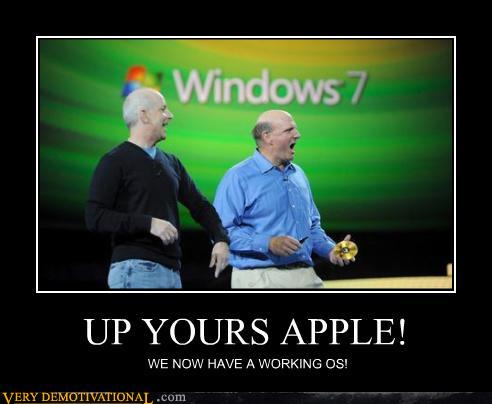
Windows 7 is now “surging forward,” Ars Technica wrote. After just 9 months, it has overtaken Vista, which has been on the market for three and a half years. Sounds impressive, no?

Well, not so much. Windows 7 has so far claimed about 16% of the Windows crowd. And we should remember that Vista started gaining market share well before its official release–at it’s release, it already had about a 4% chunk of the Windows market, meaning that it’s growth is just about 1.3% per month. Better than Vista’s anemic 1% growth, but not by much. And though it has outgrown Vista’s 3.5-year number in 9 months, it did so by decreasing Vista’s share, eating away at Vista as it grew–it did not get there by only outpacing Vista, which is what many might assume from the “overtaking Vista” headlines.

Consider this: Mac OS X v. 10.6, Snow Leopard, got more than 55% of Mac users to switch in the same time period–almost three times the rate. Sure, Snow Leopard was cheap, but this pace of adoption is typical of Mac OS systems.

Another point to consider: where did Win 7’s share come from? Well, it turns out that about 2/3rds comes from XP’s share, and the other 1/3rd is from Vista. Considering that this started with XP having about 78% and Vista about 21% of all Windows users, that means Win 7 is drawing significantly more from the Vista crowd by proportion–Seven stole away about 14% of the XP crowd, but about 24% of the Vista crowd. Not to mention that most of the XP share taken by Seven is simply people buying new computers with Windows 7 pre-installed.

Not to mention that the trend is going to have to change soon: at this rate, it will take Seven a whole 20 months just to equal XP’s share. When official support for XP is finally removed, the trend will likely shift faster, but not by much, as people simply keep using older systems, or continue to re-install XP on new machines.

All this begs the question: why is Windows OS adoption so glacially slow? Mac OS adoption is lightning fast by comparison, even when released at full price. And considering the disaster Vista was, why didn’t most Vista users quickly upgrade to Seven?

SevenworksThere are several reasons. One is that most XP users continue to use machines that simply cannot support Windows 7. XP users who could upgrade may be staying away because of the bad reputation Vista imparted, making XP users wary. Then there’s the comfort factor, with XP working quite nicely enough, many wouldn’t want to change–the “if it ain’t broke, don’t fix it” contingent.

None of these, however, explain why, after a year or so of being available, three-quarters of Vista users have not made the upgrade.

One reason strikes me as perhaps as a likely explanation: upgrading Windows is not the easy task it is on OS X, and the main reason for that is hardware drivers. Even with Win 7’s better driver support, I have talked to people who tried to upgrade and found that stuff on their computer wouldn’t work right, if at all. A case in point: when we made the DIY computer at my school, we bought a Sony Vaio monitor. The monitor has a built-in web cam. It doesn’t work. Why? Because Sony only released drivers with the OS sold with the Sony. The web is filled with people trying to find drivers for Windows machines.

Now, Windows 7 has much better driver support generally, and so it may not be such a big pain–but as I understand it, there are no guarantees for your machine–there is the potential for trouble, which could by itself keep people from upgrading. Some people may be holding back as part of the Vista backlash, unwilling to trust Seven as much as they should. But others may simply be aware that when they upgrade, they might have to spend hours tracking down drivers and dealing with other issues associated with the new OS. At some point, it becomes a matter of not being worth the hassle.

When you get a Windows device, the OS is not built specifically for your machine, and the companies that made the parts for your computer don’t always do a very good job of providing the latest drivers to support everything. To me, this explain a lot when I see the adoption numbers for Windows.

Categories: Computers and the Internet Tags:

Harry Potter and the Ring of Reduction: Now in epub Format for the iPad

August 3rd, 2010 1 comment

Ror-Dl

Sorry for the delay! Here’s book two of my brother’s original series branching off from The Order of the Phoenix, and the sequel to The Veil of Mystery. This novel, The Ring of Reduction, follows Harry in his last year at Hogwarts as a student–and his second as a teacher. With Dumbledore now communing with Harry from the “other side” and helping to fight Voldemort, the long struggle comes to a climax.

Background: as you may or may not know, my brother has written several Harry Potter fan-fiction novels under the pen name “Semprini” (Monty Python in-joke), which are widely considered amongst the best published on the web. The first three novels pick up after the end of Rowlings’ The Order of the Phoenix, and go off on an alternate timeline for the sixth and seventh years (with an additional novel set five years later). Although they have a different tone than Rowling’s books, they are a close match in terms of the inventiveness and “look and feel” of the originals, so much so that I have sometimes become mixed up about what characters and events are from Rowlings’ books and which are from the alternate novels.

Personally, I like my brother’s versions a good deal better than the real deals–they seem much more reasonable in terms of how people act and how events turn out, and are much more satisfying in general. Even better, they recognize and discuss a variety of moral, ethical, and spiritual issues in a manner that is entertaining, making the stories more interesting for adults and more valuable for younger audiences. The greatest flaw with the book was the tendency to draw out some discussions about personal feelings and such, but this is a subsequent edit, in which the author did much to improve the read.

This first novel was titled The Veil of Mystery, and was finished in late 2004. I first published text and pdf versions on this blog in mid-2005, and since then, there have been about 10,000 downloads of the novel from this site. Keeping in mind that that this is not the primary source of publication–that would be fan fiction sites–that number is quite appreciable.

Even more impressive is the fact that the versions published so far are not the easiest to read–one must either print out a large stack of text, or read the book in a less-than-optimal form on a computer. Now that the iPad has come along, it seems the perfect chance to publish the novels in a form which is both attractive and easy to read.

To read the novel using iBooks on the iPad, just download the ebook (click on the cover art below or the download button at top), decompress the ZIP archive (zipped so as to preserve the book title), and add it to iTunes (drag and drop it into your “Books” section of the Library, or in the Library itself if there is no “Books” section yet). When you connect and sync your iPad, iTunes should upload the book automatically; if not, you can select it under the “Books” tab of your iPad’s content area, then Apply/Sync. The book will appear on your bookshelf, as pictured above.

If you have not read the previous novel, then to get the proper context, read or watch Rowling’s The Order of the Phoenix (book / DVD / BluRay) first, then read The Veil of Mystery. This novel picks up where that one leaves off.

Enjoy!

Ror-Cover

click image to download

Categories: Books, iPad Tags:

What Were You Saying About Confirming Judges?

August 3rd, 2010 Comments off

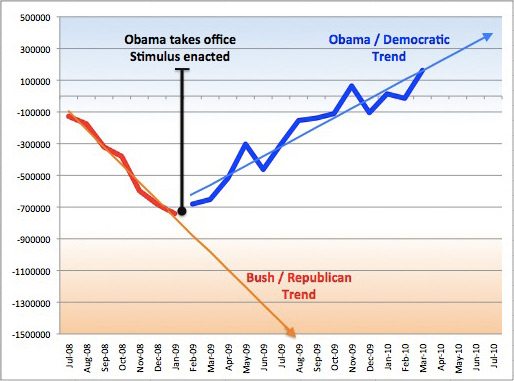
This chart shows what is perhaps one of the most under-reported stories in D.C. today:

Obamanom

Remember when Democrats refused to confirm Bush’s most extreme judges, and right-wingers screamed about how the filibuster was unconstitutional, and all that crap? Yeah, I know, this is old news–the GOP is being hypocritical as hell, yet again. The filibuster was toxic and traitorous and so on, but now Republicans use it virtually all the time, breaking records year after year, so that now a 60-vote majority is virtually required for everything.

Republicans acted like confirming judicial nominees was even a more important matter, the courts were tied up and it’s the president’s right to get anyone he wants approved by the Senate, no matter what their politics, and (again) so on and so on… and now Republicans are blocking nominees like never seen before.

Right now, the Party of No is blocking pretty much anything coming down the pike–even a tax cut for small businesses, which Republicans claim is their forte, they voted against as a bloc. Health care for the heroes who worked at Ground Zero and now suffer? Screw them!

What excuses are given? The goddamned DemocRATs didn’t allow us to attach huge tax cuts to the rich and every other thing we ever wanted tacked on to these bills as amendments, they wanted to force us to vote on these issues up-or-down! After all those years WE were in power and let Democrats add as many amendm… uh, OK, well, we shut them down and treated them like they didn’t exist, but now they’re fascist bastards anyway!!!!

Stuff like this, in addition to the we-love-fat-cat-bankers, the we-love-BP, we want to give Paris Hilton billions but the jobless are lazy and don’t deserve relief, and the fact that the GOP is going even more extreme as time goes on… even with people hating incumbents this year, it is still astonishing that people cannot see who is causing the damage.

You want Congress to do something about jobs? If Republicans get more than 40 in the Senate (they won’t retake the majority, that’s for sure), then you can bet that the near-total filibuster marathon will become an all-out standstill, or worse, Democrats will start to cave and things will start to roll back to the Bush years.

They have made it clear: as long as the Democrats hold the White House and a majority, they are determined to grind D.C. to a halt and make the country fail.

What really astonishes me: the Democrats and left-leaning independents don’t see this as a clarion call to march to the polls in droves. The Stimulus, Health Care, the auto industry revived and profitable, Wall Street reform, credit card reform… all despite near-monolithic opposition from the GOP, the Democrats have managed to get through as much big-ticket legislation in two years and others get through in four or eight. If you’re a liberal, it would be hard to claim that they haven’t accomplished anything, or as much as they could have. But if you fail to get out the vote, you’ll see either nothing or a hard, sharp turn to the right.

The alternative, should the Left fail to do the right thing: Democrats scrap the filibuster. In hindsight, they clearly should have taken the GOP up on this when the “Nuclear Option” was being threatened a few years back–it would have made no difference then, but a huge difference over the past two years. And if the Democrats do toss out the filibuster, and hang on to a majority in the House and a 4- or 5-vote margin in the Senate, with the filibuster gone they could accomplish even more.

And the Republicans could not even criticize the Democrats, because they themselves vilified the procedure and came up with the whole idea of killing it off, so they would have to be silent.

Ha! Gotcha! Of course they’d be hypocritical and blast the Dems. But the Dems should have the guts to ignore them and push ahead.

Adam and Eve Had No DNA

August 2nd, 2010 1 comment

In Australia, primary school students apparently have “Religious Instruction” classes in public schools, and while one gets the feeling that they are usually taught by professionals, it would seem that the churches who send the teachers are giving in to Creationist pressures and are now teaching stuff like about how Noah collected Dinosaur eggs for the ark, and other fun Fundie factoids.

Here’s the end of the article:

A parent of a Year 5 student on the Sunshine Coast said his daughter was ostracised to the library after arguing with her scripture teacher about DNA.

“The scripture teacher told the class that all people were descended from Adam and Eve,” he said.

“My daughter rightly pointed out, as I had been teaching her about DNA and science, that ‘wouldn’t they all be inbred’?

”But the teacher replied that DNA wasn’t invented then.“

In the above exchange, a few things are significant. Firstly, the primary school student seemed better educated than her teacher. And second, the less funny part, is that this young girl became ostracized because she was intelligent and asked sensible questions, and now likely stands out as some kind of pariah in her school.

This is a very real problem in schools where a solid majority is religious: children raised to be freethinking often find themselves outcast, bullied and rejected, because the school itself allows religion in the door and these students don’t subscribe. Without religious instruction, they would blend in and be treated fairly; allow religion to enter, and the students become targets. In Delaware, when religion was allowed to deeply permeate school curriculum and social life, two Jewish students, a brother and sister, were first ostracized and then their whole family literally run out of town because they weren’t Christian. Or this story told by a teen atheist from a religious family in Oklahoma who was harassed and outcast at his high school for his beliefs, to the point where he was labeled psychologically unstable and was forced to drop out of school. Again, something that would not have happened had the school been secular. Especially where religion is strong, this kind of singling out and discrimination is more likely to happen.

This is not just a matter of being offended, this is a serious breach of personal rights and liberties for the sake of forced indoctrination–which is what this is really about. Prayer does not belong in the classroom, as it can be performed countless times during the day otherwise. A child can pray when he wakes up, as he gets dressed, before and after eating breakfast, and any time at home before leaving. He can pray at the bus stop, on the bus, and when he arrives at school. He can pray by himself or with other Christians either out in the yard or in the hallways or in an empty classroom. He can pray during breaks, between classes, during lunch, or other free times. He can pray after school ends, on the way home, with his family, before and after study, before and after watching TV… well, I could go on and on and on, but you get the idea. Not to mention that he can pray silently at any time.

So why does prayer need to be directed by teachers? Simple: because that makes it official. That lends governmental and educational authority to religion. That’s really the major reason for this. To proselytize, to get new people in the church and keep kids in the religion. That’s why it’s so often pushed at schools more than most other places.

The real test is to turn it around and ask if you’d be OK still. If you are a Christian, and you want your kids to be raised Christian, what would you think if the school in your neighborhood pushed Islam and your kids were bullied and outcast for being Christian? Or how about atheism? Not science and scientific findings, which are not atheism, but actual atheism–what would a Christian think if the schools had teachers saying outright that God does not exist, that religion is a sham for the weak-minded? What if they taught the history of religion as war, and that one must discard God to be a good and moral person? I seriously doubt that would not be problem for Christian families; on the contrary, it would be a huge issue. They raise holy hell over a lot less right now. So how come their brand of proselytization is A-OK?

Sorry, I know that I repeat myself a lot on this issue. But every time I see a story like the one above–admittedly on the extreme side, but more ”tame“ stories are nonetheless just as objectionable–I can’t resist getting the soapbox out.

Categories: Religion Tags:

Building Your Own PC, Part 1

August 1st, 2010 22 comments

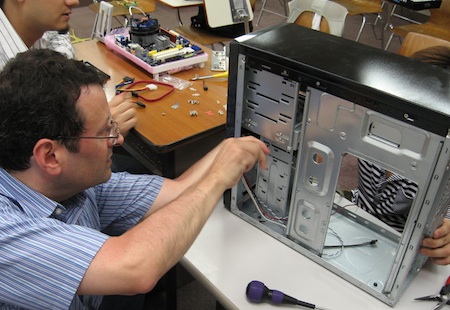
Cmc01At school this semester, we organized a Computer Making Club; the school gives any club a semester (4-month) budget of ¥50,000, enough to buy all the components for a decent-mid-range computer. Before we did this, I had always wanted to do this kind of thing, but never got around to it. In part, I figured there would be technical hurdles that would involve a great deal of study, and so put it off until I had time to dive into it. As it turns out, it was not all that difficult to put together– the process is pretty simple, though getting to understand the minutiae about parts is much more involved. I should say that if you know nothing about computers, and especially if you have a phobia about them, you’ll probably have to overcome a bit of a steep learning curve. It helps to know something about computer hardware in general beforehand.

Not that I’m suddenly an expert or anything, but fresh from having successfully slapped together my first PC, I’m beginning to get hooked. I thought I might describe the process here–though admittedly, one of the reasons is so I can look back in a few years and laugh at how naive and uninformed I was. But we did build a PC without much hassle or intensive study, and it did work, so why not describe it here.

First off, you won’t need to solder anything; it will involve buying perhaps 10 or so different parts that you more or less plug together. They include:

The CPU (the “brain” of the computer)
The Motherboard (the computer’s foundation which everything else connects to)
RAM (the more you have, the more apps you can run)
A Case
A Hard Disk Drive (SSDs are also available, but still expensive)
An Optical Drive (unless you go Blu-ray, these are commonly cheap)
A Video Card (optional)
A Keyboard and Mouse (cheap)
A Monitor (you might want to go used on this unless you can spare it)

Once you have the parts, the process is fairly straightforward: install the CPU (with cooler) and RAM on the motherboard, and install the motherboard into the case. Then put the hard disk and optical drives into the appropriate bays. Add the video card if you have one. Connect all the power and data leads, tie the cables off so they don’t get in the way. Close the case, attach your peripherals (mouse, keyboard, monitor), and start up. If everything works, then restart with the OS disk in the optical drive, and install the OS. That’s pretty much it in a nutshell.

Sounds easy, right? Well, in principle, it can be, but maybe we were lucky: nothing went wrong. If the computer doesn’t work, however, then I imagine it’s time to start studying. And though nothing went wrong, we did hit bumps in the road where we spent an hour or two trying to figure our way through a few things–mostly for the classic shortcoming in the world of computers, namely insufficient documentation. However, we did have the advantage of having people with knowledge and experience enough to figure some stuff out and make the right decisions, though none of us were anywhere near expert at this.

While you likely won’t have to learn the intricacies of the BIOS, and you won’t need to solder or really make anything, there is one thing you should do: familiarize yourself with the parts. Know what they do, and understand the different varieties and categories involved.


Cmc Cpu01The first thing you’ll want to do is decide which CPU you want to use. You could start with the motherboard, and who knows, maybe that’s the smarter choice, but frankly I see the CPU as being a better starting place. It is important to realize that the two must fit: different CPUs have different configurations, and can only fit into certain sockets on motherboards. You cannot just plug any CPU into any motherboard.

There are about half a dozen different common socket configurations, based on how many pins/contacts are on the bottom of the CPU, and how they’re laid out. Intel and AMD are the two big makers, and there are 3 or 4 configurations for each; Intel has the LGA775, LGA1156, and the LGA1366, for instance. The LGA775, as an example, is an older type which supports most currently available Intel CPUs including the later Pentiums and Celerons, and the Core 2 CPU line.

Both Intel and AMD make lots of different CPU models. In this post, I’ll just focus on Intel’s, as they tend to be more popular (and adding AMD’s line to the mix would complicate things). Let me give a quick list of major Intel CPUs, ranked very roughly in terms of speed and age:

Celeron
Pentium 4
Celeron D
Pentium D
Core 2 Duo
Core 2 Extreme
Core 2 Quad
Core i3
Core i5
Core i7
Xeon

If that’s not bad enough, each one can have dozens of different sub-models. The i5, for example, has the 400, 500, 600, and 700 series, with at least half a dozen different CPUs in all. The Core 2 line includes well over a hundred different CPU models released over the past five years.

Each chip has different features, and it can be difficult to figure out which is faster than which–primarily because speed is determined by a variety of features, including the number of processing cores, the amount of cache (on-chip memory storage), the processor speed (in GHz), and the processor architecture in general. You might think that a 6-core AMD Phenom II at 3.2 GHz would outperform a 4-core Intel i5 at 2.66 GHz, but not really. The page I just linked to allows you to see comparative benchmarks, and so get a better idea of what outperforms what.

Fortunately, your choice is simplified by a few factors. First, the Celerons and Pentiums are outdated; fine if you want to buy cheap, used parts and don’t care much about performance, but otherwise forget it. On the other end, chips like the i7 and the Xeon can be costly; unless you’re building a speed demon and price is not an issue, you’ll likely stay away from those as well. For someone with a budget, the Core 2 Duo, Core 2 Quad, i3, or i5 are probably your best bets. After that, look for what’s available in the your price range, and you’ll find you have a much shorter list to choose from. While some chips are much faster than others, CPUs in a similar range will have only minor differences in speed–so you probably shouldn’t fret too much over which is faster unless you’re trying to squeeze every last drop of speed from your system.

If you want to make a computer for less than ¥50,000, for example, the Core 2 Duo might suit best; for less than ¥70,000, the Core i5 would be nice. (I am figuring prices based on mostly new parts and including a video card.) If you want to make a super-cheap computer, then you’re in Celeron and Pentium range, and it starts making more sense to look at used parts.
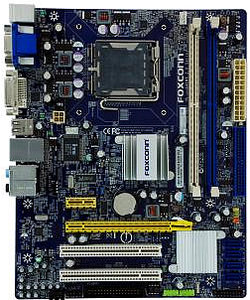
Fcg41Next, the motherboard.

If you go for the Core 2 Duo, like we did (budget concerns), you will need a motherboard with an LGA775 socket. They generally begin at just under ¥5000, and go way up from there. The model we got–a Foxconn G41MX-K–has an OK set of features. It uses the G41 chipset (a chipset is, as it sounds, a set of chips used as a group on a motherboard to control its main functions), not great but respectable; it has a standard PCI slot set (PCI slots allow you to plug in extensions like video cards to improve performance; a PCI Express x16 is something you’ll want to have); and it uses DDR2 RAM (a type of memory; a newer type, DDR3, is newer and better, but not compatible).

Though your CPU will determine the socket type, you should also decide early on which motherboard form factor you want. The main types are based on ATX, the favorite for DIY computer building. The variants include (from largest to smallest) Extended ATX, standard ATX, and MicroATX. Also available is MiniITX, a low-power motherboard form. If you want to have a smaller CPU box, then MicroATX may suit you best. That and the standard ATX seem to be the most prevalent.

The motherboard also has most of the computer’s cable ports built in to its side (in the image above, see the left side near the top); ours had the standard legacy PS2 and Serial ports (for old mice & keyboards), 4 USB-2 ports, a network port, 8-channel sound, and 2 video out ports (one classic analog VGA and one newer digital DVI). More ports can be added in other ways–for example, most cases come with built-in USB ports in the front, which attach directly to the motherboard via interior cables.

We didn’t need HDMI because that would be available on the video card. FireWire is nice, but is being phased out due to USB’s dominance. USB-3 is dandy, but only needed if you have super-fast equipment.

Again, pricing narrows down your options–if you are on a budget, then the dizzying array of choices is made a bit more simple. Our choices were shaved down to maybe a dozen or so as we wanted to stay within ¥5,500.

Cmc Ram01After that, you get RAM. 2GB is generally enough for most purposes today, but I prefer maxing out as the budget allows. We went for 4GB of RAM, which will help the machine be viable for a year or two longer. An important point is how many slots there are for RAM on the motherboard; ours had 2 slots (some have 4 or more), and so we had to get 2 RAM chips at 2GB each. Fortunately, the pricing was not any more per GB that way, though 4GB chips start getting pricey. We got two 2GB chips for about ¥8000.


These three elements–CPU, Motherboard, and RAM–make up the heart of the computer, and were the most expensive parts (roughly half of our ¥46,000 hardware budget).

Before working with them, you should have prepared a non-conductive workplace. We used a cheap plastic dish rack lined with bubble wrap, though you might want to prepare something a tad fancier. Be careful handling surfaces and contacts; it’s best to have an antistatic wrist strap to avoid static shocks which could damage the components.

Installing the CPU on the motherboard is relatively easy: open the clamp on the socket, remove the protective shield, drop the CPU into the socket, then clamp down again. Simple.

Sp522S7-1However, most CPUs require cooling units, big ‘ol heat radiators with fans. We bought our CPU used (a Core 2 Duo E7400) for ¥8000, thinking we were saving money–before finding out that new CPUs came with cooling fans, and ours didn’t, so we had to spend another ¥2000 and didn’t save any money.

Installing the CPU cooler was a real bear. First, you must not forget to apply conductive grease to the base of the cooler after making sure the contact surfaces are clean. Without the grease (or “thermal compound”) your CPU will overheat and die. It usually comes supplied with the CPU cooler. Probably a good idea to not let it come into contact with your skin.

There were 4 legs or struts that involved pushing down and twisting so they locked. There’s probably a trick to doing that, but we sure couldn’t figure it out. The first two were easy; the third took a while, and the last one almost killed us. Once the cooler is in place, you have to plug in its power connector; these things are diagrammed out on the motherboard instructions for you.

RAM, on the hand, is a cinch. Make sure it is oriented the right way, then just push down into the slot until it locks. Presto.

There’s the heart of your computer, right there.

In a following post, I’ll talk about choosing a case and power supply, and installing the motherboard into it, then adding the HDD and Optical drive. Fortunately, these are somewhat easier to learn about.


Categories: Computers and the Internet Tags:

It’s Not About Religion, It’s Not About 9/11; It’s About Politics

August 1st, 2010 4 comments

A few days ago, I posted about the “mosque” being built “at” Ground Zero–actually, it’s a community center, and there’s a multi-faith chapel and prayer area, not a mosque, and it’s not on the WTC site, but rather two or three blocks away… but hey, when it’s an election year and you’re trying to make people mad, these things don’t matter. What’s more, as came out in the discussion, the group that wants to put up the center is one that has condemned the 9/11 attack and terrorism in general “in the most unequivocal terms,” and plans a memorial for the 9/11 victims in the center. The Imam heading the initiative, a Sufi Muslim, has worked together with Israelis to promote peace between the nations, and has jointly proclaimed with them for both Palestinians and Jews “to live with freedom, security, dignity, respect, and self-determination.” So this is no radical organization, not a group raising funds for terrorists or smearing Jews, but a progressive, peaceful organization trying to mend relations, build awareness, and bring Muslims and others to a reasonable, respectful, and peaceful place.

And yet, look at what controversy has been brought. Now, this probably would not have been such a big deal were it not for people like Sarah Palin and Newt Gingrich seeing a fantastic red-herring issue intended not to legitimately address grievances or to right wrongs, but instead to inflame (and defame) so as to rally political strength to their campaigns. Without the politicians using this as a prop to get media attention, there would have been a few protests from the families of the 9/11 victims, a few people from the community raising a fuss, but it would have stopped there, the protests drowned out by others pointing out that the group is far from objectionable, the project is positive and constructive by nature, and religious freedoms should be observed and no one group be unfairly maligned or hindered.

But this is a critical election year, and the temptation of making hay by distorting the facts and playing on people’s fears and indignation is just too great.

One interesting perspective is to imagine it having happened a different way: what if Obama himself had announced support for this project? As far as I can tell, he’s stayed a mile away from the issue, and for good reason: the right-wing has made the “Obama is a Muslim who wants to attack Christianity and destroy America” one of its prominent memes; Obama announcing public support for the center near Ground Zero would be like Christmas and Easter wrapped up in an orgasm for these people.

Imagine what the reaction would be if, now that Obama is president, the Pentagon started building Islamic prayer centers just like the one that they’re proposing near Ground Zero? The Pentagon, itself a victim of 9/11! Forced to build mosques!! Whoo boy! That would set off a firestorm of protest! There would be no end to the indignation, the claims that Obama is anti-Christian, the calls for impeachment, cries that anyone who would be insensitive and anti-American enough to build mosques at U.S. military installations must be a traitor of the worst stripe!!! The media would jump right on the bandwagon, “reasonably” asking questions like, “Is it really appropriate for the president to do something like this? Is he not sensitive to the feelings of the families of the victims as well as Americans everywhere? Should we be spreading Islamic fervor within the ranks of our own military?”

What if, on top of that, President Barack Hussein Obama hosted an Iftar, and Muslim celebration of Ramadan, within the White House itself? Everyone would go insane!!!

Well, if you know me, then you can probably see where I’m going with this. In 2006, five years after 9/11, The Pentagon started building Islamic prayer rooms. A few right-wing bloggers got their panties in a bunch, but no one else much minded or even noticed. And Bush hosted Iftars more than once. Bush was not branded a traitor, no brouhaha, the world didn’t end.

What this shows is that this is mostly about politics, mostly about smears and attacks and defamation and using our emotions, our fears and sensitivities against what is reasonable and for what is wrong with politics today.

One last thought: Jonathan Chait at The New Republic makes an interesting point: did you feel that it was proper to allow Salman Rushdie to publish The Satanic Verses, or for a Danish newspaper to publish a cartoon of Muhammad? You see the relation to this–freedoms of religion, action, and speech versus the sensitivities of those who may be offended.

Categories: Political Game-Playing, Religion Tags:

Blockbuster vs. Bluster

July 30th, 2010 2 comments

Steve Ballmer on the iPad:

They’ve sold certainly more than I’d like them to sell, let me just be clear about that. We have got to make things happen. Just like we had to make things happen on netbooks, we’ve got to make things happen with Windows 7 on slates, and we’re in the process of doing that as we speak.

Well, Steve, we’re waiting. And so far, we’re unimpressed. Despite having a multi-year head start on cell phone operating systems, Microsoft was caught off-guard and only now–three years after the iPhone first came out, three and a half since it was introduced–is their own product, Windows Phone 7, on the verge of coming out… kind of, maybe before the end of the year. And remember what Ballmer said about the iPhone back before its release:

There’s no chance that the iPhone is going to get any significant market share. No chance. It’s a $500 subsidized item. They may make a lot of money. But if you actually take a look at the 1.3 billion phones that get sold, I’d prefer to have our software in 60% or 70% or 80% of them, than I would to have 2% or 3%, which is what Apple might get.

Oh, Steve. What a card.

What happened was that Microsoft was arrogant and miscalculated. It had a crappy OS, and mistook a lack of competition for excellence. It didn’t get cell phones, didn’t see the same potential Apple saw. And as a result, they were left sitting in the iPhone’s dust, wondering what the hell went wrong. They had to completely abandon what they had and start over from scratch, putting them years behind.

So, what does this say about tablets? Ballmer introduced a few running Windows before the iPad was introduced; nobody was interested. Probably one of the biggest problems is that despite appearances, Microsoft doesn’t have an OS for tablets yet. All it has is its OS designed for desktops and laptops, which is particularly unsuited for tablets. Ballmer said at the beginning of the year that tablets “should take advantage of the touch and mobility capabilities of Windows 7.” But Windows was designed for a single-point user interface, tablets run best with multi-touch. Microsoft is still stuck in the past in this regard. Back at the beginning of the year, Bill Gates said:

You know, I’m a big believer in touch and digital reading, but I still think that some mixture of voice, the pen and a real keyboard — in other words a netbook – will be the mainstream on that. So, it’s not like I sit there and feel the same way I did with iPhone where I say, “Oh my God, Microsoft didn’t aim high enough.” It’s a nice reader, but there’s nothing on the iPad I look at and say, “Oh, I wish Microsoft had done it.”

This shows one of the reasons why Microsoft was again caught off guard: it didn’t get tablets, just like it didn’t get the cell phone. Remember, Microsoft eschewed finger-based interfaces with cell phones right up until the iPhone became a runaway hit, thinking that people preferred using a stylus. Unbelievably, Gates still thinks people prefer a stylus over multitouch, and after seeing the iPad, still thought that netbooks would win out. With the iPad likely having sold around five million units so far, and aiming for 10 million by the end of the year, tablets–with the iPad predominating–are predicted to outsell netbooks within just a few years.

Ballmer now says that Microsoft will “make things happen” on tablets like they did on netbooks, but that’s not so likely. The way Microsoft “made things happen” on netbooks was to pressure manufacturers to replace Linux with Windows XP, until netbooks got powerful enough to run Windows 7. That’s not “making things happen,” that’s just throwing your weight around and (as usual) not really innovating anything. And on tablets, it’s not like Apple will be pressured to put Windows 7 on the iPad, not to mention that Microsoft will be up against Android tablets as well–and Google won’t be as easy a push-over as Linux was.

As usual, Microsoft got it wrong on its own, and is playing catch-up here. What else is new?

Categories: Gadgets & Toys, iPad Tags:

Guilt by Association

July 29th, 2010 12 comments

Newt Gingrich:

You know, there are over a hundred mosques in New York City. I favor religious freedom. I’m quite happy if they’d come in and said, ‘We want to build a community center near Central Park, we’d like to build a community center near Columbia University.’ But they didn’t. They said right at the edge of a place where, let’s be clear, thousands of Americans were killed in an attack by radical Islamists.

By that logic, since the 9/11 terrorist were Middle Eastern, we should be blocking anyone of Middle East descent from (a) purchasing property, (b) running a business, or (c) taking up residence anywhere near Ground Zero. For example, any Saudi business that wants to rent offices within, say, ten city blocks should be denied permission.

Unless I misunderstand Newt–we’re talking about guilt by association, right? We’re essentially saying that since radical Islamists were responsible for 9/11, that means all Muslims are to be banned from setting up shop near Ground Zero. Since it’s not about religion, we must also take into account whatever attributes were involved–and national origin is certainly involved, at least as much as religion.

And hey, the terrorists were all men!

Or how about Timothy McVeigh being a registered Republican; should we have banned the GOP from setting up any party offices within a mile of the Oklahoma City National Memorial? You paint with a broad brush, you cover a lot of territory.

This whole thing is idiotic and bigoted, an appeal to the lowest common denominator for the most base and shameful of reasons. Now, if radical Islamists, maybe some Shariah Law school run by people of the exact same stripe of the terrorists, or a mosque dedicated to the terrorists–you know, someone actually in any way associated or identifying with the terrorists–if they wanted to set up business nearby, then maybe Newt’s got a point.

Now, if someone wanted to take the community center to task on specific grounds, such as objections to the Imam responsible for the project, Feisal Abdul Rauf, that’s different; you can cite specific reasons and call specific sensitivities into question. For example, Rauf said things after 9/11 such as, “I wouldn’t say that the United States deserved what happened, but the United States policies were an accessory to the crime that happened.” Or, “… we have been accessory to a lot of innocent lives dying in the world. In fact, in the most direct sense, Osama bin Laden is made in the USA.” Now, he also said other things like “Fanaticism and terrorism have no place in Islam,” and “I am a peace builder. I will not allow anybody to put me in a position where I am seen by any party in the world as an adversary or as an enemy.” These are items we could debate on their merits. We could have a conversation about whether it is agreeable to allow or not allow an organization run by a person like this to set up shop near Ground Zero–either in terms of sensitivity or whether it is even legal to stop it. We could discuss the ins and outs, the conflicts and the perceptions, and so forth.

But to say, “Hey, these guys are Muslims, the terrorists were Muslims, all Muslims banned from the area” is pretty much the definitive example of sweeping religious stereotyping and discrimination.

But then again, this is an election year.

Stay classy, Newt.

Categories: Political Game-Playing, Religion Tags:

Is Politically-Driven Defamation Color-Blind?

July 28th, 2010 6 comments

The other night, Jon Stewart’s “Moment of Zen” was short and for a quick moment a head-scratcher–I wondered why it was particularly funny–but after a second of contemplation, it made me laugh out loud. It was simply this:

GLENN BECK: Mel Gibson is disturbed, and A Racist.

That should be added to the dictionary as the definitive example of “irony.”

The thing is, if Fox News is not transparently racist, then its opacity is certainly tissue-thin. Even before the selectively edited and defamatory Sherrod tape and the ginned-up Black panther revival, Fox was offensive to people of color. A statistic:

PERCENTAGE OF AFRICAN-AMERICAN VIEWERS:

20.7%CNN:
19.3%MSNBC:
  1.4%Fox News:

But it is possible that Fox is not exactly racist: it just happens that Democrats rather than Republicans address the needs of people who are downtrodden, thus making any such constituency a prime target of Fox News. I suppose that if Democrats were as overwhelmingly popular with soldiers in the military as they are with African-Americans, then soldiers would be a popular Fox target as well. They have certainly shown before that ideology comes before everything else, including love of country.

Note: an apology to those who see this post as scrambled or messy; I used the HTML5 video tag and a little CSS, and so if you use certain browsers (*#cough#* INTERNET EXPLORER 6 *#cough#*) it will probably render badly. Oops.

Categories: Right-Wing Extremism Tags:

Still Way Too Much

July 26th, 2010 2 comments

A person enters a store and shoplifts 3 music CDs worth about $10 each.

The person is caught. As a result, that person is forced to pay $67,500 in damages.

Doesn’t exactly sound right, does it? And yet, the RIAA thinks that’s not even close to enough–they want 10 times that amount, or $675,000, over two-thirds of a million dollars.

Why the excess? Because it was file sharing, not just simple theft. Therefore, any one person guilty of sharing files is also responsible for–apparently–some 22,500 other people also downloading each of the files.

So let’s try another analogy. I come up with a great recipe for gazpacho, and put the recipe in a book. Someone copies that recipe and sends it to thousands of people for free, ruining my book sales. I can sue them for all the lost revenue, right? Sure–but that’s not the analogy here. The RIAA is not trying to sue the person who originally made the copy and released it, but one of the people in the chain that passed it along. Seeing as how this person was one of thousands to receive and share the recipe, can I truly sue them for the lion’s share of the damages? That’s far more questionable–especially when removing that one person from the chain would have made absolutely no difference whatsoever in how far the copyright violation was spread.

One cannot say that downloading a song without paying for it is a legal or even ethically excusable act. However, there is a law–I think it’s actually a constitutional amendment–about “excessive fines.” And $22,500 for being a small link in a big chain of sharing a $1 commodity is about as excessive as one can imagine.

The courts agree, and so far more than one judge has cut that penalty down to $2,250 per song–which is still far too excessive. The legal minimum is $750 per song, which is also still too excessive–but then we have to realize that it was the industry that wrote that legislation, paying some paltry bribes to politicians to make it the law of the land.

Which is the greater crime here. But nobody’s getting sued for that, unfortunately.

Categories: Law, RIAA & Piracy Tags:

Rape by Deception

July 25th, 2010 Comments off

This is an interesting concept: a man can be convicted of rape after consensual sex if the woman agreed to have sex based upon a lie the man told. There has been a lot of talk about it since a Palestinian man was sentenced to 18 months in prison for having sex with an Israeli woman because she believed he was a Jew.

However, it is not just in Israel; in Britain, a man was tried for rape after he told her that he could cure an infection she suffered from by using an ointment applied during sex. And several U.S. states already have or are considering “rape by fraud” laws.

This is an interesting issue because of the implications. Certainly, one has to abhor sex by deception. It is, in a very real way, a non-violent version of rape in that it bypasses true consent. It is very different in other ways–violence is not at its core, and it depends upon the willing cooperation of the victim at the time of the act.

But other implications should be considered (hopefully without the reader assuming that rape by deception is being defended or excused). The first is the very nature of courtship. We all engage in a certain amount of deception when looking for sexual partners. We make ourselves look our best, for example–we cover up imperfections, we coif and dress and apply perfumes so as to appear more than what we are. When we present ourselves, we hide our shortcomings. Neuroses, past imbroglios, radical opinions, health conditions, embarrassing habits–all get hidden away. Is not all of this deception?

The argument that this is to be expected and accounted for by the other party is somewhat dangerous to the concept of rape by deception, as it could then be said that one should always be aware that another person could lie, to any degree, to come by sexual encounters.

And if a person does not lie directly, but by insinuation, what then? People can be very skillful at lying in this fashion, and others, looking for hints and clues, may be quick to accept such lies.

At the core, however, is the idea that a woman is raped if she would not have consented to sex had she known the truth about the man. That, however, is a dangerously thin line. It depends fully on a subjective claim by one party, a claim of preferences, at that. What if the lie was not intended to get sex, but was told for some other reason? If it were laid down as an absolute rule, men would find themselves required to establish a detailed and painstakingly honest resume before they could have sex with anyone, else fear being called a rapist for hiding or embellishing–or even knowingly allowing someone to make assumptions–based on anything that might be significant to the other party.

That, of course, is a ridiculous extreme. But if such specifics about what is and is not considered rape are not carefully laid out, then the ambiguity between what is accepted, what is wrong, and what is a punishable crime will not be sufficiently established.

One could say, for example, that deception is defined not by hiding imperfections or making one look one’s best, but instead the expression of any clearly fabricated detail. Inventing a profession much more attractive than one’s own is often a standard for rape-by-deception; other convictions in Israel include men who lied about being doctors or government officials. Not announcing a past criminal conviction would not be a crime, but lying about it could be.

There is one more matter to consider. Traditionally, rape is considered a crime only committed by men, as forced intercourse has always been the standard. While it is possible for a woman to force a man to have non-consensual sex, it is unlikely and hardly comparable in frequency.

However, if rape can be achieved via deception, then the rules change completely: it is no longer limited to men being the rapists and women the victims. What if a woman lies to a man in such a way as to get him into bed–or, more significantly, into a long-term relationship? While women using physical force to achieve this may be pretty much unheard of, deception is a very different story. Under the standards of rape by deception, women would join men as potential rapists.

For the above reasons, rape by deception–something that I think we can all agree is morally despicable and completely indefensible–is nonetheless problematic when made a punishable crime. I would very much like to see the specific wording of standing laws on the matter, to see how they have dealt with the issues involved.

Categories: Social Issues Tags:

Hot Enough for You?

July 25th, 2010 2 comments

This February, conservatives (especially on Fox) had a ball mocking global warming–more than that, they seriously attacked the validity of global climate change–because of massive snowstorms that hit the east coast. Steven Colbert mocked them back, calling them “peek-a-boo-ologists” for having no greater scope of attention that the current time and place. Other pointed out that such snowstorms were fully consistent with global warming trends, as higher temperatures evaporate more water into the atmosphere, allowing for more snowfall in colder seasons. The conservatives ignored this, and instead kept on talking about how cold it was, and how could “global warming” be taken seriously when there was so much snow piled up outside my front door. They had a grand old time.

When April brought early heat waves to the same areas earlier hit by the February snowstorm, conservatives simply paid no attention.

But how about now? We are seeing record-breaking heat waves all around the world. Russia is suffering from the worst drought in 130 years combined with the record temperatures as its heat wave destroys crops. India, Japan, Iraq, China, the United States–all suffering from heat waves. Record-breaking heat is also hitting Kuwait, Iraq, Sudan, Chad, Niger, Saudi Arabia, Myanmar, and Pakistan.

The heat wave is global, and 2010 is set to be one of the world’s hottest years on record.

Proof of global warming? Not exactly–but it is fully consistent with it, just as February’s snowstorms were, and is one more point of data contributing towards its validity.

More to the point, the “peek-a-boo-ologists” on the conservative side seemed to be quite content with taking current weather conditions as more than enough evidence to make up their minds.

Now? Fox News, for example, is silent. As far as I can tell, the right-wing blogs are ignoring the issue, and conservative radio and TV personalities are staying quiet on the story as well. Not a peep from the right.

Gee whiz, I wonder why not?

A Horse Won’t Drink from a Dry River

July 25th, 2010 3 comments

There is something that I have been wondering about tax cuts for the wealthy supposedly driving an economic recovery. Somebody explain to me if I have this wrong.

The idea behind giving tax cuts to the rich is that they would then invest that money into new businesses, thus generating jobs, which in turn create tax revenue and spending to spur the economy.

However, it seems to me that if the economy is stalled and sales of goods and services is slow, then the last thing you would want to do is give money to rich people.

Here’s how I see it: if most people–lower- and middle-class Americans, in this case–do not have much money to spend and are not going out and buying stuff, then no amount of money given to the wealthy will lead to new jobs. Why not? Because it does not matter if you give a rich person a billion dollars, they are never going to invest in a new business to make stuff if they think no one is going to be able to buy their product. If inventories are sitting on shelves and new products would never sell, it simply wouldn’t make sense. They would find some other way to make that money work for them, but it wouldn’t involve creating jobs, either directly or indirectly.

Now, turn that around. Let’s say that you don’t give wealthy people any money–in fact, let’s say that you raise their taxes and cause them to have less money. But the lower- and middle-class Americans have money to spend and are buying products faster than they can be made. Demand is high. Will businesses say, “Gee whiz, I’d like to invest, but darn it if my taxes are too high”? Of course not. they will use what capital they have, or they will get others to invest in their business, or they will borrow the money somehow–but if there is demand, there will be investment.

So, explain to me exactly why giving money to wealthy people ever makes a stalled economy take off?

Categories: Economics Tags:

Sticking Up for Small Businesses, Not Sticking Them Up

July 24th, 2010 6 comments

Republicans always say they’re the champions of the small businessman. You know, the regular Joe who decides, in the best and most noble tradition of entrepreneurship, to bet all he has and start a business. Pure American capitalism at work, admirable for its courage and for the fact that it employs people and helps local and national economies.

The problem is, that whole attitude is a sham.

Not the part about small businesses–that’s very much true. It’s the Republican attitude that’s a sham.

Take, for example, the goings-on of the past week and a half. Republicans want to extend Bush’s tax cuts–all of them, especially those for the wealthy–but the rationale they put forward is that it’s all about small businesses. From July 14:

Senate Republicans on Wednesday pressed Democrats to extend all the tax cuts passed under President George W. Bush, arguing the party’s plan to let the breaks expire will hurt small businesses. …

Republicans said ending tax cuts for the wealthy would dry up the funds of small-business owners and make it harder for them to expand their operations. Grassley warned there would be political consequences for allowing tax cuts aimed at the wealthy to expire.

Get that? The GOP is not behind these tax cuts because they want to give massive amounts of money to people who already have massive amounts of money. It’s small businesses which are the real focus of their work.

Now, keep in mind that these tax cuts, if extended, would cost more than a trillion dollars over the next ten years, and Republicans are not putting forth any way to pay for the cuts. And remember, it’s the small business aspect which is a key point.

Fast-forward one week:

Perhaps the last best hope of Democrats to pass legislation aimed at creating jobs before the November elections seemed to be crumbling in the Senate on Wednesday as Republicans signaled that they would block a bill to expand government lending programs and grant an array of tax breaks to small businesses. …

Democrats were harsh in their criticism of Republicans who held up the unemployment money by refusing to vote for it unless some way was found to keep the costs from being added to the deficit.

So, the Republicans are eager to spend more than $1 trillion, unpaid for up front, going straight to the deficit… but they don’t want to spend $30 billion directly on tax breaks and loans to small businesses unless it is paid for, up front, and not added directly to the deficit.

Like I said, the whole small business thing is an unabashed sham. They don’t give a flying frack about small businesses. They use small businesses as a front whenever they want to give something excessive to the rich, saying that if they don’t get what they want, small businesses will suffer. Similarly, if Democrats want to do something they don’t like, such as raising the minimum wage or strengthening regulations–even when small businesses are made exempt–Republicans trot out small business owners and try to claim they will be hammered by those nasty Democrats and their anti-regular-American-small-businessman ways.

Whenever you hear a right-winger say anything about “small businesses,” let that be a red flag, make it set off your BS detector, and look closely–you’ll almost certainly see a boon to rich people and corporations thinly disguised behind the suckered sap they have gulled up to the press conference podium to stand in as the face of small businessmen.

It is identical to the lie about Republicans being pro-military and the liberals being against the troops. The Republicans are pro-military contractor, and are military hawks (who more often dodged service themselves), while it’s the Dems who are always sticking up for the men and women serving their country. But that doesn’t stop GOP pols from standing in front of the troops or using them as human shields for political purposes.

In the end, when the GOP gets its way, the soldiery gets screwed. Same goes for small businesses, who suffer when the large corporations which the GOP really cares about are allowed to mow them down.

Fortunately, two–though only two–Republicans crossed the lines and voted against their party and with the Democrats to give that aid to small businesses. And, at least for the moment, it seems that the Bush tax cuts for people making over $250,000 a year are still set to expire.

After crusading to end unemployment benefits, apologizing to BP, trying to extend tax cuts to the wealthy that failed to help the economy, and so many other things that were sops to the rich and sucker-punches to regular Americans, anyone who votes Republican this year believing that will help anyone but the rich and the powerful is, and forgive me if this means you, not thinking straight. But a lot of people do see that fact, and still vote Republican, and often do so because they have bought into the trickle-down fantasy that somehow helping these big businesses will eventually help the little guy. Or else they believe that it’s wrong to tax those who are wealthy and use that money to support those in need, because that would be parasitic–as if the wealthy are not parasitic on everyone else, or as if just that one form of parasitism is acceptable.

Categories: Right-Wing Hypocrisy Tags:

Because It Fit the Narrative

July 24th, 2010 3 comments

How Fox “reported” on Sheryl Sherrod without any of these “journalists” or supposedly even halfway semi-responsible people (a) checking the context of the tape to make sure it wasn’t distorted, or (b) contacting her to get her comment before running wild with the story:

The fact that they did neither of these things proves (again) that this is not a “news” organization reporting the facts, but rather a propaganda outlet trying to create a narrative.

Not that this is any kind of surprise, of course, or that the stark clarity of their status demonstrated by this example will cause them for one moment to stop pretending.

Categories: Right-Wing Lies Tags:

Driving to Kill People, Driving People to Kill

July 23rd, 2010 3 comments

If it were not for the California Highway Patrol noticing that a man was driving erratically on i580, many people would probably be dead today. Byron Williams was armed to the teeth. More importantly, he was paranoid, angry as hell, and ready to kill–and Glenn Beck apparently made him that way.

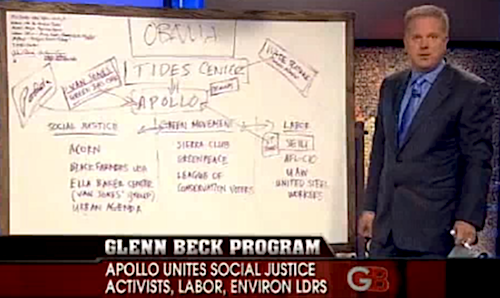
We now know that Williams was on his way to kill as many people as he could at the ACLU and the Tides Center. The ACLU has been attacked everywhere, but the Tides Center? What’s that?

Most people have never heard of the organization. It’s goal is to give backing to a variety of projects, focusing on progressive initiatives with an emphasis on social justice and change. Among its projects are organizations which promote clean energy, further civil & human rights, encourage philanthropy, fight violence against women, create youth centers, making Internet service available for the poor, and other such maniacally evil schemes.

Actually, it’s a fantastic institution which has done a lot of very good work. But here’s the thing: it’s a progressive organization. And ever since the right wing set out to vilify and destroy MoveOn.org, they have realized that they can do a lot of damage to the liberal side by targeting its most productive and effective public works organizations, one by one. ACORN was simply one of their recent successes. But another target is the Tides Center. Not because they actually do bad things, but because they empower women, minorities, the poor, and the oppressed, and work to clean up business and promote Communist principles like truth, justice, fairness, and other nefarious and dubious principles.

So naturally, Glenn Beck hates them. Which is why, if you’re not a frequent Beck watcher, you probably never heard of Tides; but if you’re a Fox fan, they will definitely have been on your radar for a while recently.

Most significantly, Beck has been after them more than anyone else.

So, when this nutball from rural California sets out to shoot and kill as many people as he can gun down in the Tides Center in San Francisco, you have to wonder no longer who pointed the way.

Beck-Tides-01

Beck-Tides-02

If I were someone at the Tides Center, I would be sending lawyers to interview Williams right now, trying to get information from the guy about how Glenn Beck showed him who to target, and then start a lawsuit. It would likely fail, but it would nevertheless highlight what Fox is doing, and how irresponsibly they are endangering innocent people by driving their fringe to violence.

And if you think Fox is oblivious to what effect their hysteric harangues are having, think again. I am willing to bet good money that they know exactly what they’re doing–that it is a purpose, not an accident.

You don’t make omelets without breaking a few eggs, right?

Not a Dry Heat

July 22nd, 2010 4 comments

Temperatures in Tokyo, or at least in my area of the city, rose to 37.6 degrees C–that’s roughly 100 degrees F. And humidity is up at around ninety percent. Five people nationwide died from the heat.

In short, it was hot today. Bright sunshine over the past several days, with the mercury rising higher and higher. Tonight, however, clouds with thunder came to the city, where they will stay for perhaps a little less than a week–but the temps will remain in the 90’s, as will the humidity.

Categories: Focus on Japan 2010 Tags:

Voting and Interests

July 22nd, 2010 20 comments

Today, Obama signed the financial reform plan into law, bringing back regulation to the financial industry to avoid future meltdowns like the one that occurred under the era of deregulation under Bush.

64% of Americans approve of the bill. It passed 60 to 39 in the Senate because of the Democratic majority, with Republicans monolithically voting against it. The GOP vows to repeal the regulations–they actually said they want no regulations–and let businesses do practically whatever the hell they want.

In a similar vote (this one 59 to 39), Democrats passed a bill to extend unemployment benefits, which will help those suffering from the economic crisis, and will pump more money into the spending side of the economy, where it is desperately needed.

Again, Republicans voted against it as a near-solid block, saying we should instead let rich people have more money. Even when reminded that this will increase the deficit, 62% of Americans approve of the extension.

So, Americans want out-of-control businesses who have helped wreck the economy brought under control; Democrats passed a law to do that, while Republicans sided with big business and against the people.

Americans want relief for the unemployed; Democrats passed a law to do that, while Republicans, again against the will of the people, told the unemployed to go suck it, it’s your fault you lost your job and rich people need that money more than you do.

Americans recoiled in horror at the BP oil spill; Democrats made BP pay for it, while Republicans clearly stood by the criminally reckless oil company.

After Bush and the Republicans brought the economy to its knees, brought massive job loss and massive deficits before Obama set foot into office, and after Democratic initiatives brought an abrupt stop to the job loss and now have us gaining jobs and doing everything they can to help those who still can’t find one…

…remind me, why are Americans set to elect more Republicans this year?

2010Cs